Chapter 2 - Choosing the right hardware
James Cameron
Picture this: You're about to unleash a blockbuster-worthy AI video with epic explosions, breathtaking landscapes, characters that leap off the screen, all conjured from your wildest prompts. But wait... nothing happens. Your computer chugs, stutters, and finally coughs up a pixelated mess. Sound familiar? That's the heartbreak of underpowered hardware. In this chapter you are going to learn about building your own AI video powerhouse. Think of it as gearing up for a high-stakes adventure where the right rig turns you from a novice into a digital Spielberg.
To create AI videos locally, you will need a computer and a Graphical Processing Unit (GPU). AI video creation works best on NVIDIA GPUs with a lot of Video Ram (VRAM). Video creation is very compute-intensive and GPUs do an excellent job of performing a lot of computations efficiently. NVIDIA GPUs come with a software framework called CUDA, which is required by the AI Video Models. Since other GPU manufacturers don’t support CUDA, only NVIDIA GPUs are fit for the job.
NVIDIA GPUs are natively supported on Windows and Linux (with Intel or AMD CPUs), so they are better for AI video generation than Macs. Unfortunately, CUDA isn’t available on Mac. However, we should note that community efforts are in place to adapt CUDA to use Apple's M1/M2/M3/M4 chips.
Using a local video server
To create AI videos locally, the best option is to setup a dedicated video server for yourself or your organization. A video server can be a standard PC with a single GPU with Linux installed, or it can be a server grade hardware with multiple GPUs inside.
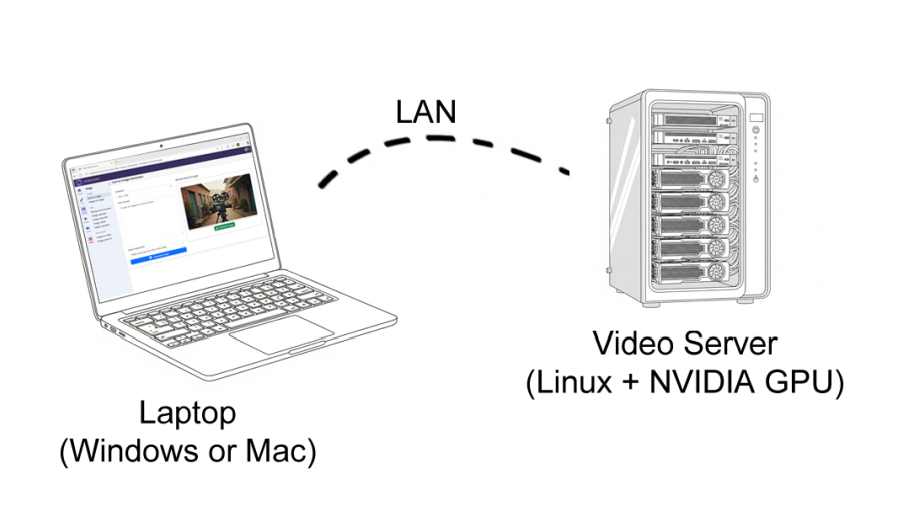
The advantage of having a dedicated video server is that it can be used by multiple users at the same time, and it takes the video generation workload off from your laptop, freeing up resources for other tasks. In this setup, the users can use the video server through a web browser. An AI video server can handle several video projects simultaneously, reducing wait times for rendering. Additionally, centralized storage on the server makes it easier to manage and back up video files securely.
Using a desktop PC with a built in GPU
The second-best option for AI video creation is to use a desktop PC with a built-in NVIDIA GPU. We call this setup the Video Workstation. A good desktop system may have one or even two GPUs and can offer efficient AI video generation capabilities. In fact, this is the most common setup used by solo video creators and social media influencers.
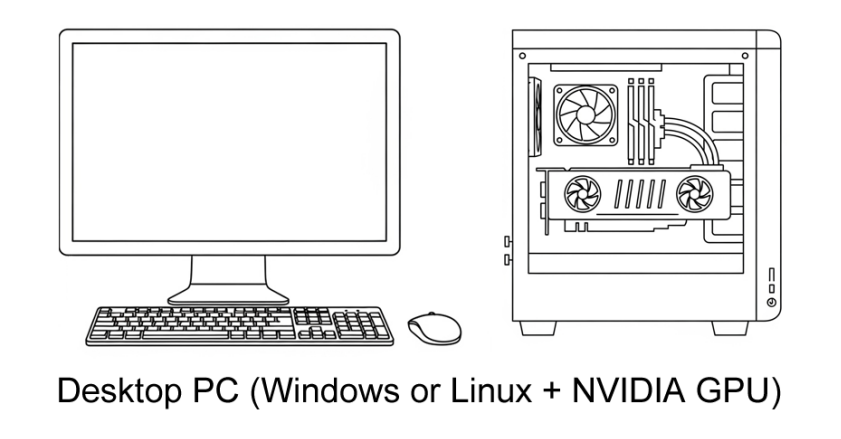
One of the main advantages of a desktop setup is speed and efficiency. With a high-end NVIDIA GPU installed directly on the motherboard, video generation runs much faster than on laptops or external GPUs, and larger models with more VRAM can be used without restrictions. Desktops also offer easy upgrade paths, so you can add additional GPUs, more RAM, or faster storage as your needs grow. This configuration provides full control over your hardware, ensures consistent performance during long rendering sessions, and reduces dependency on Internet connections or cloud service costs, making it a reliable choice for serious AI video creators.
Using a laptop with eGPU
The third option is to use an eGPU attached to your laptop. An eGPU is an external GPU unit, that is connected to a laptop via an USB4/Thunderbolt cable. It is a simple case for a standard NVIDIA GPU card with an external power supply.
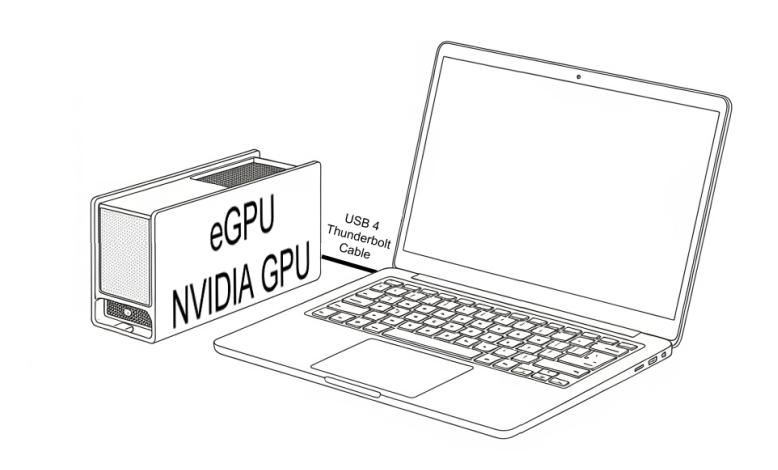
Using an eGPU with a laptop provides a flexible solution for creators who need GPU power on the go. An eGPU lets you connect a high-end NVIDIA GPU externally via Thunderbolt or USB4, effectively turning your laptop into a capable AI video workstation without replacing it. This setup allows you to take advantage of powerful desktop-grade GPUs while retaining the portability of a laptop. It is especially useful for creators who travel frequently or work in different locations but still need the performance required for AI video generation.
In addition to portability, eGPUs provide an easy upgrade path: you can swap out the GPU for a more powerful model in the future without buying a new laptop.
Using a laptop and cloud services
The fourth option is using a laptop with cloud services if you have no access to a local physical GPU. This option will not give you full control over your infrastructure, but is a good choice for some users.
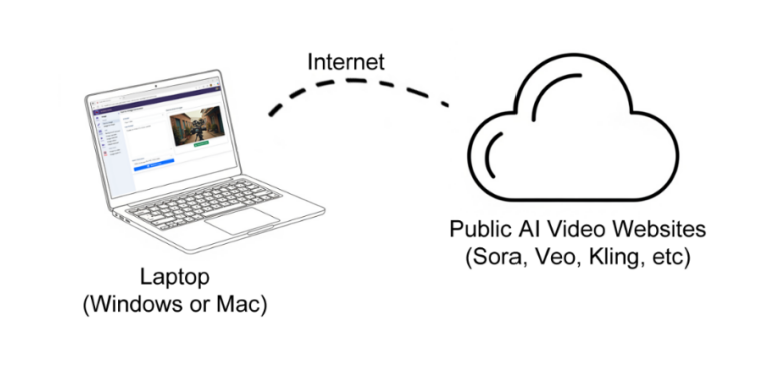
Using cloud services for AI video generation is also an excellent option for starters who don’t want to invest in expensive hardware while they are experimenting. There are public AI video generation websites and cloud providers who offer virtual machines with high-end NVIDIA GPUs that can handle demanding video generation tasks. With cloud services, you can access multiple GPUs on demand, scale your resources according to your project needs, and pay only for the time you use. This makes it especially convenient for creators who want to experiment without committing to a full desktop or server setup.
To use cloud services all you need is a laptop with a stable internet connection and a web browser to connect to the cloud platform. However, the downside is that you have limited control over the underlying hardware, and costs can add up if you generate large numbers of videos frequently. Despite these limitations, cloud services remain a practical and flexible way to start creating AI videos.
How to choose a GPU
For AI video generation, it is important to have the best GPU possible. A better GPU will allow you to make higher quality videos in a shorter amount of time. The most important parameter for your GPU is the amount of Video RAM (VRAM) it has. Choose a GPU with the most amount of VRAM possible. An older generation NVIDIA RTX 3090 or NVIDIA RTX 4090 with 24GB of VRAM is a better choice than a newer NVIDIA RTX 5070 with only 12GB of VRAM.
The minimum amount of GPU VRAM you need is 6GB. Note however that with such low amount of VRAM, your options will be very limited regarding which AI video generation models you can run.
To increase the amount of GPU VRAM, you can add multiple GPUs to your system. For example, if you insert two 24GB NVIDIA GPUs into your computer you can use 48GB of VRAM for your video generation projects.
If you have the budget, you should invest in a system with 64GB or 96GB GPU VRAM.
At the time of writing, the author of this book uses an NVIDIA RTX 6000 Pro Blackwell GPU with 96 GB of VRAM. This GPU can run all current video generation models and can generate 4K videos at a high speed.
Hardware configuration for a basic AI video PC
If you wish to create a basic desktop video workstation to get started, you can use the hardware configuration displayed on the following URL:
https://videcool.com/p_9068-recommended-hardware.html#basicThis configuration will allow you to use quantized (compressed) AI video generation models, and will make it possible to experiment with all local AI video generation tools and functions.
Hardware configuration for a desktop AI video workstation
If you are a serious video designer you will need a good AI video workstation. If you are unsure which hardware components to pick, you can go with the hardware configuration displayed on the following URL. The author will do his best to visit this configuration from time to time and keep it up to date.
https://videcool.com/p_9068-recommended-hardware.html#workstationAt the time of writing this configuration has 2 GPUs giving you a total of 64GB VRAM. This will require a more powerful power supply (1600W) and good airflow for cooling. This configuration can run almost all AI video generation models at reasonable speeds.
Hardware configuration for an AI video server
If you have a team of AI video creators, your best option is to build an AI video server. In this case go with the following hardware configuration:
https://videcool.com/p_9068-recommended-hardware.html#serverThis configuration will allow you to generate 4K videos with the latest video models at great speeds. This configuration is up to date at the time of writing. In the future, newer hardware may be more appropriate, so it might need updates. This is the configuration the author of this book is using.