
Hunyuan 3D v2.1 Image to 3D Asset ComfyUI workflow for Videcool
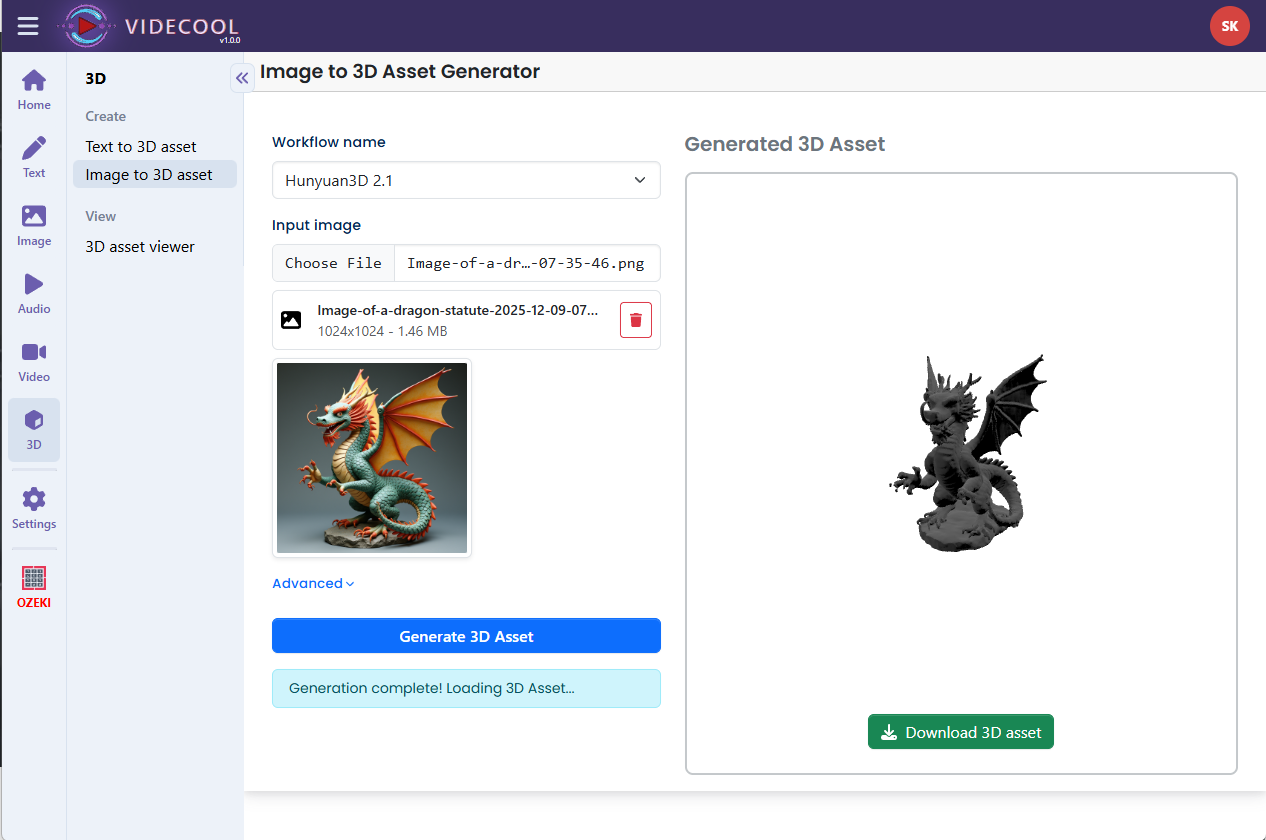
The Hunyuan 3D v2.1 image-to-3D-asset workflow in Videcool provides a powerful and flexible way to generate high-quality 3D meshes directly from single input images. Designed for speed, clarity, and creative control, this workflow is served by ComfyUI and uses the Hunyuan 3D v2.1 AI image-to-3D model repackaged for ComfyUI.
What can this ComfyUI workflow do?
In short: Image to 3D asset conversion.
This workflow converts a single 2D reference image into a textured 3D asset using diffusion-based 3D generation. It encodes the input image, predicts a volumetric representation, and outputs a coherent 3D mesh that can be used in games, animations, and other 3D pipelines. The base AI model is optimized for generating watertight meshes from posed character or object images, while preserving appearance and proportions from the input.
Example usage in Videcool
Download the ComfyUI workflow
Download ComfyUI Workflow file: 3d_hunyuan3d-v2.1-api.json
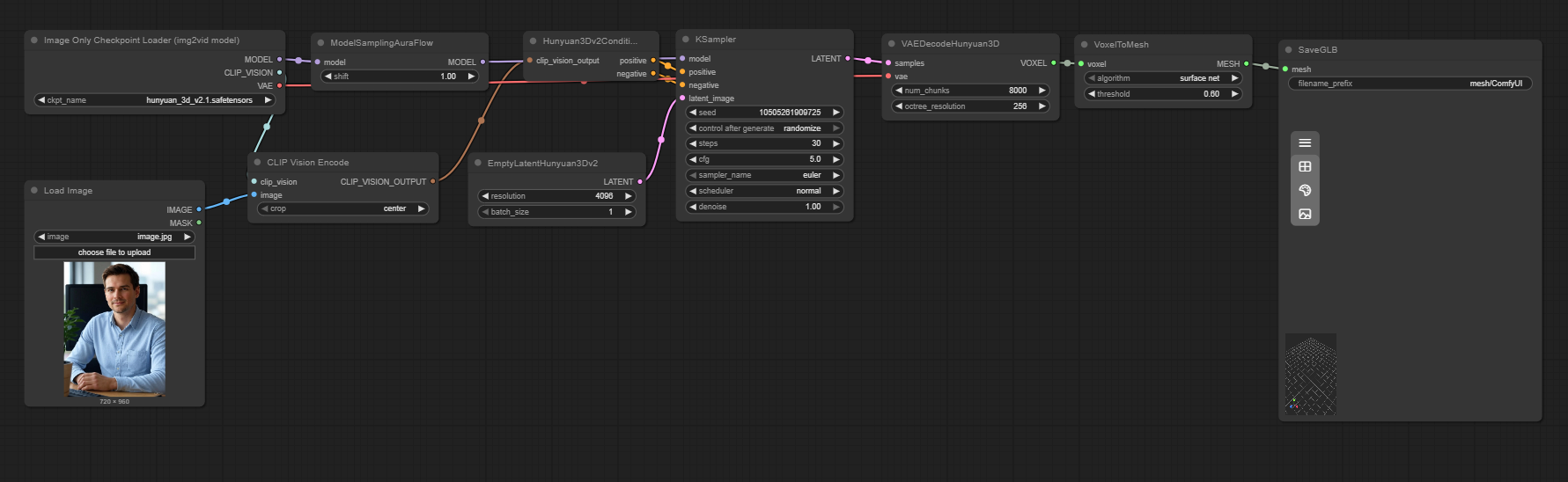
Image of the ComfyUI workflow
This figure provides a visual overview of the workflow layout inside ComfyUI. Each node is placed in logical order to establish a clean and efficient 3D generation pipeline, starting from loading the image and model checkpoint, through conditioning and sampling, and ending with voxel-to-mesh conversion and GLB export. Users can modify or expand parts of the workflow to change sampling quality, mesh density, or add post-processing steps before saving the final 3D asset.
Installation steps
Step 1: Download hunyuan_3d_v2.1.safetensors into /ComfyUI/models/checkpoints/hunyuan_3d_v2.1.safetensors.Step 2: Download the 3d_hunyuan3d-v2.1-api.json workflow file into your home directory.
Step 3: Restart ComfyUI after copying the checkpoint file.
Step 4: Open the ComfyUI graphical user interface (ComfyUI GUI).
Step 5: Load the 3d_hunyuan3d-v2.1-api.json workflow in the ComfyUI GUI.
Step 6: In the Load Image node, select the source image you want to convert to a 3D asset.
Step 7: Adjust sampler steps, guidance parameters, or resolution in the KSampler or conditioning nodes if needed.
Step 8: Run the workflow to generate the 3D voxel representation and then convert it to a mesh.
Step 9: Use the SaveGLB node output to export the final 3D asset as a GLB file.
Step 10: Open Videcool in your browser, select the image-to-3D asset tool, and use the generated GLB for further scene creation or animation.
Installation video
The workflow requires only a reference image and a few basic parameter adjustments to begin generating 3D assets. After loading the JSON file, users can select the image file, tweak sampling quality, and control how detailed the final mesh should be through voxel and sampler settings. Once executed, the sampler produces a volumetric 3D representation that is decoded into a mesh and saved as a GLB, which can then be imported into Videcool or external 3D tools.
Prerequisites
To run the workflow correctly, download the Hunyuan 3D v2.1 checkpoint file and place it into your ComfyUI directory. This file contains the 3D diffusion weights that transform 2D appearance information into a volumetric 3D structure and mesh. Proper installation into the following location is essential before running the workflow: {your ComfyUI directory}/models/checkpoints.
ComfyUI\models\checkpoints\hunyuan_3d_v2.1.safetensors
https://huggingface.co/Comfy-Org/hunyuan3D_2.1_repackaged/resolve/main/hunyuan_3d_v2.1.safetensors
How to use this workflow in Videcool
Videcool integrates seamlessly with ComfyUI, allowing users to turn images into 3D assets and then bring those assets into scenes or animations. After generating and exporting the GLB from ComfyUI, you can upload or select the asset in Videcool’s 3D tools and place it into a project. This makes 3D asset creation intuitive and accessible, even for users without traditional 3D modeling skills, because the AI model handles geometry and topology generation from the source image.
ComfyUI nodes used
This workflow uses the following nodes. Each node performs a specific role, such as loading the image and model checkpoint, encoding visual features, sampling the 3D latent field, and finally decoding and converting voxels into a mesh before saving the GLB file. Together they create a reliable and modular 3D generation pipeline that can be extended or customized.
- Image Only Checkpoint Loader (img2vid model)
- Load Image
- ModelSamplingAuraFlow
- EmptyLatentHunyuan3Dv2
- Hunyuan3Dv2Conditioning
- KSampler
- VAEDecodeHunyuan3D
- VoxelToMesh
- SaveGLB
- CLIP Vision Encode
Base AI model
This workflow is built on the Hunyuan 3D v2.1 model, a modern diffusion-based image-to-3D generator that predicts volumetric geometry and appearance from a single image. The Hunyuan 3D v2.1 ComfyUI repack exposes the checkpoint in a format that pairs with specialized conditioning and decoding nodes to produce meshes suitable for real-time engines and offline rendering.
Hugging Face repository (Hunyuan 3D v2.1 repack):https://huggingface.co/Comfy-Org/hunyuan3D_2.1_repackaged
Output resolution and mesh quality
Hunyuan 3D v2.1 generates a volumetric representation that is then converted into a 3D mesh, and the perceived resolution depends on voxel density and sampling configuration in the workflow. Higher sampling steps and finer voxel-to-mesh settings can increase detail and smoothness, but also require more VRAM and time, so it is recommended to balance quality and performance based on your hardware.
Conclusion
The Hunyuan 3D v2.1 image-to-3D-asset workflow is a robust, powerful, and user-friendly solution for creating 3D content in Videcool. With its combination of advanced 3D diffusion models, a modular ComfyUI pipeline, and seamless integration into Videcool projects, it enables beginners and professionals alike to turn simple images into production-ready 3D assets. By understanding the workflow components and installation steps, users can unlock the full potential of AI-assisted 3D asset creation within Videcool.