
Image Object Remove ComfyUI workflow for Videcool
The Image Object Remove workflow in Videcool provides a powerful and flexible way to remove unwanted objects from images while seamlessly filling in the background. Designed for speed, clarity, and creative control, this workflow is served by ComfyUI and uses advanced inpainting models combined with content-aware fill technology.
What can this ComfyUI workflow do?
In short: Intelligent object removal and inpainting.
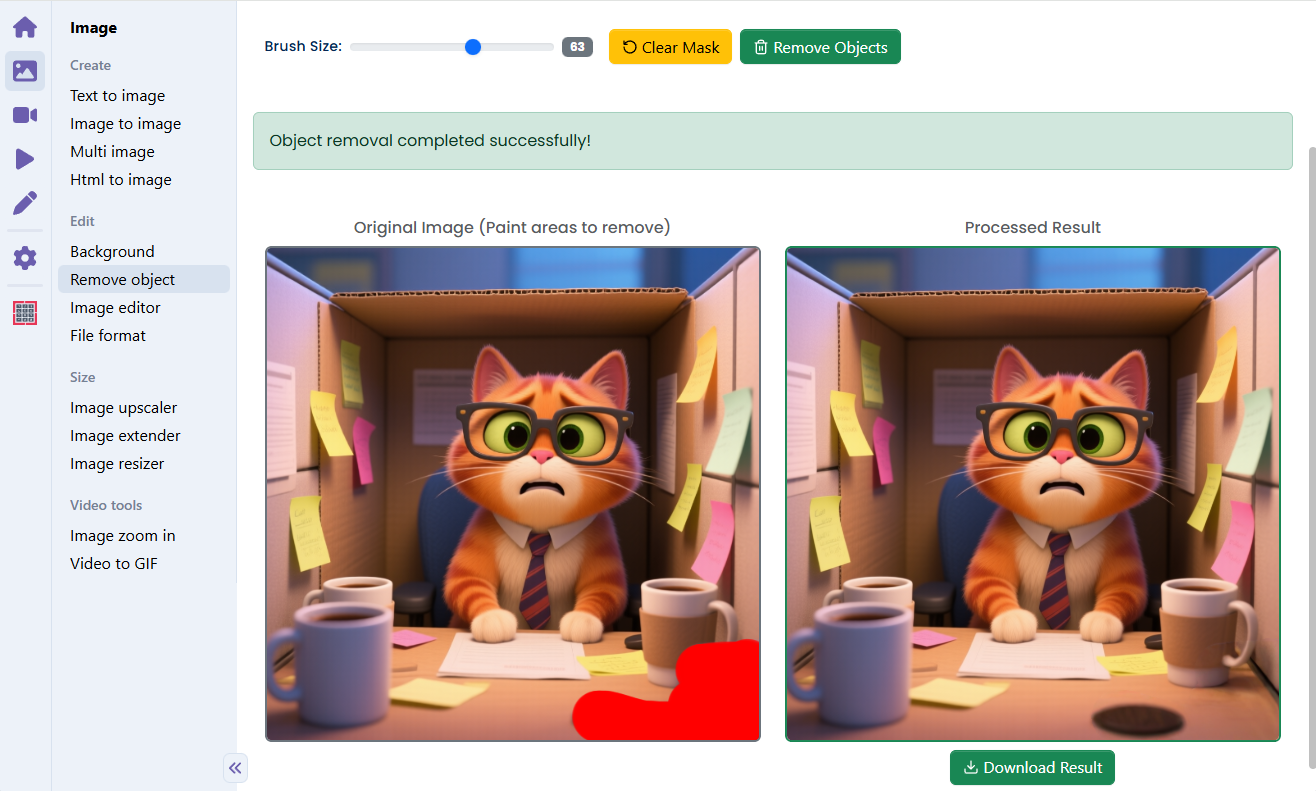
This workflow identifies objects in an image that you want to remove and uses diffusion-based inpainting to intelligently fill in the removed area with contextually appropriate content. It interprets the surrounding pixels and generates natural-looking replacements that blend seamlessly with the rest of the image. The workflow uses specialized inpainting models optimized for object removal and can handle complex backgrounds and various image compositions.
Example usage in Videcool
Download the ComfyUI workflow
Download ComfyUI Workflow file: object_remove_api.json
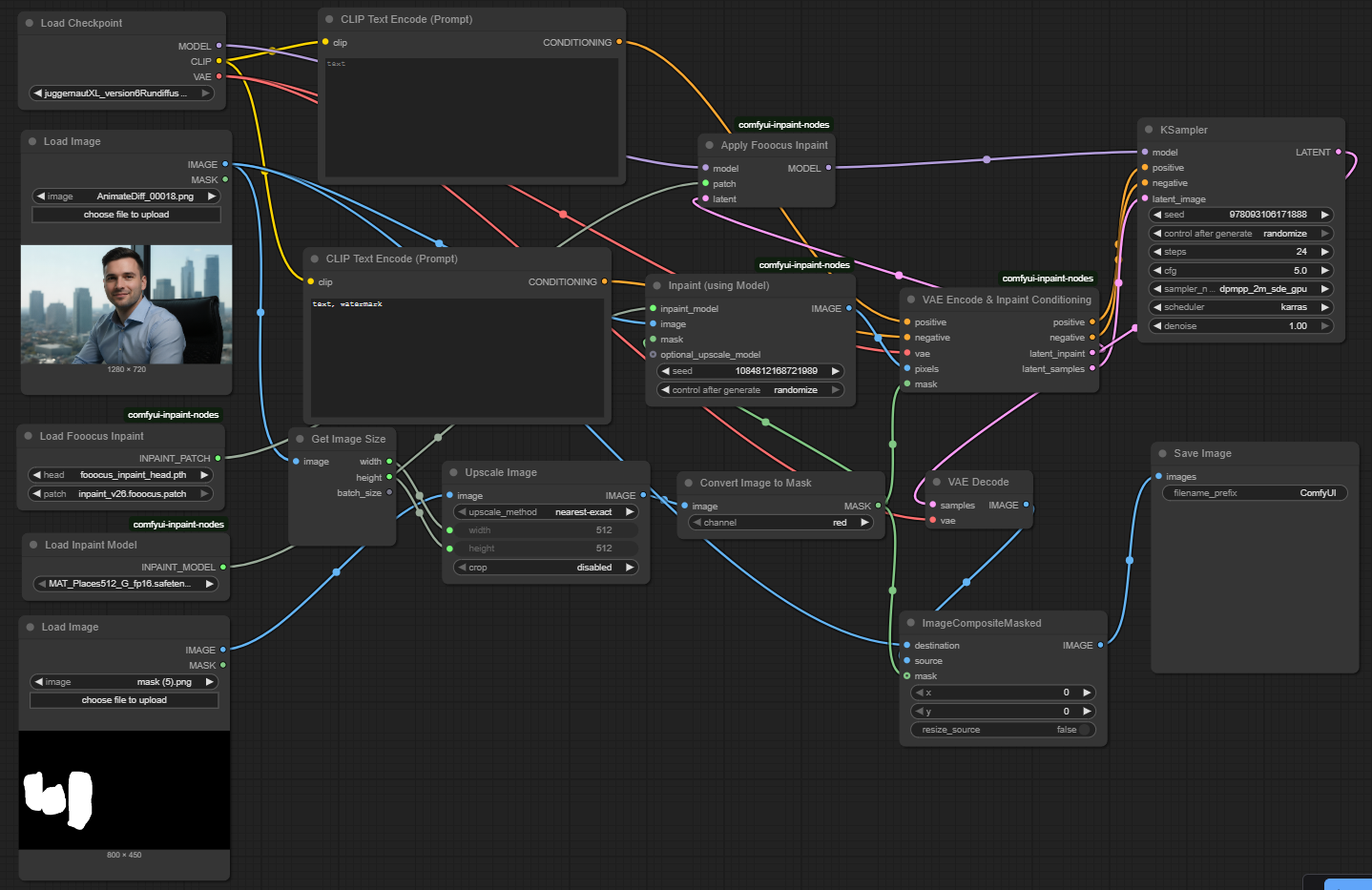
Image of the ComfyUI workflow
This figure provides a visual overview of the workflow layout inside ComfyUI. Each node is placed in logical order to establish a clean and efficient object removal pipeline, starting from loading the source image and models, through masking and inpainting nodes, and ending with final compositing and saving. The structure makes it easy to understand how the checkpoint model, inpaint models, mask processing, and sampler interact. Users can modify or expand parts of the workflow to create custom variations for different removal scenarios.
Installation steps
Step 1: Install the comfyui-inpaint-nodes custom node using ComfyUI Manager: Manage custom nodes → Search "comfyui-inpaint-nodes" → Install Latest.Step 2: Download MAT_Places512_G_fp16.safetensors into /ComfyUI/models/inpaint/.
Step 3: Download fooocus_inpaint_head.pth into /ComfyUI/models/inpaint/.
Step 4: Download inpaint_v26.fooocus.patch into /ComfyUI/models/inpaint/.
Step 5: Download juggernautXL_version6Rundiffusion.safetensors into /ComfyUI/models/checkpoints/.
Step 6: Download the object_remove_api.json workflow file into your home directory.
Step 7: Restart ComfyUI so the custom node and model files are recognized.
Step 8: Open the ComfyUI graphical user interface (ComfyUI GUI).
Step 9: Load the object_remove_api.json workflow in the ComfyUI GUI, then select the image containing the object you want to remove.
Step 10: Mark the object region with a mask or use the masking tools, then hit run to remove the object and fill in the background.
Step 11: Open Videcool in your browser, select the Image Object Remove tool, and use the cleaned images in your video or design projects.
Installation video
The workflow requires only an input image and a mask defining the area to remove, plus a few basic parameter adjustments. After loading the JSON file, users can select the source image, define or generate a mask for the object to remove, and adjust inpainting quality and guidance parameters. Once executed, the inpainting models process the masked region and produce a clean output with the object removed and background filled seamlessly. The result can be saved and reused across other Videcool tools.
Prerequisites
To run the workflow correctly, download the inpainting model files, checkpoint models, and install the comfyui-inpaint-nodes custom node. These files contain the weights for object detection, inpainting, and content-aware fill. Proper installation into the following locations is essential before running the workflow: {your ComfyUI director}/models/inpaint and {your ComfyUI director}/models/checkpoints.
ComfyUI\models\inpaint\MAT_Places512_G_fp16.safetensors
https://huggingface.co/Acly/MAT/resolve/main/MAT_Places512_G_fp16.safetensors
ComfyUI\models\inpaint\fooocus_inpaint_head.pth
https://huggingface.co/lllyasviel/fooocus_inpaint/resolve/main/fooocus_inpaint_head.pth
ComfyUI\models\inpaint\inpaint_v26.fooocus.patch
https://huggingface.co/lllyasviel/fooocus_inpaint/resolve/main/inpaint_v26.fooocus.patch
ComfyUI\models\checkpoints\juggernautXL_version6Rundiffusion.safetensors
https://huggingface.co/frankjoshua/juggernautXL_version6Rundiffusion/resolve/main/juggernautXL_version6Rundiffusion.safetensors
How to use this workflow in Videcool
Videcool integrates seamlessly with ComfyUI, allowing users to remove unwanted objects from images directly without managing the underlying node graph. After importing the workflow file, simply select your image, define the area to remove, and click generate. The system handles all backend interactions with ComfyUI. This makes object removal intuitive and accessible, even for users who are not keen on learning how ComfyUI works. The following video shows how this model can be used in Videcool:
ComfyUI nodes used
This workflow uses the following nodes. Each node performs a specific role, such as loading images and models, generating masks, processing inpainting conditioning, sampling, and compositing the final result. Together they create a reliable and modular pipeline that can be easily extended or customized.
- Load Checkpoint
- Load Image
- Load Fooocus Inpaint
- Load Inpaint Model
- Get Image Size
- Text Encode
- Convert Image to Mask
- VAE Encode & Inpaint Conditioning
- Apply Fooocus Inpaint
- KSampler
- VAE Decode</LI>
- ImageCompositeMasked
- Save Image
- Apply Fooocus Inpaint
- Inpaint (using Model)
- Upscale Image
Base AI model
This workflow is built on a combination of advanced inpainting models including MAT (Mask-Aware Transformer) and Fooocus Inpaint, along with the JuggernautXL base diffusion model. These models work together to intelligently detect objects and fill in removed areas with content that matches the surrounding context. The combination provides clarity, coherence, and reliability, making it suitable for both artistic and professional content editing use cases. The models benefit from advanced training on diverse images and offer consistent results across various object types and backgrounds.
MAT Model repository:https://huggingface.co/Acly/MAT
Fooocus Inpaint repository:https://huggingface.co/lllyasviel/fooocus_inpaint
JuggernautXL repository:https://huggingface.co/frankjoshua/juggernautXL_version6Rundiffusion
Object removal quality
Object removal quality depends on several factors: the complexity of the background, the size of the object to remove, and the quality of the mask defining the removal area. For best results, use high-quality source images with clear backgrounds, and define masks that tightly encompass the objects to be removed. Complex scenes with intricate textures may require adjusting sampling steps and guidance parameters. The workflow supports various image resolutions and can be optimized based on your hardware capabilities.
Conclusion
The Image Object Remove ComfyUI workflow is a robust, powerful, and user-friendly solution for removing unwanted objects from images in Videcool. With its combination of advanced inpainting models, a modular ComfyUI pipeline, and seamless platform integration, it enables beginners and professionals alike to produce clean, professional-grade images with ease. By understanding the workflow components and advantages, users can unlock the full potential of AI-assisted object removal in Videcool.