
Convert Image to Mask
The Convert Image to Mask node enables extraction of channel-specific masks from images in ComfyUI. It simplifies isolating parts of an image based on color or transparency, supporting precise masking for inpainting, compositing, or attention-based workflows.
Overview
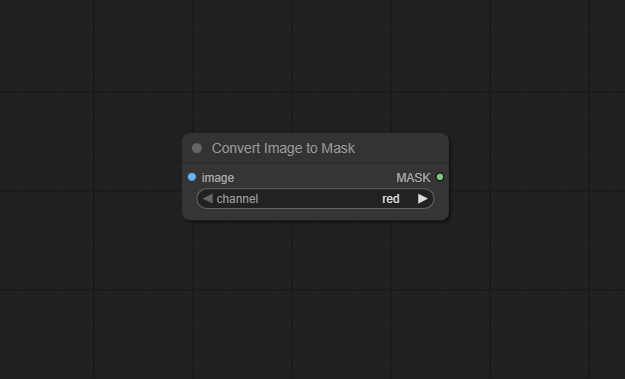
Convert Image to Mask (class: ImageToMask) transforms a loaded or generated image into a mask using a
selected channel—red, green, blue, or alpha. This provides a straightforward way to leverage any image’s channel data to produce
a binary or grayscale mask for downstream use, such as region selection, mask-based effects, or conditional generative pipelines.
The node acts as a bridge between image data and mask-driven nodes like Inpaint or masked compositing, and can be combined with custom blending or logic.
Visual Example
Official Documentation Link
https://comfyui-wiki.com/en/comfyui-nodes/mask/image-to-mask
Inputs
| Parameter | Data Type | Input Method | Default |
|---|---|---|---|
| image | IMAGE | Node input (Load Image, VAE Decode, etc.) | — |
| channel | String (Combo: "red", "green", "blue", "alpha") | Dropdown selector | "alpha" |
Outputs
| Output Name | Data Type | Description |
|---|---|---|
| mask | MASK | The binary or grayscale mask extracted from the chosen channel of the input image |
Usage Instructions
Connect an image node (such as Load Image or VAE Decode) to the “image” input. Choose the desired channel (red, green, blue, or alpha) via the dropdown. The node outputs a mask corresponding to the selected channel—typically as a binary or grayscale representation. Connect this mask output to nodes needing mask input, such as inpainting, masked compositing, object detection, or region-specific enhancements.
Advanced Usage
For advanced workflows, use this node to derive multiple masks from different color channels, enabling channel-specific inpainting, color isolation, or compositing. Combine with logic nodes for conditional masking—such as blending, intersection, or union of masks. Pair with stylization or segmentation to emphasize or ignore specific regions in downstream generative models. If your images have complex or non-standard alpha channels, inspect and preprocess them for best results.
Example JSON for API or Workflow Export
{
  "id": "convert_image_to_mask_1",
  "type": "ImageToMask",
  "inputs": {
    "image": "@input_image_1",
    "channel": "red"
  }
}
Tips
- Use the alpha channel for transparency-based masking—ideal for PNG cutouts or rendered masks.
- Red, green, or blue channels can help isolate artwork details, overlays, or channel-specific highlights.
- Combine multiple mask outputs for multi-region or multi-effect workflows—this enables layered edits.
- If your result is not what you expect, preview input channels visually in a viewer node.
How It Works (Technical)
The node extracts the specified channel’s data from the input image tensor and formats it into a mask (binary or grayscale), preserving spatial alignment. Channel extraction is performed per-pixel; the result is passed downstream as a mask tensor, ready for logical, generative, or compositional use in ComfyUI’s processing pipeline.
Github Alternatives
- ComfyUI_LayerStyle – Highly customizable, supports conversion of channels from multiple color spaces (LAB, YUV, HSV, RGBA) to masks, with color scaling options.
- masquerade-nodes-comfyui – Advanced mask generation and extraction nodes, supports intensity and alpha mapping as well as more complex masking workflows.
- ComfyUI-utils-nodes – Includes enhanced ImageCompositeMasked node, batch mask processing, and utility functions for image-to-mask operations.
Videcool workflows
The Convert Image to Mask node is used in the following Videcool workflows:
FAQ
1. Can I use any image as input?
Yes, as long as the image has the channel you're extracting (R, G, B, or alpha).
2. What if my image has no alpha channel?
The output mask will be empty or full, depending on implementation—check your source image’s properties.
3. Can I use this node for non-square or non-RGB images?
It works for standard images; results may vary for nonstandard formats—preprocess or convert if unsure.
Common Mistakes and Troubleshooting
Typical issues include confusion over which channel to extract (always check image content and channel mapping for accuracy). Using an image without the intended channel may result in empty or uninformative masks. When working in batch, verify that all input images are compatible and similarly preprocessed; inconsistencies can cause abrupt workflow failures or unexpected results. Always preview intermediate outputs to debug.
Conclusion
Convert Image to Mask is a core workflow node for converting channel-based image information into masks, empowering advanced compositing, selective editing, and region-aware AI processing in ComfyUI.