
VAE Encode
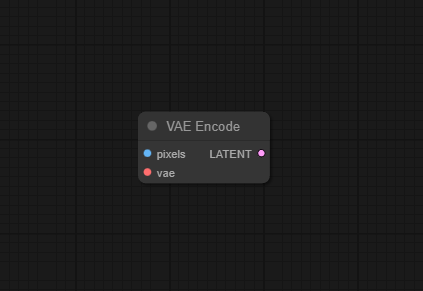
The VAE Encode node encodes pixel-space images into compressed latent representations using a selected Variational Autoencoder (VAE), providing the standard bridge from images to LATENT tensors in ComfyUI workflows.
Overview
VAE Encode takes an input image and a VAE model and produces a LATENT
object that captures the essential structure and features of the image in a lower-dimensional space.
This latent representation is what samplers, image-to-image workflows, and many advanced nodes operate on
for efficiency and quality. The node is typically used when bringing external images into a latent-based pipeline
(for example, for img2img, inpainting variants, or latent manipulation) and pairs naturally with VAE Decode,
which reconstructs images back from latents.
Visual Example
Official Documentation Link
https://comfyui-wiki.com/en/comfyui-nodes/latent/vae-encode
Inputs
| Parameter | Data Type | Input Method | Default |
|---|---|---|---|
| pixels | IMAGE | Connection from Load Image or any image‑producing node | — (required) |
| vae | VAE | Connection from a VAE loader (from checkpoint or standalone VAE) | — (required) |
Outputs
| Output Name | Data Type | Description |
|---|---|---|
| latent | LATENT | Latent-space representation of the input image, suitable for samplers, latent edits, and downstream processing |
Usage Instructions
To use VAE Encode, first load or generate an image and pass it into the pixels input, then connect a matching vae model (often from the same checkpoint used by your diffusion model). The node outputs a latent object that you can connect to KSampler (for img2img), inpainting variants, or any node that expects LATENT input. Ensure the chosen VAE matches the model family (for example SD1.5 vs SDXL vs custom VAE) to avoid color shifts or artifacts when later decoding.
Advanced Usage
For high-resolution or VRAM‑constrained workflows, combine VAE Encode with tiled or batched variants (such as VAE Encode (Tiled) or VAE Encode Batched) to encode large images or video frames efficiently. When building inpainting setups, specialized nodes like “VAE Encode (for Inpainting)” extend this behavior by incorporating masks and denoise ranges, but they rely on the same fundamental encoding step. You can also compare the effects of different custom VAEs (for example, detail‑enhancing or face‑optimized VAEs) by encoding and decoding the same image and visually inspecting differences, helping you choose the best VAE for your style or domain.
Example JSON for API or Workflow Export
{
   "id":"vae_encode_1",
   "type":"VAEEncode",
   "inputs":{
      "pixels":"@load_image_1",
      "vae":"@load_vae_1"
   }
}
Tips
- Always pair the VAE with the diffusion model it was trained for to reduce issues like washed‑out colors or distorted faces.
- Preprocess images (resize, crop, normalize) before encoding if they are very large or oddly shaped, to keep latent sizes manageable and compatible with downstream nodes.
- When troubleshooting artifacts, run a simple encode→decode round trip (VAE Encode → VAE Decode) on your source image to see what the VAE alone is doing.
- Use tiled or batched VAE encoders for video frames or huge canvases to avoid running out of VRAM during encoding.
- Keep an eye on latent size (H, W) after encoding; extremely large latents will make samplers and control nodes significantly heavier.
How It Works (Technical)
Internally, VAE Encode takes the input pixels tensor in image space, normalizes it according to the VAE’s expected range,
and passes it through the encoder part of the Variational Autoencoder. The encoder produces a latent distribution (mean and variance);
ComfyUI typically uses the mean (or a sampled value) scaled by the VAE’s internal factor to produce a latent tensor \([B,C,H',W']\)
that is smaller spatially than the original image. This tensor, plus associated metadata, is wrapped into a LATENT object used throughout
ComfyUI for fast diffusion sampling and manipulation.
Github alternatives
- ComfyUI-TiledDiffusion & VAE – provides tiled VAE encode/decode nodes that split images into tiles, enabling very large image encoding with limited VRAM.
- ComfyUI-LightVAE – a collection of LightVAE/LightTAE nodes for high‑performance video and image VAEs, offering alternative encoders specialized for certain models.
- ComfyUI core repository – contains the reference implementation of VAEEncode and related nodes, useful for understanding exact behavior and integrating with other built‑in components
FAQ
1. How is VAE Encode different from Unsampler?
VAE Encode converts an image into a latent once, while Unsampler performs a partial diffusion process that both encodes structure
and positions it at a chosen denoising step for img2img; Unsampler is for guided re‑generation, VAE Encode is just encoding.
2. Can I use any VAE model with any checkpoint?
Technically yes, but mixing mismatched VAEs and checkpoints often leads to color shifts or artifacts; best practice is to use
the VAE bundled with or recommended for your diffusion model.
3. Why do faces or fine details change after encode→decode?
VAEs are lossy compressors; if the VAE is low‑capacity or not well‑matched to your data, high‑frequency details like faces may
blur or distort—using a higher‑quality or model‑specific VAE can reduce this effect.
Common Mistakes and Troubleshooting
A frequent mistake is accidentally using the wrong VAE for a given checkpoint, which can produce washed‑out colors,
contrast issues, or odd artifacts; if this happens, switch to the checkpoint’s recommended VAE and test with an encode→decode
round trip. Another common issue is feeding extremely large images into VAE Encode, resulting in huge latents and slow
or memory‑hungry downstream nodes—mitigate this by resizing first or using tiled encoders. If you encounter “Image not
recognized” or similar errors, verify that the pixels input is a valid IMAGE type and that the VAE is
properly loaded; corrupted or unsupported image formats should be converted before use. Performance regressions after
updates can often be traced to changes in VAE implementations, so check release notes and consider adjusting tile sizes
or batch sizes when upgrading.
Conclusion
VAE Encode is a foundational latent node in ComfyUI, transforming images into compact LATENT representations that power efficient sampling, editing, and advanced workflows, and working in tandem with VAE Decode and specialized VAE extensions to support everything from simple img2img to large‑scale, high‑resolution pipelines.