
Inpaint (using Model)
The Inpaint (using Model) node enables high-quality, targeted image inpainting in ComfyUI, using a pre-trained model like LaMa or MAT to seamlessly restore masked or corrupted image regions. It streamlines object removal, restoration, and content-aware editing for both creative and repair workflows.
Overview
Inpaint (using Model) fills in specific regions of an image defined by a binary or grayscale mask.
By leveraging state-of-the-art inpainting networks, the node synthesizes plausible content where required, blending the
new region naturally with the rest of the image. It is typically used in conjunction with mask generation nodes,
and requires the inpainting model to be loaded (e.g., via Load Inpaint Model). Outputs can be directly
chained to upscaling, compositing, or save nodes for further processing or export.
Visual Example
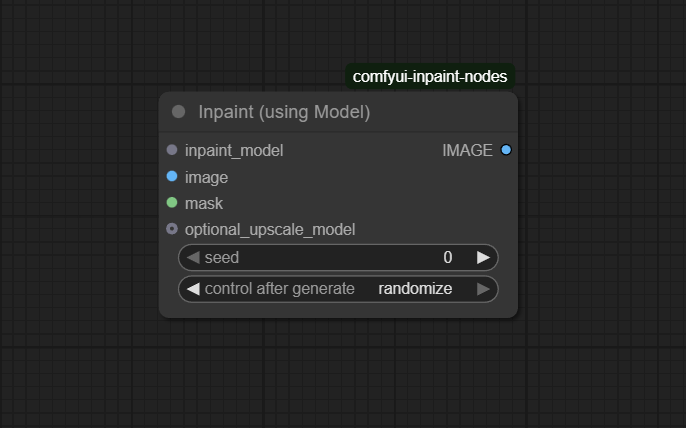
Official Documentation Link
https://www.runcomfy.com/comfyui-nodes/comfyui-inpaint-nodes/INPAINT_InpaintWithModel
Inputs
| Parameter | Data Type | Input Method | Default |
|---|---|---|---|
| image | IMAGE | Node input (e.g., Load Image, VAE Decode) | — |
| mask | MASK | Mask node (binary/grayscale, same dimensions as image) | — |
| inpaint_model | Object | Loaded inpaint model (e.g., from Load Inpaint Model) | — |
| seed | Int | Numeric input (optional) | Random |
| upscaler | Object | Optional upscaler model node | None |
Outputs
| Output Name | Data Type | Description |
|---|---|---|
| inpainted_image | IMAGE | Image with masked regions filled in by the inpainting model |
Usage Instructions
Load or prepare your input image and create a binary or grayscale mask indicating regions to inpaint (using e.g. Convert Image to Mask or manual mask drawing). Load your desired inpainting model (LaMa, MAT, etc.) with the Load Inpaint Model node. Connect the image, mask, and model to the Inpaint (using Model) node. Optionally, set a random seed for reproducibility or experimentation, and attach an upscaler if higher resolution is needed. The node will generate an inpainted image with seamless filling in the masked areas.
Advanced Usage
In advanced workflows, chain multiple Inpaint nodes with different masks to repair, refine, or iteratively edit complex images. Integrate with mask expansion/feathering nodes for smoother edges, or batch process using variable seeds for multi-result exploration. Apply with both object removal and outpainting for creative extension. Use different inpainting models (LaMa for speed, MAT for fidelity) to compare and blend results. Extend with custom upscaling to achieve photo-realistic restoration at high resolutions.
Example JSON for API or Workflow Export
{
  "id": "inpaint_using_model_1",
  "type": "INPAINT_InpaintWithModel",
  "inputs": {
    "image": "@input_image_1",
    "mask": "@mask_1",
    "inpaint_model": "@inpaint_load_1",
    "seed": 42
  }
}
Tips
- Use high-quality, well-aligned masks for the best inpainting results.
- Try different seeds for subtle variations in filled regions.
- Adjust mask softness using feathering nodes to blend edges more naturally.
- Use the upscaler input for direct enhancement of the inpainted output.
- Reference model and mask compatibility—ensure inpaint model supports your image’s type and size.
How It Works (Technical)
The node takes the input image and applies the provided binary/grayscale mask to identify areas for inpainting. The pre-trained model (LaMa, MAT, etc.) generates plausible content to fill the masked regions while keeping unmasked regions intact. Optional randomization via seed allows for stochastic variation. If an upscaler is connected, the inpainted output is processed for enhanced resolution. The result is returned as a single image tensor for downstream use.
Github Alternatives
- comfyui-inpaint-nodes – LaMa, MAT, Fooocus, and advanced prefill expansion, upscaler chaining, region compositing, telea/navier-stokes fill, and much more.
- LCM_Inpaint_Outpaint_Comfy – Latent consistency model for in/outpainting, prompt control, and weighted region mixing with custom mask handling.
- ComfyUI-LevelPixel – Region crop-and-stitch, pipeline, and advanced masking nodes for compositional image repair and editing.
- comfyui-masquerade – Powerful full-res mask toolkit, inpainting, occlusion, contour, and blending utilities.
Videcool workflows
The Inpaint (using Model) node is used in the following Videcool workflows:
FAQ
1. Which inpainting models are supported?
LaMa, MAT, Fooocus, and any installed compatible inpaint/checkpoint model.
2. Do mask and image need to be the same size?
Yes, always match mask and image dimensions for seamless inpainting.
3. How do I get a mask for use with this node?
Use Convert Image to Mask or manual mask drawing nodes, or produce masks with other AI/compositing tools.
Common Mistakes and Troubleshooting
Mask and image shape mismatch is the most common error—always check alignment, especially when scaling or cropping before inpainting. Using incompatible or uninitialized models may yield blank or corrupted output. Poor quality masks (imprecise or jagged edges) lead to unnatural fills—use feathering or expansion tools for cleaner transitions. If results are unexpected, experiment with different seeds, or verify that input is preprocessed correctly. For advanced fill algorithms (telea, navier-stokes), ensure dependencies like OpenCV are properly installed.
Conclusion
Inpaint (using Model) is an indispensable node for powerful, accurate, and creative image restoration and editing in ComfyUI. By leveraging AI models and high-quality masks, it transforms object removal, restoration, and image extension into seamless, accessible workflows.