
Load Upscale Model
The Load Upscale Model node loads a specific pretrained upscaling model from the
models/upscale_models directory (and any extra model paths) and exposes it as an UPSCALE_MODEL
object for use in image‑upscaling nodes.
Overview
Load Upscale Model is a core loader in the loaders category that bridges on‑disk ESRGAN/Real‑ESRGAN and similar models into
ComfyUI workflows. It scans the configured upscale_models folders, lists available models, and returns a handle
that nodes like Upscale Image (using Model) or custom upscalers consume to enlarge images with minimal quality loss.
In a typical graph it sits between model storage and the actual upscaling node, keeping model management separate from image processing.
Visual Example
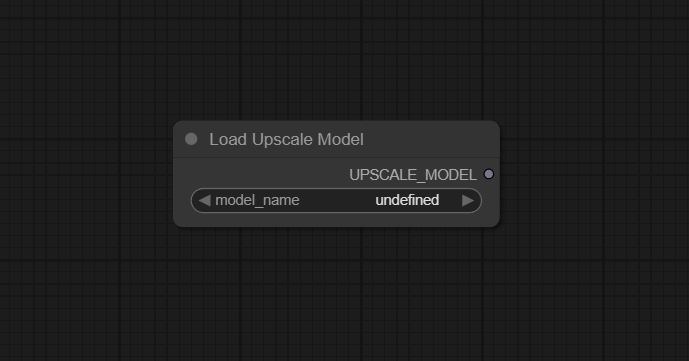
Official Documentation Link
https://comfyui-wiki.com/en/comfyui-nodes/loaders/upscale-model-loader
https://comfyai.run/documentation/UpscaleModelLoader
Inputs
| Parameter | Description | Input Method | Default |
|---|---|---|---|
| model_name | Name of the upscale model file to load from models/upscale_models and any extra model paths (for example 4x-UltraSharp.pth, realesrgan-x4plus). |
Combo / dropdown of discovered model filenames (COMBO[STRING]) | None (user must select one of the detected models) |
Outputs
| Output Name | Description |
|---|---|
| upscale_model | Loaded UPSCALE_MODEL object representing the chosen upscaler, ready to be connected into Upscale Image (using Model) or other upscaling nodes. |
Usage Instructions
Place the Load Upscale Model node in your graph, then click the model_name dropdown and
select an installed upscale model from models/upscale_models (refresh the UI if a newly copied model does not appear).
Connect its upscale_model output to the corresponding model input on Upscale Image (using Model)
or a compatible custom upscaler, and feed an IMAGE into that node to perform the actual upscaling. Adjust scale and other image‑node
parameters there; Load Upscale Model’s job is only to provide the correct model weights.
Advanced Usage
Advanced pipelines often expose model_name as a user‑tunable parameter so different upscalers (for example sharp,
denoising, anime‑specific) can be swapped without changing graph structure, enabling rapid A/B testing of quality and speed. When working
across multiple drives or shared model repositories, configure extra_model_paths.yaml so that additional upscale_models
folders are scanned, then restart or refresh ComfyUI to populate the dropdown accordingly. Complex workflows may chain several upscalers at
different scales (for example 1.5× then 2×) using different models loaded by multiple Load Upscale Model nodes, giving fine control over
texture and detail restoration at each stage.
Example JSON for API or Workflow Export
{
   "id":"load_upscale_model_1",
   "type":"UpscaleModelLoader",
   "inputs":{
      "model_name":"4x-UltraSharp.pth"
   }
}
Tips
- Copy ESRGAN/Real‑ESRGAN and other upscale weights into
ComfyUI/models/upscale_models(or folders listed inextra_model_paths.yaml) so Load Upscale Model can discover them. - If a newly added model does not show up in model_name, restart or refresh the ComfyUI UI; the node rescans folders on startup or refresh.
- Use descriptive filenames (for example
4x-AnimeSharp.pth,4x-PhotoDetail.pth) to remember each model’s intended content‑type. - Pair heavy, high‑quality models with GPU execution and keep final upscale scale reasonable to avoid unnecessary VRAM and time usage.
- Document which upscaler was used alongside your outputs (for example in workflow notes), so successful looks are easy to reproduce later.
How It Works (Technical)
At startup or UI refresh, ComfyUI scans models/upscale_models and any additional paths defined in extra_model_paths.yaml,
caching a list of available upscaler weight files that populate the model_name combo box. When the node executes,
it resolves the selected name to a file path, loads the corresponding model weights into an appropriate upscaling network class
(for example ESRGAN‑style models), and wraps the resulting object in the internal UPSCALE_MODEL type. That object contains
everything downstream nodes need to perform upscaling, separating potentially large model loading from the more frequently run image‑processing steps.
Github alternatives
- ComfyUI_examples – Upscale Models – official examples showing how to place ESRGAN‑type models in
upscale_modelsand wire Load Upscale Model with Upscale Image (using Model). - comfyui_hf_upscaler_loader – custom loader that can pull upscale models directly from Hugging Face repositories, useful if you prefer remote or centralized model hosting.
- ComfyUI_UltimateSDUpscale – a suite of nodes around the “Ultimate SD Upscale” script, integrating upscale models with tiled diffusion and advanced control, complementing or extending basic Load Upscale Model workflows.
FAQ
1. Where should I put upscale models so this node can find them?
Place model files (for example ESRGAN checkpoints) in ComfyUI/models/upscale_models or in directories referenced under
upscale_models: in extra_model_paths.yaml; after that, refresh or restart ComfyUI so they appear in the
model_name list.
2. How do I actually use the loaded UPSCALE_MODEL to upscale an image?
Connect the upscale_model output of Load Upscale Model to the model input of Upscale Image (using Model),
then feed an IMAGE into that upscaling node and configure the desired scale factor and mode.
3. Why does my new model not show up in the dropdown?
Ensure the file is placed in a recognized upscale_models folder, that the path is correctly listed in
extra_model_paths.yaml if using custom locations, and then restart or refresh the UI; if it still does not appear,
verify file permissions and extension.
Common Mistakes and Troubleshooting
A common pitfall is placing models in the wrong directory (for example directly under models instead of
models/upscale_models) or misconfiguring extra_model_paths.yaml, which prevents Load Upscale Model
from listing them; double‑check folder structure and base paths when models seem to “disappear.” Another frequent issue
is connecting the node’s upscale_model output directly to an IMAGE input instead of via an upscaling node,
which will not work because the loader only outputs model weights, not processed images. Large or experimental models may
also consume significant VRAM or load slowly, so test with smaller images first and confirm that you have sufficient GPU
memory before integrating them into big production workflows.
Conclusion
Load Upscale Model is a small but essential loader node that cleanly separates upscale‑model management from image processing in ComfyUI, making it straightforward to discover, select, and reuse high‑quality upscalers across diverse workflows for printing, archiving, and high‑detail image enhancement.