
VAE Decode
The VAE Decode node is the essential bridge from latent space back to image space in ComfyUI. It transforms compressed latent tensors from models and samplers into viewable, standard images using a Variational Autoencoder (VAE), serving as the “last mile” in generative workflows.
Overview
VAE Decode takes a latent representation—produced by samplers, inpainting nodes, or latent image sources—and utilizes the loaded VAE model to reconstruct a pixel image. This step is critical for visualizing or exporting the generative results and is often the endpoint for workflows involving Stable Diffusion, SDXL, or similar AI image models. The node interacts with previous components that create or modify latents and directs results to save, preview, or further image processing modules.
Visual Example
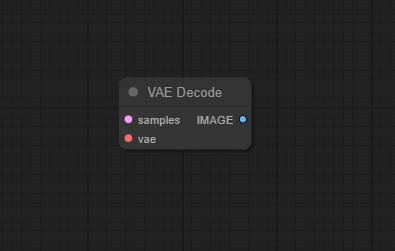
Official Documentation Link
https://comfyui.dev/docs/guides/Nodes/vae-decode/
Inputs
| Input Name | Type | Required | Description |
|---|---|---|---|
| VAE | VAE | Yes | The VAE model used to decode the latent image. This typically comes from the Load VAE or Load Checkpoint node. If you pass the wrong VAE here (or none at all), your image output will be garbage or the node will error out. |
| LATENT | LATENT | Yes | The latent tensor you want to decode. Usually generated by a KSampler, Empty Latent Image, or any other latent image-producing node. |
Outputs
| Output Name | Data Type | Description |
|---|---|---|
| IMAGE | Image | The final decoded image (in full RGB glory) that can be previewed, saved, or passed to other nodes like Preview, Save Image, or VAE Encode (if you're looping back for fun). |
Usage Instructions
Add the VAE Decode node to your workflow canvas. Connect the "LATENT" input to the output of a sampler, inpaint module, or any node that produces a SD latent tensor. Connect the "VAE" input to a loaded VAE (use the Load VAE node beforehand if needed). Connect the "IMAGE" output to a Preview, Save Image, or any post-processing node. Run your workflow. The latent tensor will be decoded into an accessible image.
Advanced Usage
Use tiled VAE Decode extensions for very large images with limited VRAM. Try HDR-capable decode nodes for professional VFX and linear EXR outputs. Swap VAE decoders for unique color/tone shifts or domain adaptation on output images. Feed the output into further VAE Encode for cycles or analysis.
Example JSON for API or Workflow Export
{
  "id": "vae_decode_1",
  "type": "VAEDecode",
  "inputs": {
    "LATENT": "@ksampler_1",
    "VAE": "@load_vae_1"
  }
}
Tips
- Always use a VAE model compatible with your checkpoint for best quality.
- Tiled decoders can handle images exceeding VRAM limits but might require extra configuration.
- For accurate color and detail recovery, match encode and decode settings.
- If encountering artifacts, experiment with alternative VAE nodes or models (see below).
How It Works (Technical)
The node accepts a latent tensor, typically in [B, C, H, W] format, and passes it along with the loaded VAE model into the VAE decoder function. The VAE reconstructs an image from the compressed latent, applying learned upsampling and color reconstruction layers, and outputs the result as an image.
Github Alternatives
- ComfyUI-VAE-Utils – Adds channel auto-detection, support for multi-channel and custom VAE decoders, and enhanced compatibility nodes.
- VAE-Decode-Switch – Easily switch between standard VAE Decode and tiled decoding nodes for maximum compatibility and minimal workflow rewiring.
- ComfyUI-TiledDiffusion – High performance tiled VAE decode for large images, reducing VRAM usage and providing flexible decode tile sizing.
- ComfyUI-RemoteVAE – VAE decode using remote (HuggingFace) inference endpoints for offloaded GPU/network inference.
- vae-decode-hdr – Preserves HDR values during decoding and includes EXR export for VFX/professional workflows.
Videcool workflows
The VAE Decode node is used in the following Videcool workflows:
FAQ
1. Why is my decoded image different from the original input?
VAE reconstructions are approximations; fine details may differ, and VAE choices (or lossy encoding) affect accuracy.
2. Can I decode latent images from other sources?
Yes, as long as their dimensions and format match your VAE/ComfyUI workflow.
3. What if my image is too big for single-pass decoding?
Use a tiled VAE decoder node or extension for handling high-res or memory-constrained cases.
Common Mistakes and Troubleshooting
Not connecting the correct LATENT and VAE can cause problems—always wire to the latest nodes in your workflow. Mismatched VAE model and latent may produce color loss or artifacts. Running out of VRAM is a common issue; try tiled decoders or reduce output size. Using a VAE designed for a different model version can cause incompatibility—always match SDXL, SD1.5, etc.
Conclusion
The VAE Decode node is indispensable for converting compressed latent outputs into viewable and savable images. With the right pairing of VAE models and extensions, users gain fine control over image quality, resolution, and compatibility across broad creative and professional workflows.