
Upscale Image
The Upscale Image node offers an easy and flexible way to resize images to specific dimensions in ComfyUI, supporting multiple upscaling methods and optional cropping to fit the desired resolution. It streamlines the upscaling workflow for both standard enlargements and precise, dimension-controlled image editing tasks.
Overview
Upscale Image (class: ImageScale) is designed for resizing input images to target dimensions using a selection
of upscaling methods (such as bicubic, bilinear, or other enhancement techniques defined by your installation).
The node can also crop the resized image (center or disabled) according to your needs.
It’s a core node for workflows that require image enlargement, preparation for inpainting, or adjusting images for style transfer, further processing, or export.
Visual Example
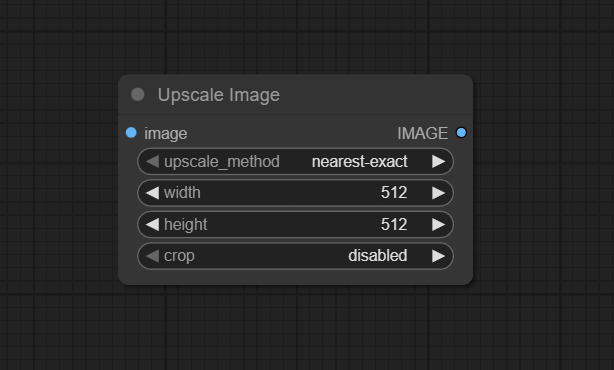
Official Documentation Link
https://comfyui-wiki.com/en/comfyui-nodes/image/upscaling/image-scale
Inputs
| Parameter | Data Type | Input Method | Default |
|---|---|---|---|
| image | IMAGE | Node connection (e.g. from Load Image, VAE Decode) | — |
| upscale_method | String (Combo) | Dropdown (bilinear, bicubic, lanczos, etc. depending on install) | Bicubic |
| width | Int | Numeric input | — |
| height | Int | Numeric input | — |
| crop | String (Combo) | Dropdown (disabled, center) | disabled |
Outputs
| Output Name | Data Type | Description |
|---|---|---|
| image | IMAGE | The upscaled (and optionally cropped) image, ready for downstream use |
Usage Instructions
To use the Upscale Image node, connect an image you wish to resize. Choose an upscale method based on your visual requirements or speed constraints. Specify the width and height you want for the output image. Select the crop mode—disabled for strict resize (may distort aspect) or center to crop edges and preserve the central content. The resulting image will be accessible from the output for saving, further enhancement, or feeding into generation or inpainting nodes.
Advanced Usage
Combine Upscale Image with batching or looping to process large numbers of images for dataset preparation. Use precise control of width and height in workflows requiring exact input dimensions (for example, before ControlNet or tiled upscaling). Combine with augment or filter nodes to further tweak images after resizing. Experiment with different upscaling methods (lanczos for sharpness, bicubic for smooth gradients) to find the best fit for your imagery. Center crop is useful before seamless compositing or generating tiled patterns. Upscale before semantic upscalers or denoisers to reduce artifacts and retain image quality.
Example JSON for API or Workflow Export
{
  "id": "upscale_image_1",
  "type": "ImageScale",
  "inputs": {
    "image": "@vae_decode_1",
    "upscale_method": "lanczos",
    "width": 2048,
    "height": 2048,
    "crop": "center"
  }
}
Tips
- Choose center crop to avoid edge stretching when forcing images into square/rectangular frames.
- Use highest-quality upscaling methods if fine lines or detail retention are critical.
- Batch process with standardized parameters for entire datasets to maintain consistency.
- To preserve aspect ratios, use manual calculation for width/height or build dynamic workflows with scripting nodes.
- If output is blurry, try different methods or combine with AI upscalers afterward.
How It Works (Technical)
The node takes an input IMAGE, applies the selected upscaling method to expand or contract it to the requested width and height,
and applies cropping if specified. Each method leverages standard image processing kernels or algorithms for interpolation
(bilinear, bicubic, lanczos, etc.), with cropping routines trimming the image centrally if needed. The output is returned in
the original image format, compatible for further ComfyUI processing.
Github Alternatives
- ComfyUI_UltimateSDUpscale – Advanced multi-method upscaler node (tiled, iterative, quality/VRAM balancing, supports pixel/latent modes).
- ComfyUI-ClarityAI – High-end upscaling and creative enhancement with denoise, detail, and restore options.
- comfyui-upscale-by-model – Upscale with custom models and scaling logic, including rescale and crop modes.
- image-resize-comfyui – Flexible crop, pad, up/downscale with scripting and ratio management for advanced workflows.
Videcool workflows
The Upscale Image node is used in the following Videcool workflows:
FAQ
1. What upscaling methods are available?
Bicubic, bilinear, lanczos (and more if custom methods are installed); each yields different sharpness/detail levels.
2. Does Upscale Image preserve aspect ratio?
If width and height are set to the same aspect, it will; otherwise, use "center" crop or manual calculations to retain composition.
3. Can I crop as well as resize?
Yes—set the crop parameter to "center" to crop the scaled image centrally, trimming edges as needed.
Common Mistakes and Troubleshooting
Pitfalls include mismatched width/height causing unwanted distortion (disable crop only when correct aspect is provided), using low-quality upscaling methods for detailed art, or forgetting to check results at 1:1 resolution for artifacts. Some images may appear blurry if upscaling factors are too large; use higher-quality methods or combine with dedicated AI upscalers. Ensure the crop mode matches the desired framing—unwanted cropping can remove important features if not accounted for.
Conclusion
Upscale Image is a core utility for any ComfyUI workflow needing dimension control, professional-quality resizing, or quick, convenient aspect correction. Its simplicity and flexibility make it invaluable for preparing images in art, research, or production pipelines.