
VoxelToMesh
The VoxelToMesh node converts voxel volumes into polygonal meshes, turning volumetric 3D data from nodes like VAEDecodeHunyuan3D or MeshToVoxel into standard mesh geometry that can be rendered, edited, and exported in downstream 3D workflows.
Overview
VoxelToMesh takes a voxel grid representing a 3D object and extracts a surface mesh using either a higher‑quality “surface net” algorithm or a simpler “basic” method. Its primary role is to bridge voxel‑based generation (for example, Hunyuan3D or voxel sculpting) and mesh‑based tools such as viewers, editors, and exporters. In typical pipelines it follows a VAE‑ or field‑based decoder node and precedes mesh utilities like mesh cleanup, decimation, and SaveGLB or SaveOBJ.
Visual Example
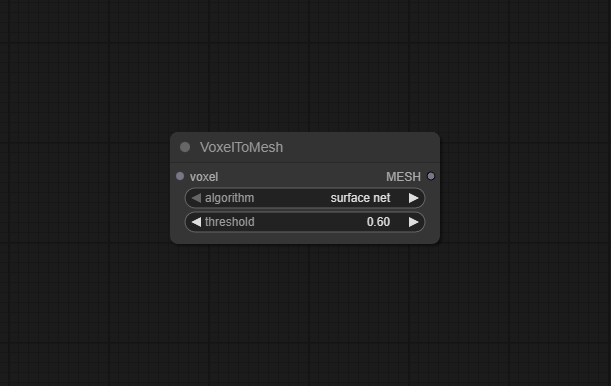
Official Documentation Link
https://www.runcomfy.com/comfyui-nodes/ComfyUI/voxel-to-mesh
Inputs
| Parameter | Data Type | Input Method | Default |
|---|---|---|---|
| voxel | VOXEL | Connection from a voxel‑producing node (for example VAEDecodeHunyuan3D or MeshToVoxel) | — (required) |
| algorithm | STRING (combo) | Dropdown: surface net, basic |
surface net |
| threshold | FLOAT | Numeric field / slider (min −1.0, max 1.0, step 0.01) | 0.6 |
Outputs
| Output Name | Data Type | Description |
|---|---|---|
| MESH | MESH | Triangle mesh generated from the voxel grid, containing vertices and faces suitable for rendering and export |
Usage Instructions
Connect the voxel input of VoxelToMesh to a node that outputs a 3D voxel grid, such as VAEDecodeHunyuan3D in a
Hunyuan3D pipeline. Choose an algorithm: use surface net for smoother,
higher‑quality meshes or basic for faster, lower‑detail results. Set the threshold
value that defines the isosurface; voxels with density above this threshold are treated as solid, below as empty.
Then connect the MESH output to a viewer, cleanup, or save node (for example SaveGLB) to visualize
and export the resulting 3D model.
Advanced Usage
For fine control over surface detail, you can sweep the threshold value across a range and inspect how the mesh changes,
effectively “thickening” or “thinning” shapes by raising or lowering the cutoff. In image‑to‑3D workflows using Hunyuan3D,
pair VoxelToMesh with higher octree_resolution settings in VAEDecodeHunyuan3D and use surface net
to capture small geometric features, then follow with mesh decimation to reduce polygon counts. In scientific or technical contexts,
VoxelToMesh can be chained after volumetric simulations or density fields (converted via MeshToVoxel) to extract isosurfaces
similar to marching cubes; different thresholds correspond to different isovalues of the scalar field.
Example JSON for API or Workflow Export
{
   "id":"voxel_to_mesh_1",
   "type":"VoxelToMesh",
   "inputs":{
      "voxel":"@vae_decode_hunyuan3d_1",
      "algorithm":"surface net",
      "threshold":0.6
   }
}
Tips
- Use
surface netfor final, high‑quality assets andbasicfor quick previews or test runs. - Lower
thresholdvalues reveal finer or more porous structures; higher values produce thicker, more solid shapes. - If meshes look noisy, try a slightly higher threshold and, if available, apply smoothing or decimation nodes downstream.
- Ensure the input voxel resolution is appropriate; very low‑res voxels will always produce blocky meshes regardless of algorithm.
- After conversion, always inspect the mesh in a viewer before sending it to 3D printing or game engines, to catch holes or self‑intersections early.
How It Works (Technical)
VoxelToMesh interprets the incoming VOXEL grid as a scalar field over a regular 3D lattice, where each cell stores a density or occupancy value.
It then computes an isosurface at the user‑defined threshold, using either a surface‑net–style method (placing vertices on cell
faces and building quads/triangles for a smooth, manifold surface) or a simpler basic algorithm more akin to early marching‑cubes implementations.
The chosen algorithm samples local voxel neighborhoods to determine polygon placement and connectivity, assembling a vertex and face list that forms
the final MESH output.
Github alternatives
- ComfyUI_HunyuanWorldnode – includes integrated Hunyuan3D workflows that pair VAEDecodeHunyuan3D and VoxelToMesh, demonstrating practical settings like a threshold around 0.5 and showing end‑to‑end mesh export.
- ComfyUI‑3D‑Pack – provides alternative 3D reconstruction tools (such as FlexiCubes) that also turn volumetric or multi‑view data into meshes, offering more advanced algorithms for some use cases.
- Awesome ComfyUI custom nodes – a curated index that lists additional voxel/mesh utility nodes (for example MeshToVoxel, VoxelizeMesh and related tools) that complement VoxelToMesh in full 3D pipelines.
FAQ
1. Which algorithm should I use?
Use surface net for smoother, higher‑quality meshes when detail matters, and basic when you need faster,
rough conversions or are working with very simple voxel shapes.
2. What does the threshold control?
The threshold defines the isosurface level; voxels with values above the threshold are considered solid, so changing it shifts
where the surface is carved through the volume.
3. Can I send the resulting mesh directly to a GLB/OBJ exporter?
Yes, you can connect the MESH output to nodes like SaveGLB or other mesh exporters; for best results,
you may want to run optional cleanup or decimation first.
Common Mistakes and Troubleshooting
A common mistake is feeding low‑quality or incorrectly scaled voxel grids into VoxelToMesh, which leads to blocky or
malformed meshes; always ensure the upstream decoder or voxelizer is configured with a suitable resolution.
If the mesh appears hollow, overly thick, or full of noise, adjust the threshold and retest—small changes
can significantly alter surface placement. Performance issues or very heavy meshes often stem from extremely high voxel
resolutions combined with surface net; in those cases consider downsampling voxels or using the basic algorithm for previews.
If the node reports mesh generation failures, verify voxel dimensions are valid and finite and that there are non‑empty regions above the chosen threshold.
Conclusion
VoxelToMesh is a key conversion node for ComfyUI’s 3D workflows, turning dense voxel volumes into standard meshes that can be rendered, edited, and exported, and providing artists, designers, and technical users with flexible controls over quality, detail, and performance in the final 3D output.