
Image Only Checkpoint Loader (img2vid model)
The Image Only Checkpoint Loader (img2vid model) node loads image‑focused checkpoints for image‑to‑video workflows,
returning the model, CLIP vision encoder, and VAE needed to turn still images into coherent video sequences.
It scans the standard ComfyUI/models/checkpoints directory and any extra paths configured in extra_model_paths.yaml.
Overview
This node (class name ImageOnlyCheckpointLoader, category loaders/video_models)
is specialized for img2vid pipelines where the same checkpoint provides the core diffusion model, a
CLIP vision tower, and a VAE tailored for image processing within video generation.
By selecting a single checkpoint file, you automatically initialize these three components,
which are then wired into img2vid nodes such as Stable Video Diffusion or other image‑to‑video processors.
It behaves similarly to Checkpoint Loader (Simple) but is scoped specifically to supported img2vid models and their image branches.
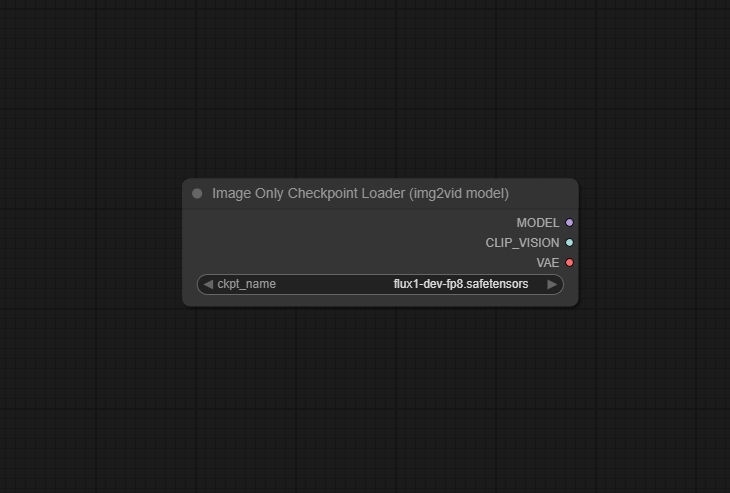
Visual Example
Official Documentation Link
https://comfyui-wiki.com/en/comfyui-nodes/loaders/video-models/image-only-checkpoint-loader
Inputs
| Parameter | Data Type | Input Method | Default |
|---|---|---|---|
| ckpt_name | COMBO[STRING] | Dropdown listing checkpoint files in models/checkpoints and extra paths |
(none – user must choose a checkpoint) |
Outputs
| Output Name | Data Type | Description |
|---|---|---|
| model | MODEL | The loaded img2vid model, configured for image‑driven video generation |
| clip_vision | CLIP_VISION | CLIP vision encoder used for image understanding and feature extraction in img2vid workflows |
| vae | VAE | Variational Autoencoder component used to encode/decode frames for smooth image‑to‑video rendering |
Usage Instructions
Place the Image Only Checkpoint Loader (img2vid model) node near the start of your video workflow.
From the ckpt_name dropdown, select the desired img2vid checkpoint (for example, an SVD or Hunyuan3D‑compatible
file you placed under ComfyUI/models/checkpoints). Connect the model,
clip_vision, and vae outputs to the corresponding inputs of your
img2vid node or conditioning nodes as required by the workflow. If you add or rename checkpoint files
while ComfyUI is running, refresh the UI so the dropdown resyncs with the folder contents.
Advanced Usage
Advanced workflows may maintain multiple img2vid checkpoints (for example, SVD XT, CogVideoX, or Hunyuan3D variants)
and use parameter nodes or Set/Get nodes to switch ckpt_name programmatically for batch‑testing
different models on the same source images. You can also combine this node with model‑specific helpers or
resolution tools that expect compatible frame sizes, ensuring the loaded model, VAE, and CLIP vision are all in sync.
In multi‑stage video pipelines, you might use this node solely to provide clip_vision to
guidance nodes while a separate checkpoint loader handles a base diffusion model, though typical img2vid
setups keep all three components aligned from the same checkpoint for consistency.
Example JSON for API or Workflow Export
{
  "id": "image_only_ckpt_loader_1",
  "type": "ImageOnlyCheckpointLoader",
  "inputs": {
    "ckpt_name": "SVD_XT.safetensors"
  }
}
Tips
- After copying new img2vid checkpoints into
models/checkpoints, refresh or restart the ComfyUI UI so they appear inckpt_name. - Keep a clear naming scheme (for example, including resolution or model type in the filename) to avoid picking the wrong checkpoint from long dropdowns.
- Match your workflow’s expected resolution and model family (SVD, Hunyuan, etc.) to the checkpoint you load; mixing incompatible components can lead to errors or poor results.
- If you use
extra_model_paths.yaml, verify the additional paths are correct and readable so this node can list checkpoints from those locations. - For reproducible projects, document the exact
ckpt_namealong with seeds and sampler settings used in your img2vid workflow.
How It Works (Technical)
Internally, the node enumerates checkpoint files from the standard checkpoints directory and any extra paths configured
in extra_model_paths.yaml, populating the ckpt_name widget. When a checkpoint is selected,
it deserializes the file (for example, .safetensors or .ckpt) and extracts three components:
the main diffusion model tuned for image‑driven video generation, the CLIP vision encoder block, and the VAE.
These are then exposed as separate outputs so downstream nodes can consume them appropriately, mirroring the
behavior of generic checkpoint loaders but wired to the img2vid model class in comfy_extras/nodes_video_model.py.
Github alternatives
-
Built‑in video model nodes (ComfyUI) – the reference implementation for
ImageOnlyCheckpointLoaderand other video‑model loaders; useful if you want to inspect or extend loader behavior. - stable-video-diffusion-img2vid – provides custom img2vid nodes and example workflows built around Stable Video Diffusion, often using Checkpoint loaders in a similar way to this node.
- ComfyUI-Stable-Video-Diffusion – community workflows and nodes for SVD img2vid, demonstrating practical checkpoint loader usage and img2vid integration patterns.
FAQ
1. Where should I put img2vid checkpoint files for this node to detect them?
Place them in ComfyUI/models/checkpoints or in folders referenced from extra_model_paths.yaml; then refresh the ComfyUI UI so they appear in the ckpt_name dropdown.
2. What do the three outputs (MODEL, CLIP_VISION, VAE) connect to?
Typically, MODEL goes to your img2vid diffusion node, CLIP_VISION is used by vision‑guidance or conditioning nodes, and VAE is used to encode/decode frames within the video pipeline.
3. Why does my checkpoint not show up in the ckpt_name list?
Ensure the file extension is supported (for example, .safetensors), the file is placed in a scanned directory, and the UI has been refreshed; also confirm there are no permission or path typos preventing ComfyUI from reading the file.
Common Mistakes and Troubleshooting
A common mistake is selecting a non‑img2vid checkpoint or one incompatible with your workflow’s video node,
leading to runtime errors or blank outputs; always verify that the checkpoint was trained for image‑to‑video tasks.
Another frequent issue is forgetting to refresh the UI after copying models into the checkpoints folder, leaving the dropdown outdated.
If you see “checkpoint file not found” or shape mismatch errors, double‑check the path configuration, file integrity,
and that all downstream nodes expect the same model family and resolution. When migrating workflows between machines,
confirm that ckpt_name matches an existing file; otherwise, the node will silently fall back to an invalid selection.
Conclusion
Image Only Checkpoint Loader (img2vid model) is a focused loader that simplifies setting up image‑to‑video pipelines in ComfyUI by exposing the model, CLIP vision, and VAE from a single checkpoint selection, making it an essential starting point for robust and reusable img2vid workflows.