
SaveGLB
The SaveGLB node exports 3D meshes from ComfyUI workflows to the widely supported GLB format, embedding optional metadata so models can be shared, archived, or used directly in engines, web viewers, and VR applications.
Overview
SaveGLB is an output node that takes a MESH object produced by nodes such as VoxelToMesh, Hunyuan3D pipelines,
or 3D‑pack utilities and writes it to disk as a .glb file. It supports a configurable filename prefix and can embed prompt
text and extra metadata inside the file, providing provenance and context alongside geometry. As an output node, it has no
data outputs; its purpose is to persist the mesh to storage in a compact, web‑friendly binary GLTF variant.
Visual Example
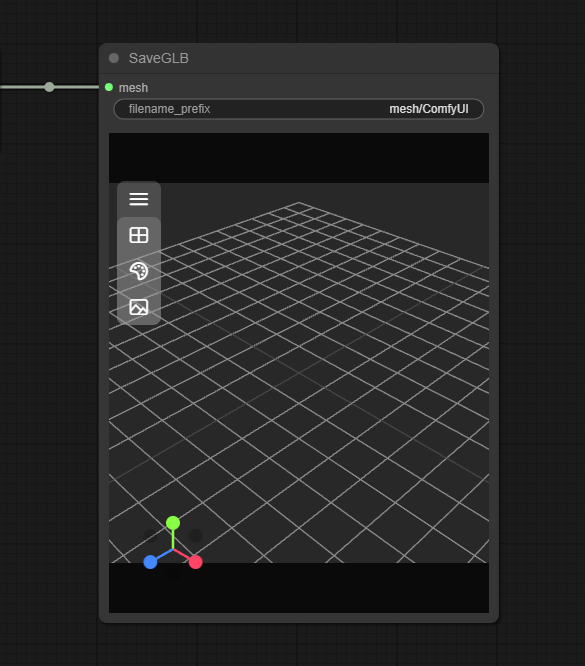
Official Documentation Link
https://www.runcomfy.com/comfyui-nodes/ComfyUI/save-glb
Inputs
| Parameter | Data Type | Input Method | Default |
|---|---|---|---|
| mesh | MESH | Connection from a mesh‑producing node (for example VoxelToMesh or SAM‑3D‑Objects) | — (required) |
| filename_prefix | STRING | Text field; relative path + prefix under the ComfyUI output directory | mesh/ComfyUI |
Outputs
| Output Name | Data Type | Description |
|---|---|---|
| (none) | — | SaveGLB is an output node; it writes a GLB file to disk and does not emit graph data |
Usage Instructions
Build or load a 3D mesh within your ComfyUI workflow (for example: EmptyLatentHunyuan3Dv2 → Hunyuan3D → VAEDecodeHunyuan3D → VoxelToMesh),
then connect the resulting mesh output to SaveGLB. Set filename_prefix to a relative path and base name
such as mesh/my_asset; SaveGLB will create one or more .glb files under the output directory using this prefix.
Optionally, feed the text prompt used to generate the asset into prompt and include any structured metadata via
extra_pnginfo. Executing the workflow writes the GLB file, which you can open in web viewers, DCC tools, or game engines.
Advanced Usage
In more advanced 3D pipelines, you can drive filename_prefix programmatically (for example by concatenating timestamps
or asset IDs) to avoid overwriting files when batch‑exporting many meshes. When using Hunyuan3D or SAM‑3D‑Objects for single‑image‑to‑3D,
pass the original text prompt and key workflow settings via prompt and extra_pnginfo so that downstream tools
or collaborators can inspect how the model was generated. Combined with format‑conversion packs, SaveGLB can act as a normalization step
before converting to other formats or before further material edits in external tools. In cloud setups such as ComfyAI Run, SaveGLB keeps
exports compatible with web viewers and streaming pipelines that expect compact GLB assets.
Example JSON for API or Workflow Export
{
   "id":"save_glb_1",
   "type":"SaveGLB",
   "inputs":{
      "mesh":"@voxel_to_mesh_1",
      "filename_prefix":"mesh/ComfyUI_hy3d_model",
      "prompt":"highly detailed figurine, studio lighting",
      "extra_pnginfo":{
         "author":"ArtistName",
         "pipeline":"Hunyuan3D-2 single-view"
      }
   }
}
Tips
- Keep
filename_prefixorganized by project (for examplemesh/projectA/character01) so exported assets are easy to find and version. - Use the
promptfield to embed generation text directly into the GLB as documentation of creative intent. - Include workflow hashes, model names, or version tags in
extra_pnginfofor reproducibility across teams and machines. - Ensure the output directory used in
filename_prefixexists and is writable to avoid “File not saved” errors. - Preview the mesh inside ComfyUI (or a lightweight external viewer) before shipping GLBs into heavier production environments.
How It Works (Technical)
SaveGLB receives a MESH object that internally contains vertices, faces, and optionally material or color data, typically stored
as PyTorch tensors. The node converts this data to NumPy arrays, builds a GLTF2 scene graph in memory, and then serializes it to
the binary GLB container format, writing it to disk using the provided filename_prefix under ComfyUI’s output path.
When prompt and extra_pnginfo are provided, they are inserted into GLTF extras or metadata fields so that
compatible viewers and tools can read them without affecting geometric content. Errors such as “Model data not recognized” or “Export
failed due to size” arise when the mesh is malformed or extremely large for typical GLB constraints.
Github alternatives
- ComfyUI‑3D‑Convert – a format‑conversion pack that can read and write many 3D formats (GLB, GLTF, OBJ, STL, PLY, etc.), enabling more complex import/export workflows around SaveGLB or as an alternative in multi‑format pipelines.
- ComfyUI‑SAM3DObjects – single‑image‑to‑3D reconstruction nodes that output meshes and include their own GLB export capabilities, which can be used alongside or instead of SaveGLB for SAM‑based models.
- Q_GLB_Material_Modifier – a GLB post‑processing node that adjusts materials for GLB models (especially Hunyuan3D‑2 outputs), typically used after SaveGLB or combined with it in an export pipeline.
FAQ
1. Where are GLB files saved?
Files are written under ComfyUI’s output directory, using the path and prefix given in filename_prefix;
for example, mesh/ComfyUI will create files in an output/mesh subfolder.
2. Does SaveGLB support textures and materials?
Basic geometry is always exported; textures and materials are included if the upstream mesh representation
and node implementation provide them, but advanced material authoring is better handled by specialized 3D tools or GLB post‑processors.
3. Why do I see “File not saved” or “Model data not recognized”?
These errors usually indicate an invalid or empty mesh input, or a path/permission problem for
filename_prefix; verify that the mesh is valid and the output directory exists and is writable.
Common Mistakes and Troubleshooting
A frequent mistake is connecting SaveGLB directly to a voxel or latent node instead of a mesh node, which leads to
“Model data not recognized” because only MESH inputs are supported. Another issue is using a filename_prefix
that points to a non‑existent or read‑only directory, causing silent failures or “File not saved” messages; always confirm the directory
structure and permissions. Very large or high‑poly meshes may fail to export or produce oversized GLB files; in such cases, add mesh
simplification or decimation prior to SaveGLB, or consider splitting assets into smaller parts. When collaborating or archiving,
forgetting to include prompts and metadata makes models hard to trace later, so make consistent use of the prompt and
extra_pnginfo fields.
Conclusion
SaveGLB is the standard GLB exporter for ComfyUI 3D workflows, turning procedurally or AI‑generated meshes into portable 3D files with embedded context, and providing a clean final step from latent‑ or voxel‑based generation to production‑ready 3D assets.