
VAE Encode & Inpaint Conditioning
The VAE Encode & Inpaint Conditioning node encodes an image and its mask into latent space with a
VAE and prepares specialized inpainting conditioning (positive and negative) for advanced inpaint models such as Fooocus inpaint.
It streamlines high‑quality inpainting by producing both standard latents and a dedicated latent_inpaint package ready for downstream inpaint nodes.
Overview
This node takes an input image (pixels), an inpaint mask, a VAE model, and standard positive/negative conditioning,
then outputs encoded conditioning and latent structures tailored for inpainting. It is designed to integrate with
inpaint pipelines where existing content in the masked area should be combined with an inpaint model instead of being
fully overwritten, and provides a latent_inpaint dictionary that connects directly to Apply Fooocus Inpaint and similar nodes.
Visual Example
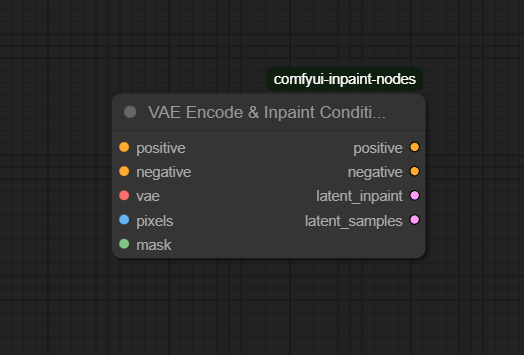
Official Documentation Link
https://www.runcomfy.com/comfyui-nodes/comfyui-inpaint-nodes/INPAINT_VAEEncodeInpaintConditioning
Inputs
| Parameter | Data Type | Input Method | Default |
|---|---|---|---|
| positive | CONDITIONING | Connection from positive text/conditioning encode node | — |
| negative | CONDITIONING | Connection from negative text/conditioning encode node | — |
| vae | VAE | Connection from a VAE loader / model node | — |
| pixels | IMAGE | Connection from Load Image or any image‑producing node | — |
| mask | MASK | Binary or grayscale mask defining inpaint region | — |
Outputs
| Output Name | Data Type | Description |
|---|---|---|
| positive | CONDITIONING | Encoded positive conditioning adapted for the inpainting context |
| negative | CONDITIONING | Encoded negative conditioning adapted for the inpainting context |
| latent_inpaint | DICT | Dictionary containing samples (latent image for inpaint) and noise_mask
(rounded inpaint noise mask), used directly by inpaint model nodes such as Apply Fooocus Inpaint |
| latent_samples | LATENT | Latent representation of the original input image, suitable for general latent‑space operations |
Usage Instructions
Build your inpaint workflow by first encoding text prompts into positive and negative conditioning,
loading a compatible VAE, and preparing an input image and inpaint mask. Connect these to the VAE Encode &
Inpaint Conditioning node. The node outputs updated positive/negative conditioning, a
latent_inpaint dictionary that you typically wire directly into an inpaint node such as Apply Fooocus Inpaint,
and latent_samples that can be used with standard samplers or decoders. Ensure the pixels and mask
inputs have identical dimensions so encoding and noise masking work correctly.
Advanced Usage
Advanced users can leverage this node when combining inpaint models with existing pixel content: unlike basic VAE Encode
(for Inpaint) flows, this node is designed to generate a latent_inpaint structure that still works with Fooocus inpaint
while allowing partial preservation or blending of the original region. You can swap different VAEs for stylistic or domain shifts,
or drive positive/negative conditioning from complex prompt assemblies (LoRA, IP-Adapter, multi‑prompt setups) and let this node
re‑encode them for the inpaint pass. It also plays well in outpainting workflows: generate an extended canvas and mask the outer band,
then encode via this node and feed latent_inpaint to an inpaint model to synthesize new border content that matches the inner scene.
When debugging or optimizing, inspect latent_inpaint and latent_samples paths separately to
confirm masks and latents are propagating correctly.
Example JSON for API or Workflow Export
{
  "id": "vae_encode_inpaint_conditioning_1",
  "type": "INPAINT_VAEEncodeInpaintConditioning",
  "inputs": {
    "positive": "@clip_text_encode_positive_1",
    "negative": "@clip_text_encode_negative_1",
    "vae": "@vae_loader_1",
    "pixels": "@load_image_1",
    "mask": "@mask_1"
  }
}
Tips
- Always ensure
pixelsandmaskare perfectly aligned and share the same resolution; mismatches will cause errors or poor inpaint boundaries. - Use high‑quality positive and negative conditioning: bad prompts or mismatched encodings can degrade the inpaint quality more than model choice.
- Re-use
latent_samplesif you want to compare normal sampling against inpaint‑specific behavior within the same workflow. - If switching VAE models mid‑project, re-run this node to update all latent structures to the new VAE’s encoding space.
- When using Fooocus inpaint, follow its recommended denoise and mask settings but keep this node as the central conditioning/encoding hub.
How It Works (Technical)
Internally, the node feeds the input pixels through the provided VAE encoder, producing latent samples that
represent the entire image. It then uses the mask to construct a corresponding noise_mask,
typically a rounded binary tensor indicating which latent regions should be treated as inpaint targets. At the same time,
it processes the incoming positive and negative conditioning with an inpaint‑aware conditioning class,
yielding re‑encoded conditioning suitable for inpaint samplers and models. The latent_inpaint dictionary bundles the
inpaint‑specific latent samples and noise mask, while latent_samples holds a more general latent representation of the full image for broader use.
Github alternatives
- comfyui-inpaint-nodes – the original repository providing VAE Encode & Inpaint Conditioning plus related nodes like MaskedFill and MaskedBlur, aimed at Fooocus and SDXL inpainting enhancement.
- VAE Encode (for Inpainting) – a simpler built‑in node that encodes pixels+mask into a latent for inpainting; works well with native inpaint models but lacks the combined conditioning+latent_inpaint packaging of this node.
- ComfyUI-Impact-Pack – a large enhancement pack that includes alternative inpaint conditioning and mask utilities you can mix with standard VAE Encode flows for different inpainting methods.
Videcool workflows
The Clip Text Encode (Positive Prompt) node is used in the following Videcool workflows:
FAQ
Answer
VAE Encode (for Inpainting) focuses on producing a latent suitable for inpaint models but does not provide a
latent_inpaint
dictionary compatible with Fooocus inpaint patches or re‑encoded positive/negative conditioning in a single node. This node is designed
to bridge standard inpaint conditioning with Fooocus‑style inpainting while preserving existing content where desired.
latent_inpaint used for?Answer
latent_inpaint is a dictionary that typically contains samples and noise_mask;
it is meant to be connected directly to inpaint nodes such as Apply Fooocus Inpaint, which expect this combined latent+mask
structure rather than a bare latent tensor.
Answer
No special prompts are required, but you should supply good positive and negative conditioning as usual; this node encodes them into an inpaint‑aware form so the inpaint model can better follow your intent and avoid unwanted artifacts.
Common Mistakes and Troubleshooting
A common source of errors is misaligned pixels and mask dimensions—if they differ, encoding will
fail or yield incorrect noise_mask layouts, causing artifacts or no visible inpaint effect. Another frequent
issue is using an invalid or unloaded VAE, which results in encoding failures; always confirm the VAE node is present and properly wired.
If you see errors related to missing noise_mask or InpaintModelConditioning.encode() arguments,
ensure you have an up‑to‑date version of the inpaint nodes and ComfyUI, as older versions may not support newer signatures.
When inpaint results look barely changed, double‑check mask coverage, denoise strength in your sampler, and that your pipeline
is indeed using latent_inpaint rather than a generic latent.
Conclusion
VAE Encode & Inpaint Conditioning is a key building block for modern inpainting workflows in ComfyUI, especially when leveraging Fooocus‑style inpaint patches on SDXL. By unifying VAE encoding, mask handling, and conditioning preparation into one node, it enables more consistent, contextually aware inpainting with less manual wiring and fewer edge‑case errors.