
TextEncodeAceStepAudio
The TextEncodeAceStepAudio node enables encoding of textual prompts, tags, and lyrics into audio conditioning for ACE-Step and compatible music generation workflows in ComfyUI. Integrating language and textual elements, it allows for rich, semantically controlled audio synthesis and creative direct lyric-driven music generation.
Overview
TextEncodeAceStepAudio processes user-provided text (tags, prompts, or lyrics) and converts them into embeddings suitable for controlling audio generators and diffusion models. Leveraging CLIP models for robust language encoding, it aligns textual content with the generative process, ensuring lyrics, style descriptions, or genres can shape music and sound output. Typically, it sits at the entry point for ACE-Step audio workflows, with its CONDITIONING output directly influencing subsequent samplers or decoders.
Visual Example
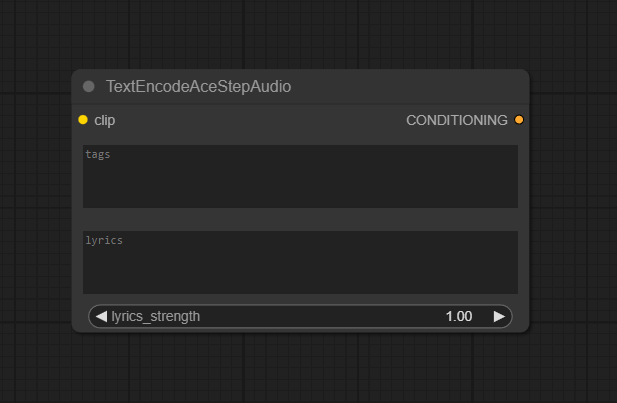
Official Documentation Link
https://comfyui-wiki.com/en/tutorial/advanced/audio/ace-step/ace-step-v1
Inputs
| Parameter | Data Type | Input Method | Default |
|---|---|---|---|
| clip | Object | Dropdown/select CLIP model | Default CLIP |
| tags | String (multiline) | Text input box | "" |
| lyrics_strength | Float | Slider/numeric input | 1.0 |
Outputs
| Output Name | Data Type | Description |
|---|---|---|
| CONDITIONING | Embedding/Conditioning object | Encoded textual data for audio conditioning, directs subsequent generation nodes |
Usage Instructions
To use TextEncodeAceStepAudio, add the node at the start of your workflow. Select a CLIP model if needed
(most audio pipelines require a compatible CLIP encoder). Enter tags, textual prompts, or lyrics in the text box;
multiline inputs and dynamic structures are supported for complex and rich prompts. Adjust lyrics_strength
to control the influence of the lyric or text in the final output. Connect the CONDITIONING output to a sampler or audio
generation node (such as ACE-Step KSampler or decoder). Run the workflow — the node will encode all text and guide the generative process.
Advanced Usage
Advanced users can integrate multi-language lyrics (ensure model support and correct prompts), dynamically switch styles by passing variable tags, or use the node to batch, crossfade, or interpolate between conditioning states for evolving audio. Pair with complex CLIP models for nuanced semantic encoding or with region-based nodes to map text onto segments of audio output. Higher lyrics strength drives stronger alignment; lower values promote freer generation and musical creativity.
Example JSON for API or Workflow Export
{
  "id": "text_encode_acestep_audio_1",
  "type": "TextEncodeAceStepAudio",
  "inputs": {
    "clip": "@load_clip_1",
    "tags": "pop, energetic, young\nLyrics line 1\nLyrics line 2",
    "lyrics_strength": 1.2
  }
}
Tips
- Structure tags and lyrics clearly for best embeddings and output results.
- Experiment with lyrics_strength to control vocal and musical alignment—find sweet spots for your genre or subject.
- For multi-language lyrics, check model support and pre-process or encode using recommended character sets.
- Change CLIP models for stylistic or contextual variation in conditioning results.
- Test prompt variations using batch workflows for rapid style and lyric evaluation.
How It Works (Technical)
The node tokenizes the provided text via the CLIP model, embedding tags and lyrics into a conditioning tensor or object. This encoding is aligned semantically with audio model expectations. Lyrics_strength modulates weighting in the embedding, amplifying or relaxing textual influence as passed to downstream samplers and model heads. The output is a rich, semantic vector that finely guides generative audio steps, supporting multi-modal embedding architectures where text must shape sound.
Github Alternatives
- ComfyUI_StepAudioTTS – Text-to-speech node for Step-Audio-TTS, supports lyrics and multilingual prompts with tuneable parameters for natural prosody.
- ComfyUI_ACE-Step – Suite of nodes for ACE-Step workflows, including direct text encoding and multi-language support.
- ComfyUI_AceNodes – Useful custom nodes for ACE-Step pipelines: text encode, audio ops, prompt tools, and workflow primitives.
- top-100-comfyui – Top node pack for ComfyUI, covers ACE-Step, Stable Audio, text-encode nodes, and creative audio tooling.
Videcool workflows
The TextEncodeAceStepAudio node is used in the following Videcool workflows:
FAQ
1. Can I use multi-language lyrics or prompts?
Yes, with custom ACE-Step nodes and compatible models. Core support may require pre-conversion to English for some languages.
2. Does lyrics strength affect style as well as word content?
Yes, higher values amplify both lyrical alignment and stylistic features in the output, ideal for music with strong vocal focus.
3. What happens if I leave tags blank?
Output is conditioned only on lyrics or defaults. For richer music and better style control, supply descriptive tags when possible.
Common Mistakes and Troubleshooting
The most common issue is insufficient or poorly structured prompts, leading to generic or unaligned audio. Large batch sizes and long prompts can overwhelm memory—reduce complexity for lower-end systems. Verify model compatibility for language-specific lyrics, and always match your CLIP model to the pipeline audio generator. Over-tuning lyrics strength may overly constrain output; tune carefully to balance fidelity and creativity. If the output is garbled or missing semantics, double-check tags and CLIP selection.
Conclusion
TextEncodeAceStepAudio brings powerful text-to-audio control to ComfyUI, enabling deep, expressive, and controlled music or sound synthesis driven by tags, lyrics, and prompts. It is indispensable for generative audio, lyric music, and multimodal creative workflows in modern AI environments.