
Load VAE
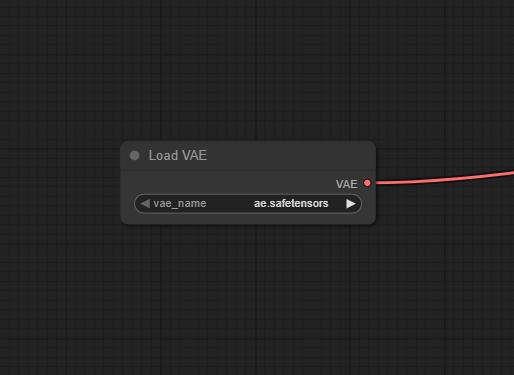
The Load VAE node allows users to select and load a specific Variational Autoencoder (VAE) model within ComfyUI workflows, enabling enhanced encoding and decoding between image and latent space for customized results and fine-tuning of generative pipelines.
Overview
Load VAE is responsible for loading a user-specified VAE model. This model transforms latent representations to and from pixel space, significantly impacting image color, style, and detail. The node is key when replacing default VAEs bundled with base models, enabling users to experiment with VAE variations for more vibrant or domain-adapted outputs. It connects with nodes that require a VAE context (such as KSampler, Encode, Decode) and influences upstream and downstream operations where latent-to-image conversions are needed.
Visual Example
Official Documentation Link
https://comfyui-wiki.com/en/comfyui-nodes/loaders/vae-loader
Inputs
| Field | Comfy dtype | Description |
|---|---|---|
| vae_name | COMBO[STRING] | Specifies the name of the VAE to be loaded, determining which VAE model is fetched and loaded, with support for a range of predefined VAE names including ‘taesd’ and ‘taesdxl’. |
Outputs
| Field | Comfy dtype | Description |
|---|---|---|
| VAE | VAE | Returns the loaded VAE model, ready for further operations such as encoding or decoding. The output is a model object encapsulating the loaded model’s state. |
Usage Instructions
Add the Load VAE node to your workspace. Select your desired VAE model from the dropdown menu (ensure VAEs are placed in the models/vae directory). (Optional) Set the preferred device ("cpu", "cuda", or "mps"). Connect the VAE output to upstream or downstream nodes such as KSampler, Encode, or Decode nodes. Run the workflow. The node will load the selected VAE model and make it available for image-latent conversions.
Advanced Usage
Override the default VAE linked to a checkpoint for more control over image tone and style. Experiment with community VAEs for domain-specific art effects (e.g. anime, photorealism, sketch). Pair with custom decoders, encoders, or hybrid pipelines for innovative workflows. Use quantized VAEs with hardware-constrained systems for speed and reduced VRAM.
Example JSON for API or Workflow Export
{
  "id": "load_vae_1",
  "type": "LoadVAE",
  "inputs": {
    "vae_name": "vae-ft-mse-840000-ema-pruned.ckpt"
  }
}
Tips
- If unsure, keep auto as the selection to use the VAE bundled with the loaded checkpoint.
- Some models "bake in" a default VAE but explicit loading can override this for added flexibility.
- Check that your image resolutions are supported by the chosen VAE.
- For troubleshooting, cross-check the latent shape with model and VAE expectations.
How It Works (Technical)
Load VAE locates the specified VAE file, loads its weights into memory on the designated device, and registers it as the active encoder/decoder for the workflow. All downstream conversions between pixel and latent space (and vice versa) are routed through this component, ensuring predictable image synthesis outputs.
Github Alternatives
- ComfyUI-VAE-Utils – Expanded VAE utilities, including a Load VAE node with channel detection, improved workflow flexibility, and support for Wan2.1 VAE models.
- calcuis/gguf – GGUF VAE loader supporting both .gguf and .safetensors VAE models, no need to switch loaders when using mixed VAE formats.
- ComfyUI-LightVAE – Collection of LightX2V and LightVAE custom nodes, allowing use of high-performance (especially video) VAE models for specialized workflows.
Videcool workflows
The Load VAE node is used in the following Videcool workflows:
FAQ
1. Is it mandatory to specify a VAE if my checkpoint comes with one?
No, VAEs are often included. Use this node to override or customize results.
2. Can I use different VAE formats?
Yes, with community alternative nodes (see above), both .ckpt, .safetensors, and .gguf formats are supported.
3. Will changing VAE impact color and detail levels?
Yes, differing VAE models may noticeably affect image color, tone, and reconstruction quality.
Common Mistakes and Troubleshooting
Common mistakes include not placing VAE files in the models/vae directory (or not refreshing the model list after adding them). Using incompatible VAE models for a given checkpoint or workflow can lead to errors or unwanted visual artifacts. Forgetting to set device appropriately on systems without CUDA-capable GPUs is another issue. Attempting to combine mismatched encoder/decoder pairs may prevent proper image generation.
Conclusion
Load VAE is essential for anyone seeking high-quality or domain-adapted image synthesis with ComfyUI. Swapping or specifying custom VAEs enables control over fine visual characteristics and supports experimentation, refinement, and enhanced creative results in generative AI workflows.