
Load Image
The Load Image node loads image files into ComfyUI, handling EXIF rotation, multi‑frame formats, normalization, and optional mask extraction from alpha channels so images are ready for further processing in workflows.
Overview
Load Image (class name LoadImage, category image) takes an image identifier,
resolves it to a file in the ComfyUI input directory, reads the file, applies necessary transforms (such as orientation correction),
normalizes pixel values, and returns an IMAGE tensor plus an optional MASK derived from the alpha channel.
It is the standard entry point for img2img, inpainting, and other workflows that rely on external image assets.
Visual Example
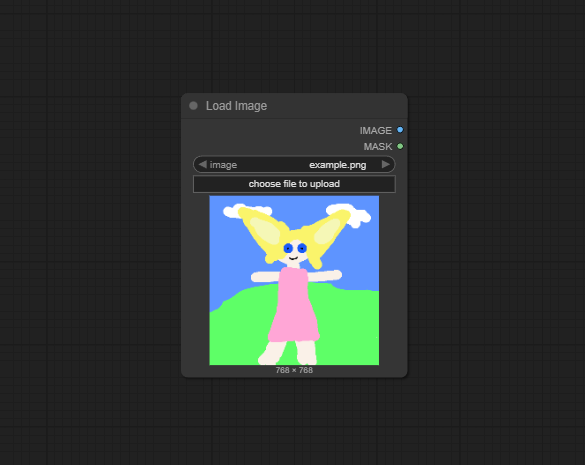
Official Documentation Link
Load Image Node Docs (ComfyUI Wiki)
Inputs
| Parameter | Data Type | Input Method | Default |
|---|---|---|---|
| image | COMBO[STRING] | Dropdown / combo select of images in the input folder or drag‑and‑drop upload | (none – user must select an image) |
Outputs
| Output Name | Data Type | Description |
|---|---|---|
| image | IMAGE | Processed image tensor with normalization and required transforms applied |
| mask | MASK | Optional mask derived from the image alpha channel (if present), used for transparency‑aware workflows |
Usage Instructions
Place the Load Image node at the start of your workflow. Click the image combo box to select a
previously uploaded image, or drag-and-drop a file (such as PNG or JPG) onto the node to upload it into the ComfyUI input directory.
The node outputs the normalized IMAGE tensor (and an optional MASK if the source has an alpha channel) which you can connect to
VAE Encode for img2img, inpainting nodes using the mask, or any other image‑processing or visualization node.
Advanced Usage
In complex workflows, you can drive the image parameter indirectly using custom nodes that list images in the input folder,
although the built‑in combo expects a valid string identifier chosen from its own list and may reject unsupported values.
For automation, external tools or scripts can place images into the input directory and Refresh/Reload in ComfyUI to
make them available to Load Image. Use the returned MASK with composite or inpaint nodes for alpha‑aware editing,
or feed the IMAGE into resize/upscale chains to standardize dimensions for model requirements.
Example JSON for API or Workflow Export
{
  "id": "load_image_1",
  "type": "LoadImage",
  "inputs": {
    "image": "my_input_image.png"
  }
}
Tips
- Organize source files in the
inputfolder with clear, unique names to keep theimagedropdown manageable. - Prefer PNG when you need alpha‑based masks; the node will automatically expose the alpha channel as
MASK. - If you frequently reload the same file after editing, consider custom nodes like “Load Image From Path” to avoid duplicated uploads and stale cache issues.
- Verify orientation on photos taken with phones; EXIF correction is handled automatically, but test once in a viewer node if composition looks off.
- For remote or programmatic workflows, pair with tooling nodes that load images via HTTP or cache for better automation.
How It Works (Technical)
The node resolves the image identifier to a file path in ComfyUI’s input directory and opens
the file with an image backend, applying EXIF rotation if necessary. If the file contains multiple frames
(e.g., some GIFs or multi‑page formats), it selects an appropriate frame for processing.
Pixel values are converted and normalized into the internal tensor format used by ComfyUI. When an alpha channel exists,
it is extracted and emitted as a MASK, while RGB data becomes the IMAGE output, enabling transparent‑aware pipelines.
Github alternatives
- ComfyUI_Ib_CustomNodes – LoadImageFromPath: loads directly from source file paths without duplicating into the input folder and better handles reloads when the source image changes.
- comfyui-imagesubfolders: clone of the official loader with added support for scanning subfolders under the input directory, useful for large image libraries.
- comfyui-tooling-nodes: includes “Load Image from Cache” and HTTP‑based image I/O for external tools, avoiding disk uploads and enabling API‑driven workflows.
- ComfyUI_LoadImageFromHttpURL: loads images directly from HTTP URLs, ideal for web or API integrations.
Videcool workflows
The Load Image node is used in the following Videcool workflows:
FAQ
1. Where does Load Image look for files?
By default it lists and loads images from ComfyUI’s input directory; drag‑and‑drop uploads are also saved there for reuse.
2. What formats are supported?
Common formats like PNG and JPG are supported; PNG is recommended when you need alpha‑channel masks.
3. Why do I get errors when trying to drive the image parameter from a custom node?
The built‑in combo expects a valid filename chosen from its own list; passing arbitrary strings may cause validation errors such as
'NoneType' object has no attribute 'endswith', so use supported patterns or dedicated loader alternatives.
Common Mistakes and Troubleshooting
Frequent mistakes include moving or renaming files after they were uploaded (breaking the stored identifier), assuming the
node will automatically scan arbitrary folders outside the input directory, or attempting to pass invalid strings into the
image combo parameter from custom nodes. When images don’t appear in the dropdown, confirm they’re in the correct
input directory and reload or restart ComfyUI. If masks seem missing, verify the source image actually contains an alpha channel;
otherwise the mask output may be empty. For complex automation, prefer purpose‑built loaders (from path, subfolders, HTTP, or cache)
to avoid Load Image’s UI‑bound selection constraints.
Conclusion
Load Image is the primary gateway for bringing external images into ComfyUI, automatically preparing them for use in img2img, inpainting, compositing, and analysis workflows while exposing both pixel data and alpha‑derived masks where available.