
Hunyuan3Dv2Conditioning
The Hunyuan3Dv2Conditioning node builds and manipulates 3D conditioning data for Hunyuan3D‑2 pipelines, letting you control lighting, texture quality, and object placement so the model can generate consistent, high‑fidelity 3D assets from your inputs.
Overview
Hunyuan3Dv2Conditioning is a dedicated conditioning node used in single‑view Hunyuan3D‑2 workflows to turn numeric and categorical controls (lighting, texture settings, positions, and related parameters) plus upstream visual encodings into a unified 3D conditioning object. This conditioning is then passed into Hunyuan3D‑2 samplers or wrapper nodes so that the resulting 3D mesh or multi‑view renders respect your environment setup, camera placement, and quality targets. It is commonly used alongside nodes like EmptyLatentHunyuan3Dv2, CLIPVisionEncode, and Hunyuan3D‑2 model loaders in official example pipelines.
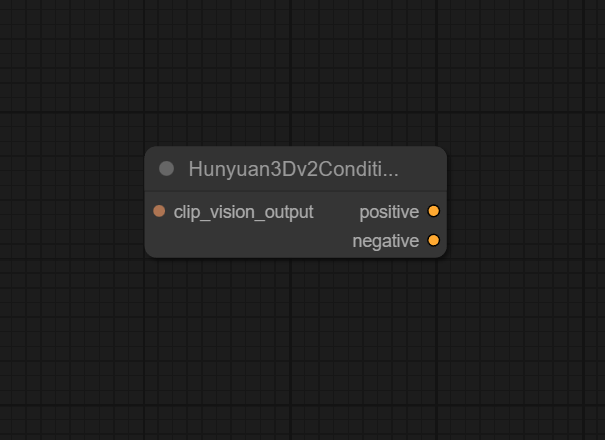
Visual Example
Official Documentation Link
https://comfyai.run/documentation/Hunyuan3Dv2Conditioning
Inputs
| Parameter | Data Type | Required | Description |
|---|---|---|---|
| clip_vision_output | CLIP_VISION_OUTPUT | Yes | The output from a CLIP vision model containing visual embeddings |
Outputs
| Output Name | Data Type | Description |
|---|---|---|
| positive | CONDITIONING | Positive conditioning data containing the CLIP vision embeddings |
| negative | CONDITIONING | Negative conditioning data containing zero-valued embeddings matching the positive embeddings shape |
Usage Instructions
In a typical single‑view Hunyuan3D‑2 workflow, first encode your reference image with CLIPVisionEncode, then feed its output into the vision_cond input of Hunyuan3Dv2Conditioning. Set lighting to control scene brightness, choose a texture_quality preset appropriate for your target render quality, and set object_position to place the generated asset in 3D space (usually on or near the origin with a positive Z offset toward the camera). Connect the resulting conditioning output to your Hunyuan3D‑2 sampling node (or a wrapper like HunyuanWorldImageTo3D) along with an EmptyLatentHunyuan3Dv2 latent and model loader, then run the workflow to generate the 3D model.
Advanced Usage
Advanced users can animate lighting or object_position over time (for example via loop or keyframe nodes) to produce sequences with changing illumination or camera‑relative movement while reusing the same Hunyuan3D‑2 model and latent structure. Combining Hunyuan3Dv2Conditioning with multi‑condition combiners (such as ConditioningMultiCombine) allows blending several guidance sources, including different CLIP vision encodings or environment settings, into a single conditioning object that emphasizes specific style, pose, or scene attributes. In large 3D production pipelines, this node becomes a programmable “control hub” where project‑wide presets for lighting and quality are enforced; for example, separate profiles for “preview” (lower texture quality, lighter lighting) and “final” (high texture, studio lighting) can be toggled via upstream switches.
Example JSON for API or Workflow Export
{
   "id":"hunyuan3d_v2_conditioning_1",
   "type":"Hunyuan3Dv2Conditioning",
   "inputs":{
      "vision_cond":"@clip_vision_encode_1",
      "lighting":0.8,
      "texture_quality":"High",
      "object_position":[
         0.0,
         0.0,
         5.0
      ]
   }
}
Tips
- Keep
lightingin a sensible range (for example 0.4–0.9); too low may hide detail, too high can blow out textures and make normals look flat. - Use
texture_quality = HighorUltraonly when your GPU can handle longer, heavier runs; for fast iteration, start with a lower setting. - Adjust
object_positionZ first to bring the model closer or further from the virtual camera before tweaking X/Y offsets for framing. - Pair with EmptyLatentHunyuan3Dv2 and CLIPVisionEncode exactly as shown in official Hunyuan3D‑2 example workflows for the most predictable results.
- Save conditioning presets (lighting, quality, position) in separate sub‑graphs or as template workflows to standardize look across multiple assets.
How It Works (Technical)
Hunyuan3Dv2Conditioning gathers scalar and categorical controls (lighting intensity, texture quality level, object position
vector, and optional extra fields) and merges them with upstream visual or textual conditioning into a single structured
conditioning object expected by Hunyuan3D‑2 nodes. Internally, these values are normalized and stored in a dictionary or
conditioning tensor bundle, where lighting might influence shading parameters, texture quality can route to different internal
rendering or sampling presets, and position is used to transform or index the 3D coordinate system. The resulting
CONDITIONING object is then consumed by Hunyuan3D‑2 samplers, which read and apply these fields during
volumetric / 3D diffusion to produce geometry and textures consistent with the specified environment controls.
Github alternatives
- ComfyUI‑Hunyuan‑3D‑2 (niknah) – provides Hunyuan3D‑2 custom nodes including conditioning utilities and example workflows that show how to wire conditioning into 3D generation.
- ComfyUI_HunyuanWorldnode – a more complete Hunyuan “world” pipeline that uses EmptyLatentHunyuan3Dv2 and Hunyuan3Dv2Conditioning as part of an end‑to‑end 3D asset generation graph.
- Tencent‑Hunyuan/Hunyuan3D‑2 – the official Hunyuan3D‑2 repository describing the 3D model system and its conditioning concepts, useful for understanding how 3D conditions map into the model’s inputs.
FAQ
1. How is Hunyuan3Dv2Conditioning different from Hunyuan3Dv2ConditioningMultiView?
Hunyuan3Dv2Conditioning is designed for single‑view Hunyuan3D‑2 workflows, using one main conditioning stream plus scalar controls,
whereas Hunyuan3Dv2ConditioningMultiView accepts multiple CLIP‑encoded views (front, left, back, right) and combines them for
multi‑view Hunyuan3D‑2 MV models.
2. What happens if I set an invalid lighting or texture value?
The node may raise errors such as “Invalid Lighting Value” or “Unsupported TextureQuality Setting”;
use the documented ranges and preset names (for example 0.0–1.0 for lighting and supported strings like
Low, Medium, High).
3. Do I need CLIPVisionEncode to use this node?
While you can technically use some fields without vision conditioning, best results come from connecting CLIPVisionEncode or other Hunyuan‑aware
conditioning nodes, which provide the image‑derived features that Hunyuan3D‑2 expects along with lighting and texture controls.
Common Mistakes and Troubleshooting
Common problems include setting lighting or texture quality values outside the supported ranges, which leads to explicit “Invalid Lighting Value”
or “Unsupported TextureQuality Setting” errors, and providing object positions that place the asset far outside the intended view frustum,
effectively making it invisible (“ObjectPosition out of bounds”). Always start with moderate defaults and gradually adjust. Another pitfall
is forgetting to connect CLIP or other vision conditioning, which can cause weak or unstable 3D outputs even if the node itself does not error.
If the downstream Hunyuan3D‑2 nodes complain about missing or malformed conditioning, recheck that this node’s conditioning output
is wired correctly and that parameter names match those expected by the custom nodes version you installed.
Conclusion
Hunyuan3Dv2Conditioning is a central control node for Hunyuan3D‑2 workflows in ComfyUI, unifying lighting, texture, position, and visual conditioning into a single object that drives high‑quality, consistent 3D generation, and giving artists and technical users fine‑grained control over how their 3D assets are realized.