
ImageCompositeMasked
The ImageCompositeMasked node blends two images using a provided mask, allowing for seamless overlays, region-specific edits, and sophisticated visual effects. It’s a core node for compositing, layering, and visual storytelling in ComfyUI workflows—precisely controlling where source and destination images mix.
Overview
ImageCompositeMasked combines a “foreground” (source) image with a “background” (destination) image according to a binary or grayscale mask. The mask defines transparency per pixel—white selects the source, black selects the destination, gray enables partial blending. This enables selective image pasting, effects application, and layer-style workflows. The node sits after mask generation and image processing nodes, and before any save or visualization nodes, cleanly merging composited regions or repairs.
Visual Example
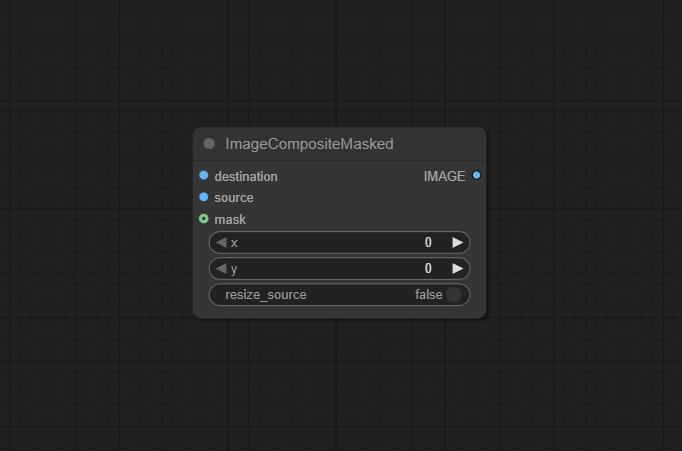
Official Documentation Link
https://comfyui-wiki.com/en/comfyui-nodes/image/image-composite-masked
Inputs
| Parameter | Data Type | Input Method |
|---|---|---|
| source | IMAGE | The source image to be composited onto the destination image. This image can optionally be resized to fit the destination image’s dimensions. |
| destination | IMAGE | The destination image onto which the source image will be composited. It serves as the background for the composite operation. |
| mask | MASK | An optional mask that specifies which parts of the source image should be composited onto the destination image. This allows for more complex compositing operations, such as blending or partial overlays. |
| x | INT | The x-coordinate in the destination image where the top-left corner of the source image will be placed. |
| y | INT | The y-coordinate in the destination image where the top-left corner of the source image will be placed. |
| resize_source | BOOLEAN | A boolean flag indicating whether the source image should be resized to match the destination image’s dimensions. |
Outputs
| Output Name | Data Type | Description |
|---|---|---|
| image | IMAGE | The resulting image after the compositing operation, which combines elements of both t |
Usage Instructions
Connect the “source” image to the foreground you want to blend and the “destination” to the background or base layer. Provide a “mask” to define which regions use the source (white/bright), which use the destination (black/dark), and how the blend transitions (grayscale = partial mixing/feathering). Run the workflow to get a single composited image. You can chain the result to save/display/export or feed into further transformations.
Advanced Usage
Use advanced mask generation—like blurred alpha masks or gradient masks—to produce soft transitions and photorealistic blends. For multi-layer effects, chain several ImageCompositeMasked nodes or combine with layer management nodes (LayerStyle, MaskComposite). Batch process composites by automating mask or source variations. Composite inpainting results, style transfers, or localized edge refinements, and connect with region-of-interest segmenters for context-aware visual storytelling. The node also enables mimicry of Photoshop/Paint layer systems within ComfyUI’s pipeline.
Example JSON for API or Workflow Export
{
  "id": "composite_masked_1",
  "type": "ImageCompositeMasked",
  "inputs": {
    "source": "@image_1",
    "destination": "@image_2",
    "mask": "@mask_1"
  }
}
Tips
- Always match the size and alignment of images and masks for best results.
- Use gradient or blurred masks for soft transitions and anti-aliased blends.
- Prep masks with thresholding, expansion, or feathering nodes for custom shapes or fade-outs.
- For multi-layer effects, cascade multiple composites or use batch scripting.
- Preview your result and mask in a viewer node to catch alignment or mask issues before final export.
How It Works (Technical)
The node computes each output pixel as a weighted mix of source and destination images, according to the mask’s per-pixel luminance: output = mask * source + (1-mask) * destination. This allows binary (hard cut) masking, feathered edges, or gradual blends. The computation preserves alpha/compositing integrity and ensures the result has the original image format and alignment for downstream processing.
Github Alternatives
- ComfyUI-utils-nodes – Improved ImageCompositeMasked for video and batch workflows; includes mask generation, logical mask ops, and compositing tools.
- masquerade-nodes-comfyui – Mask splitting/combining, multi-region cut & paste, advanced batch mask processing and mapping tools.
- ComfyUI_LayerStyle – Layer compositing, mask blending, color/gradient blending, and Photoshop-like multi-layer pipelines.
- ComfyUI-enricos-nodes – Experimental compositor node for arranging, scaling, rotating, and flipping multiple images with creative mask integration.
Videcool workflows
The ImageCompositeMasked node is used in the following Videcool workflows:
FAQ
1. Does the mask need to match the image size?
Yes. For correct composition, all inputs (source, destination, mask) must be of the same dimensions.
2. Can I do partial blends or just hard cuts between layers?
Yes—hard cuts: binary mask; partial blends: use a grayscale or blurred mask for soft transitions.
3. How do I create effective masks for compositing?
Use nodes like Convert Image to Mask, manual mask painting, or blending/filtering for custom effect masks.
Common Mistakes and Troubleshooting
Mistakes often include mismatched input sizes (resulting in errors or misaligned blends), using low-quality or jagged masks (causing artifacts or harsh edges), or misunderstanding the mask’s role—mask controls which image shows per pixel. Always preview masks and align images before large batch composites. Use mask refinement (blur, smooth, feather) for more natural blends and avoid gaps or seams at composited region edges.
Conclusion
ImageCompositeMasked is essential for advanced editing, special effects, and creative image merging in ComfyUI—unlocking professional compositing techniques for AI-driven visual workflows.