
Image Stitch
The Image Stitch node combines two input images into a single stitched output, letting you control direction, optional spacing, and spacing color to build panoramas, side‑by‑side comparisons, or multi‑image reference strips directly inside ComfyUI.
Overview
Image Stitch takes two images and concatenates them horizontally or vertically according to a chosen direction (right, down, left, up) while optionally matching their sizes and inserting a colored gap between them. It is commonly used to assemble extended canvases, flux/Kontext multi‑image reference boards, or simple collages without leaving the node graph. The node sits after image‑generation or loading nodes and before any further processing, such as Flux Kontext encoders, upscalers, or save nodes.
Visual Example
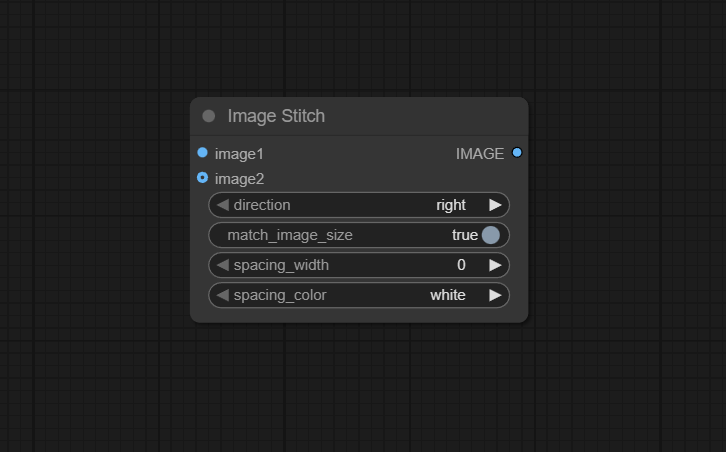
Official Documentation Link
https://comfyai.run/documentation/ImageStitch
Inputs
| Parameter | Data Type | Input Method | Default |
|---|---|---|---|
| image1 | IMAGE | Connection from Load Image or any image‑producing node (primary image) | — (required) |
| image2 | IMAGE | Connection from Load Image or any image‑producing node (secondary image) | None / empty (optional but recommended) |
| direction | STRING | Dropdown: right, down, left, up |
right |
| match_image_size | BOOLEAN | Checkbox (enable/disable auto‑resize for alignment) | true |
| spacing_width | INT | Numeric field / slider (0–1024, step 2) | 0 |
| spacing_color | STRING | Dropdown: white, black, red, green, blue |
white |
Outputs
| Output Name | Data Type | Description |
|---|---|---|
| IMAGE | IMAGE | Single stitched image created by concatenating image1 and image2 in the chosen direction with optional spacing band |
Usage Instructions
To use Image Stitch, connect the first source image to image1 and the second to image2,
usually after their generation or loading nodes. Choose the direction (for example right to place
image2 to the right of image1) and decide whether to enable match_image_size so the
node automatically resizes one image to align edges. Optionally, set a non‑zero spacing_width and a
spacing_color to insert a colored stripe between images, then connect the IMAGE
output to a preview or saving node to see and export the stitched result.
Advanced Usage
Image Stitch can be chained to build larger grids or multi‑image reference boards by repeatedly stitching outputs together—first horizontally, then vertically—to form 2×2 or 3×N compositions without a dedicated grid node. When used in Flux.1 Kontext workflows, it is often employed to assemble multiple reference images into a single strip so Kontext sees them as one composite condition, making alignment and cropping more predictable. For more controlled layouts, pair Image Stitch with nodes that precisely resize or pad inputs before stitching, so that you can keep subject regions aligned (for example centering faces or products) while still benefiting from auto‑matching and spacing options.
Example JSON for API or Workflow Export
{
   "id":"image_stitch_1",
   "type":"ImageStitch",
   "inputs":{
      "image1":"@image_a_node",
      "image2":"@image_b_node",
      "direction":"right",
      "match_image_size":true,
      "spacing_width":10,
      "spacing_color":"white"
   }
}
Tips
- Enable
match_image_sizewhen stitching images from different sources or resolutions to avoid misaligned seams and shape distortion. - Use a small
spacing_width(for example 4–16 pixels) with neutralspacing_colorfor clean reference strips or comparison grids. - For panoramas or extended scenes, generate overlapping content and choose a direction consistent with scene flow (for example
rightfor left‑to‑right pans). - When building multi‑image prompts or Kontext reference boards, keep all constituent images at similar aspect ratios before stitching for a balanced final canvas.
- If you notice color banding in the spacing area, ensure the output color space and any post‑processing nodes do not quantize or compress colors excessively.
How It Works (Technical)
Internally, Image Stitch loads the pixel tensors for image1 and image2, optionally resizes one image
to match the other when match_image_size is enabled, and then allocates a new tensor large enough to hold both images
plus any requested spacing band. Depending on direction, it copies the pixel data into the correct regions of the output
tensor (for example concatenating along width for left/right or height for up/down) and fills the spacing strip with an RGB value
derived from spacing_color. The resulting tensor is wrapped back into an ComfyUI IMAGE object, preserving metadata
where possible, and passed downstream as a single stitched image.
Github alternatives
- was-node-suite-comfyui – original suite that includes Image Stitch and many related image‑processing nodes such as Image Transform and Mosaic for more complex compositions.
- comfyui-panoramic-imgstitcher – a panoramic stitcher that leverages OpenCV feature matching to automatically align and blend multiple overlapping images into a single panorama.
- ComfyUI-RMBG (AILab_ImageStitch) – background‑removal and compositing nodes that include AILab_ImageStitch for simple direction‑based stitching as part of cut‑out and compositing workflows.
FAQ
1. What directions can I stitch images in?
You can stitch images to the right, left, up, or down, allowing both
horizontal and vertical concatenation depending on your layout needs.
2. Do my images have to be the same size?
Not strictly; if match_image_size is enabled, the node will resize one image to match the other for clean alignment,
but if disabled and sizes differ, you may see errors or unintended cropping/offsets.
3. Can I use Image Stitch with more than two images?
The node accepts two images at a time, but you can chain multiple Image Stitch nodes (stitch output with a third image, then with a fourth,
and so on) to create larger composites or grids.
Common Mistakes and Troubleshooting
A common error is enabling match_image_size while feeding images with significantly different aspect ratios,
which can cause squashing or stretching; in such cases, pre‑crop or pad your images to similar shapes before stitching.
Another frequent issue is “Different image sizes” errors when sizes do not match and auto‑matching is disabled, so either
enable matching or normalize sizes upstream. Unexpected orientation often comes from mixing up direction
values or from previous rotation/flip nodes, so double‑check both the direction setting and any earlier transforms.
If spacing shows visible banding, verify that the spacing_color is supported and that downstream compression
or color‑space conversions are not reducing gradient quality.
Conclusion
Image Stitch is a flexible utility node for assembling multiple images into a single canvas, streamlining tasks like panoramas, reference boards, and side‑by‑side comparisons, and integrating cleanly into both basic and advanced ComfyUI image‑editing workflows.