
Save Image
The Save Image node finalizes generative workflows in ComfyUI by saving resulting images to disk. It offers convenient options for naming, output formats, and metadata inclusion, making archiving, sharing, and systematic workflow management effortless.
Overview
Save Image writes output images (typically generated by decoders or output nodes) to a designated folder,
often the ComfyUI/output/ directory. This node may embed generation metadata for future use, support custom naming
conventions, and ensure results are archived for further processing or analysis. It can be chained with any node that produces
images (VAE Decode, upscalers, etc.), and its output references saved file information.
Visual Example
Official Documentation Link
https://comfyui-wiki.com/en/comfyui-nodes/image/save-image
Inputs
| Parameter | Comfy dtype | Description |
|---|---|---|
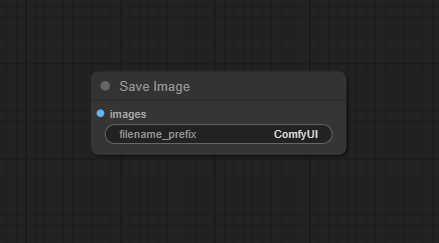
| images | Image | The images to be saved. This parameter is crucial as it directly contains the image data that will be processed and saved to disk. |
| filename_prefix | String | The filename prefix for images saved to the ComfyUI/output/ folder. The default is ComfyUI, but you can customize it. |
Usage Instructions
Add the Save Image node to your workflow. Connect the "images" input to a node generating image data (e.g., VAE Decode, upscalers, etc.). Set filename_prefix for custom file naming; if not set, the default ("ComfyUI") will be used. Select file_format from available options (PNG recommended for full fidelity). (Optional) Toggle save_metadata checkbox for prompt and workflow metadata inclusion. (Optional) Set an output_folder to override the default output location. Run the workflow; the node will save image files and provide output information.
Advanced Usage
Use in batch/image set workflows to automatically save all outputs with structured naming. Select alternative file formats (JPEG, WEBP, AVIF) for web or compressed outputs using custom node extensions. Automate archival, cloud upload, or network sharing using advanced or alternative save nodes (see below). Leverage metadata embedding for seamless workflow recreation or provenance tracking. Trigger downstream file-management, conversion, or notification nodes using the de>file_info output.
Example JSON for API or Workflow Export
{
  "id": "save_image_1",
  "type": "SaveImage",
  "inputs": {
    "images": "@vae_decode_1",
    "filename_prefix": "final_output",
    "file_format": "PNG",
    "save_metadata": true,
    "output_folder": "output"
  }
}
Tips
- Keep filename_prefix specific to avoid overwriting during batch generations.
- Choose PNG for highest quality; select lossy formats for space savings as desired.
- Check your output directory for write permissions to prevent saving errors.
- Save metadata if workflow lineage or sharing is important, especially for collaborations.
- Connect multiple Save Image nodes to different points for snapshot-style archiving.
How It Works (Technical)
The node receives an image tensor, processes it according to file format and naming conventions, and writes it to the disk at the chosen directory. It optionally embeds prompt and workflow metadata (PNG tEXt blocks or ancillary metadata for JPEG/WEBP), returning file and path details in its output for automation or audit purposes.
Github Alternatives
- SaveImage Plus – Supports saving in JPEG and WEBP formats, lossless or lossy compression, and optional removal of metadata.
- Local Save Image – Allows direct download of generated images to your local PC in PNG or JPEG with custom file naming and batch save support.
- Save Image Extended – Save as JXL, AVIF, WebP, JPEG2k; customize folder and file names for advanced archives.
- Remote Save Image – Upload images directly to HTTP endpoints (web servers, APIs) with full format and authentication controls.
Videcool workflows
The Clip Text Encode (Positive Prompt) node is used in the following Videcool workflows:
FAQ
1. Where are images saved by default?
By default, output images are saved in de>ComfyUI/output/. Configure output_folder for custom locations.
2. Can I choose a different file format?
Yes; while PNG is standard, many extensions support JPEG, WEBP, AVIF, etc. See alternative nodes.
3. Is image metadata saved?
Yes, if save_metadata is enabled, prompt and settings are embedded (PNG/JPEG/WEBP, if supported).
Common Mistakes and Troubleshooting
Incorrect or missing file/folder permissions can result in save errors. Filename collisions can occur if filename_prefix is reused across runs/batches. Disabling metadata means losing workflow trace for regeneration. Trying to save unsupported formats without required extensions will cause failures. For remote/cloud saves, ensure URL and authentication are correct.
Conclusion
Save Image is a vital terminal node for ComfyUI, providing robust and customizable options for archiving, sharing, and managing AI-generated content, ensuring that creative and production workflows are reproducible, organized, and secure.