
Load CLIP
The Load CLIP node is used to load Contrastive Language–Image Pretraining (CLIP) models within ComfyUI workflows. It provides the backbone for prompt encoding, text-image alignment, and various other AI art, vision, or captioning tasks, powering generation and analysis nodes that rely on text or vision embeddings.
Overview
Load CLIP lets you select and initialize a specific CLIP model (such as those used for Stable Diffusion, Stable Cascade, SD3, and Stable Audio). Once loaded, its outputs are used by text prompt encoders, semantic search, similarity analysis, and modules like samplers or rankers that require CLIP feature vectors. Most modern text-to-image and image-to-text pipelines require an explicit CLIP loader at their foundation.
Visual Example
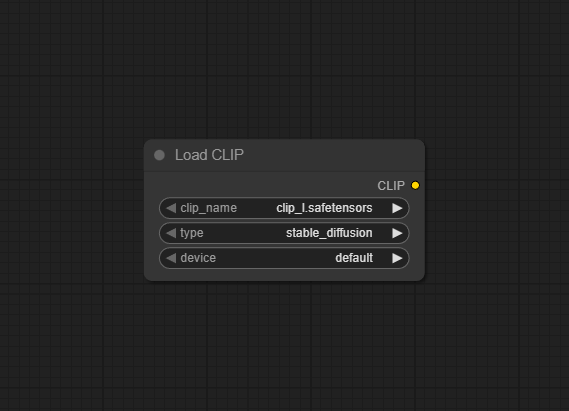
Official Documentation Link
https://docs.comfy.org/built-in-nodes/ClipLoader
Inputs
| Parameter | Data Type | Description |
|---|---|---|
| clip_name | COMBO[STRING] | Specifies the name of the CLIP model to be loaded. This name is used to locate the model file within a predefined directory structure. |
| type | COMBO[STRING] | Determines the type of CLIP model to load. As ComfyUI supports more models, new types will be added here. Please check the CLIPLoader class definition in node.py for details. |
| device | COMBO[STRING] | Choose the device for loading the CLIP model. default will run the model on GPU, while selecting CPU will force loading on CPU. |
Device Options Explained
When to choose “default”:
- Have sufficient GPU memory
- Want the best performance
- Let the system optimize memory usage automatically
When to choose “cpu”:
- Insufficient GPU memory
- Need to reserve GPU memory for other models (like UNet)
- Running in a low VRAM environment
- Debugging or special purpose needs
Performance Impact
Running on CPU will be much slower than GPU, but it can save valuable GPU memory for other more important model components. In memory-constrained environments, putting the CLIP model on CPU is a common optimization strategy.
Supported Combinations
| Model Type | Corresponding Encoder |
| stable_diffusion | clip-l |
| stable_cascade | clip-g |
| sd3 | t5 xxl/ clip-g / clip-l |
| stable_audio | t5 base |
| mochi | t5 xxl |
| cosmos | old t5 xxl |
| lumina2 | gemma 2 2B |
| wan | umt5 xxl |
As ComfyUI updates, these combinations may expand. For details, please refer to the CLIPLoader class definition in node.py
Outputs
| Output Name | Data Type | Description |
|---|---|---|
| CLIP | Object | Loaded CLIP model usable in downstream text, vision, sampler, or ranking nodes |
Usage Instructions
Add the Load CLIP node to your workflow canvas. Select the appropriate de>clip_name from the dropdown (ensure your model file is in the de>models/clip directory). Choose the corresponding de>type for your application (e.g., Stable Diffusion, SDXL, SD3). Set device to de>default for automatic or override for GPU/CPU as needed. Connect the "CLIP" output to nodes that need prompt embedding, captioning, or image analysis. Run the workflow, and all dependent nodes will receive the loaded CLIP instance.
Advanced Usage
Use different CLIP models in parallel for advanced blending or A/B generation. Specify quantized or GGUF-format CLIP models for lower-VRAM or embedded use cases (see "CLIPLoaderGGUF"). Experiment with device targeting for multi-GPU, CPU fallback, or batch workflows. Chain with auxiliary nodes like "CLIP Vision" for combined image+text workflows or analytic tasks.
Example JSON for API or Workflow Export
{
  "id": "clip_loader_1",
  "type": "ClipLoader",
  "inputs": {
    "clip_name": "clip_l.safetensors",
    "type": "stable_diffusion",
    "device": "default"
  }
}
Tips
- Keep all CLIP model files organized in
models/clipfor easy selection. - Select the correct
typefor compatibility with samplers, prompt encoders, or samplers in your workflow. - If running on limited hardware, use quantized (GGUF) CLIP models.
- Update the node after adding new CLIP files for correct detection.
- Check VRAM requirements when using high-capacity or “extra” CLIP architectures for large workflows.
How It Works (Technical)
The Load CLIP node reads the designated CLIP model file (usually in .safetensors or .pt) using PyTorch or ONNX, allocates it on the desired device, and validates architecture compatibility with the chosen “type.” This object can then process text/image pairs, producing embeddings or classification outputs for use throughout the workflow.
Github Alternatives
- ComfyUI-Long-CLIP – Integrates long-prompt capable and large-context CLIP models for enhanced semantic matching.
- ComfyUI_smZNodes – Community nodes with CLIP Text Encode++, alternate prompt encoders, and extra CLIP management features.
- Integrated Nodes for ComfyUI – All-in-one node pack with loader, CLIP, model, vision, and pipeline utility nodes.
- ComfyUI-disty-Flow – Alternative UI and node components for CLIP-centric and multimodal workflows.
Videcool workflows
The Load CLIP node is used in the following Videcool workflows:
FAQ
1. What if my workflow won't detect my CLIP model?
Make sure the file is placed in de>models/clip and restart ComfyUI or refresh models.
2. Can I use multiple CLIP nodes in one workflow?
Yes, for advanced pipelines such as prompt blending, evaluation, or model fusion setups.
3. Are GGUF/quantized CLIP models supported?
Yes, with compatible loader extensions (e.g., CLIPLoaderGGUF, see alternatives above).
Common Mistakes and Troubleshooting
Common issues include incorrectly selecting or spelling the de>clip_name. Not matching the de>type to the workflow/model family can cause compatibility problems. Out-of-memory (OOM) errors from high-capacity models can be resolved by switching to a lighter or GGUF version. Overlapping device assignments if running multiple heavy workflows on limited hardware should also be avoided.
Conclusion
Load CLIP is a core utility node enabling robust prompt handling, text-image feature extraction, and advanced multimodal AI workflows in ComfyUI. With model and device flexibility, it adapts to a wide range of creative and research scenarios, unlocking the full potential of text-guided generation and analysis.