
Upscale Image (using Model)
The Upscale Image (using Model) node (class ImageUpscaleWithModel) upsamples pixel images using a
selected UPSCALE_MODEL, handling device transfer and tiled processing so large images can be upscaled
safely without running out of memory.
Overview
Upscale Image (using Model) applies an external upscaling network (for example ESRGAN or Real‑ESRGAN) to an input IMAGE and outputs a higher‑resolution version, typically with enhanced sharpness and detail. It is designed to work with models loaded by Load Upscale Model, separating model management from the actual upscaling operation. In a standard workflow it receives upscale_model from a loader node, image from a decode or generation node, and then feeds its upscaled image output into preview or save nodes or into further processing like face restoration.
Visual Example
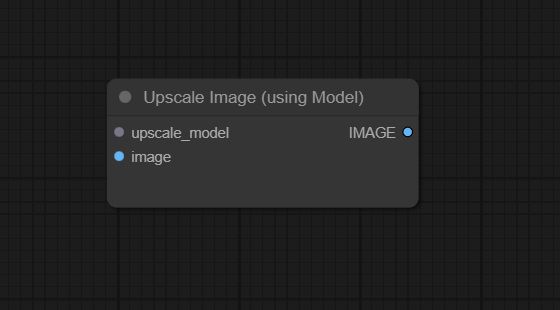
Official Documentation Link
https://comfyui-wiki.com/en/comfyui-nodes/image/upscaling/image-upscale-with-model
https://blenderneko.github.io/ComfyUI-docs/Core Nodes/Image/upscaling/UpscaleImageUsingModel/
Inputs
| Parameter | Description | Input Method | Default |
|---|---|---|---|
| upscale_model | The UPSCALE_MODEL to use for upscaling, typically coming from a Load Upscale Model node; defines the upscaling algorithm and scale. |
Connection from Load Upscale Model or compatible loader | — (required) |
| image | The source IMAGE to be upscaled; higher‑quality inputs produce better upscaled results. |
Connection from any IMAGE‑producing node (Decode, VAE Decode, Save, etc.) | — (required) |
Outputs
| Output Name | Description |
|---|---|
| image | The upscaled IMAGE produced by the upscale model, usually with increased resolution and potentially enhanced detail or sharpness. |
Usage Instructions
In a typical pipeline, use Load Upscale Model to select an upscaler and connect its upscale_model output into the upscale_model input of Upscale Image (using Model). Feed the image input from your rendered image (for example, after VAE Decode or post‑processing) and then connect the node’s upscaled image output to a viewer or Save Image node. Many example workflows chain this node at the end of a generation graph to produce a final 2×–4× detailed image suitable for printing or high‑DPI displays.[8][4][5][1]
Advanced Usage
For best quality, run the upscaler on images that already have reasonably good detail (for example 768×768 or 1024×1024) rather than very small thumbnails, as models tend to hallucinate less and refine structures more effectively. Some workflows apply this node multiple times with different models (for example a softer first pass followed by a sharper one) or combine it with UltimateSDUpscale or tiled diffusion to upscale beyond a single model’s native factor while preserving composition. Advanced users often gate upscaling with logic nodes—such as “Upscale Image By (Using Model)” or “UpscaleImageWithModelIfNeed”—so that only images below a target resolution are passed into ImageUpscaleWithModel, preventing unnecessary compute on already large outputs.
Example JSON for API or Workflow Export
{
   "id":"image_upscale_with_model_1",
   "type":"ImageUpscaleWithModel",
   "inputs":{
      "upscale_model":"@load_upscale_model_1:upscale_model",
      "image":"@vae_decode_1:image"
   }
}
Tips
- Choose an upscale model that matches your content type (for example anime‑focused, photo‑real, or general) to avoid over‑sharpening or artifacts.
- Upscale after most heavy edits (denoising, inpainting, color grading) so that the upscaler only has to refine, not correct, the image.
- Test different models and compare results at 100% zoom; subtle differences in texture or noise can matter a lot for print or close‑view work.
- If VRAM is limited, keep batch sizes small and avoid feeding extremely large images; combine this node with tiled upscaling solutions if needed.
- Document the upscaler used (for example in workflow names or metadata) so successful looks are easy to reproduce later.
How It Works (Technical)
Internally, Upscale Image (using Model) receives a reference to an UPSCALE_MODEL object, moves both the model and the input image
tensor to the appropriate device (usually GPU), and runs the model’s forward pass over the image, often in tiles to reduce peak memory usage.
The tiling logic splits the image into overlapping patches, upscales each patch individually, and then stitches them back together to form a
seamless high‑resolution output, compensating for border artifacts where necessary. The final upscaled tensor is wrapped back into ComfyUI’s IMAGE
type and handed downstream, while the node releases intermediate buffers to limit VRAM footprint between executions.
Github alternatives
- ComfyUI_UltimateSDUpscale – advanced upscaling suite that combines diffusion, tiling, and upscaler models to generate very large, detailed images; often used alongside or instead of a single ImageUpscaleWithModel pass.
- comfyui-upscale-by-model – custom nodes that wrap an upscale‑by‑factor workflow around a model, automatically rescaling images to target sizes after using an upscaler.
- ComfyUI_examples – Upscale Models – official examples demonstrating how to pair Load Upscale Model with ImageUpscaleWithModel for common ESRGAN‑style upscaling tasks.
FAQ
1. Do I have to use Load Upscale Model with this node?
Yes, in standard workflows the upscale_model input expects an UPSCALE_MODEL object, typically provided by the
Load Upscale Model node; without a loaded model, the node cannot perform upscaling.
2. How much does this node upscale my image?
The scale factor is determined by the underlying model (for example 2×, 4×); some wrappers like “Upscale Image By (Using Model)”
expose an explicit upscale_by parameter, but ImageUpscaleWithModel itself simply applies whatever scale the model was trained for.
3. Can I use this node multiple times in a row?
Yes; chaining multiple Upscale Image (using Model) nodes (potentially with different models) is common when you need very high resolutions,
but be mindful of VRAM usage and diminishing returns in detail.
Common Mistakes and Troubleshooting
A frequent mistake is attempting to connect an IMAGE directly into upscale_model or leaving it unconnected,
which results in node‑type errors because the input expects an UPSCALE_MODEL handle, not pixel data.
Another issue is using mismatched or low‑quality upscalers (for example anime models on photos), which can introduce artifacts or
over‑sharpening; in such cases, try different models and inspect results at full resolution. If the node crashes with out‑of‑memory errors,
reduce input resolution, disable large batches, or move to a tiled or UltimateSD‑based upscaling solution that is more memory‑aware.
Conclusion
Upscale Image (using Model) is the central building block for model‑based image upscaling in ComfyUI, cleanly connecting reusable upscaler weights to image tensors and enabling high‑quality, memory‑efficient resolution boosts in both simple and advanced workflows.