
FluxKontextImageScale
The FluxKontextImageScale node resizes input images to resolutions that are optimal for FLUX.1 Kontext workflows, automatically adjusting size and megapixel count while preserving aspect ratio so reference and source images run efficiently and reliably through Kontext pipelines.
Overview
FluxKontextImageScale (from comfy_extras.nodes_flux) is a context‑aware image scaler tailored to Flux Kontext editing graphs.
It takes an IMAGE and computes a “preferred” target resolution around roughly one megapixel (and aligned to Flux‑friendly multiples),
scaling the image up or down while keeping its composition intact. This ensures images stay within Kontext’s stable resolution range,
reducing VRAM usage and avoiding odd behavior when images are extremely large or very small, and it is commonly wired just before
Flux Kontext encoders or reference‑latent nodes.
Visual Example
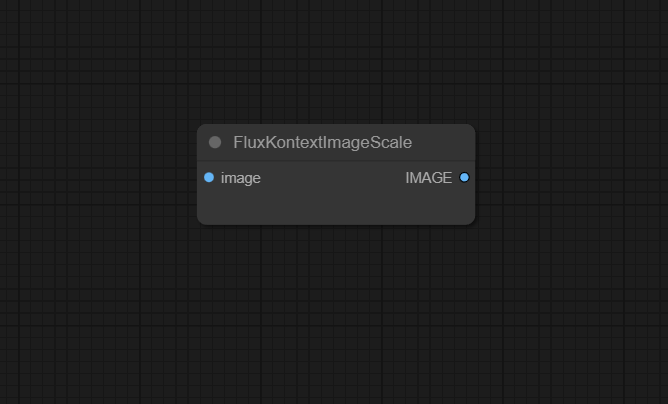
Official Documentation Link
https://comfyai.run/documentation/FluxKontextImageScale
Inputs
| Parameter | Data Type | Input Method | Default |
|---|---|---|---|
| image | IMAGE | Connection from Load Image or any image‑producing node | — (required) |
Outputs
| Output Name | Data Type | Description |
|---|---|---|
| IMAGE | IMAGE | Rescaled image with aspect ratio preserved and resolution adjusted to preferred Flux Kontext sizes |
Usage Instructions
Insert FluxKontextImageScale between your image loader (or pre‑processing chain) and the Flux Kontext encoder / reference‑latent nodes. Feed the original image into the node; it outputs a resized IMAGE whose pixel count is automatically adjusted to a target around one megapixel and whose dimensions satisfy Flux Kontext’s internal “preferred resolution” heuristics. Use this scaled image as the input for Kontext’s reference image or source image nodes, while configuring overall output size separately via Flux Resolution or similar nodes when needed.
Advanced Usage
In multi‑image Kontext workflows, you can apply FluxKontextImageScale to each reference image so they all share a consistent megapixel budget and compatible resolutions, which helps Flux weigh them fairly when fusing features. When working with very high‑res images (for example 4K or 8K), this node automatically scales them down to a safe size for VRAM while maintaining aspect ratio; afterwards, you can upscale the final result using standard upscalers if you need larger outputs. In some advanced graphs, users may bypass this node and instead implement custom aspect‑ratio / megapixel logic (for example with Aspectatio‑style resizers), but FluxKontextImageScale remains the simplest drop‑in option for official Kontext pipelines and example workflows.
Example JSON for API or Workflow Export
{
   "id":"flux_kontext_image_scale_1",
   "type":"FluxKontextImageScale",
   "inputs":{
      "image":"@load_image_1"
   }
}
Tips
- Use this node whenever input images are significantly larger than ~1–2 megapixels to avoid Kontext instability and excessive VRAM usage.
- Let FluxKontextImageScale handle reference image sizing, then control final output resolution independently via a Flux Resolution node or output‑size settings.
- If precise composition at the borders is critical, inspect the scaled resolution and, if needed, pad or crop manually upstream to avoid subtle changes in framing.
- For workflows mixing several reference images, ensure every image passes through the same scaling strategy so their contributions remain balanced.
- If you prefer exact control, compare the auto‑scaled output against a manual resize node and decide which behavior better fits your project’s constraints.
How It Works (Technical)
FluxKontextImageScale inspects the incoming image’s width, height, and total pixel count, then computes a new resolution
close to a target megapixel value (around one million pixels) while preserving aspect ratio and respecting internal
“preferred Kontext resolutions” that align to model‑friendly multiples. If the image is too large, it scales it down;
if it is unusually small, it scales it up so that Flux’s encoders operate in a comfortable size range. The node uses
a high‑quality resampling filter to minimize artifacts, then returns the resized tensor as an IMAGE
suitable for Flux Kontext’s latent encoders and reference pipelines.
Github alternatives
- flux‑kontext‑comfyui – an alternative Flux Kontext workflow implementation that includes its own resolution and resizing logic around Kontext encoders.
- FluxKontextCreator – a custom node collection for Kontext editing that offers configurable resize strategies (fit largest / fit smallest / no resize) and more granular control than the stock FluxKontextImageScale node.
- Awesome ComfyUI custom nodes – curated list that includes general‑purpose resizers (for example, Aspectatio‑style megapixel limiters) that can act as drop‑in replacements or complements when you need stricter control over scaling behavior.
FAQ
1. Why does FluxKontextImageScale change my image size even when the workflow runs without it?
The node adjusts your image to resolutions Kontext handles best (roughly one megapixel, aligned to preferred sizes),
improving stability and VRAM usage even though Kontext may still run at non‑preferred sizes.
2. Does this node crop or distort my image?
It preserves aspect ratio and resizes by scaling, not cropping, but integer rounding means the final dimensions
may differ slightly while still matching the original aspect closely.
3. Can I safely remove this node from a Kontext workflow?
Yes, but for very large or tiny images you may see worse performance, memory issues, or less predictable
results; if you remove it, consider replacing it with another well‑configured resize node.
Common Mistakes and Troubleshooting
A common source of confusion is misattributing composition changes to “cropping” when the node is actually rescaling while
preserving aspect ratio; small dimension shifts are expected as it snaps to preferred resolutions. If your layout is
extremely sensitive (for example, UI frames or border‑critical content), verify the scaled size and, if necessary,
handle resizing manually upstream. Removing the node entirely when feeding huge images into Kontext can cause VRAM
spikes or erratic outputs; in such cases either keep FluxKontextImageScale or use a custom megapixel‑limiting resizer.
If you see “missing node” errors when loading Kontext example workflows, update ComfyUI to a version that includes
comfy_extras.nodes_flux or install a pack that provides FluxKontextImageScale.
Conclusion
FluxKontextImageScale is a small but important utility node for Flux Kontext workflows, automatically adapting input image sizes to model‑friendly resolutions so Kontext editing remains stable, efficient, and consistent across a wide variety of sources and reference images.