
Load Inpaint Model
The Load Inpaint Model node efficiently loads pre-trained inpainting models for ComfyUI, making it easy to fill, restore, or manipulate masked image regions using advanced, optimized networks. It is essential for workflows that call for seamless object removal, region replacement, or guided content editing.
Overview
Load Inpaint Model enables users to import specialized inpainting models—such as LaMa and MAT—by specifying model files from a dedicated "inpaint" directory. Once loaded, the model is ready for application via connected inpaint nodes to mask out, replace, or restore image areas with high accuracy. The node streamlines model selection and swapping for diverse restoration and creative image editing tasks, typically serving as the foundation for region-based AI modifications.
Visual Example
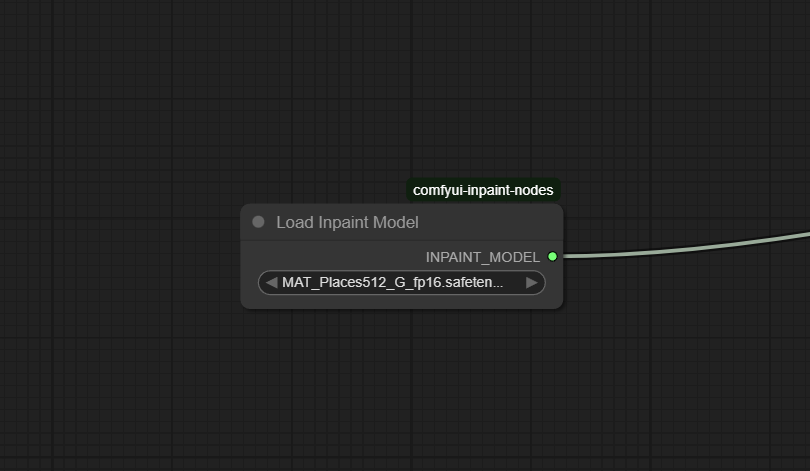
Official Documentation Link
https://www.runcomfy.com/comfyui-nodes/comfyui-inpaint-nodes/INPAINT_LoadInpaintModel
Inputs
| Parameter | Data Type | Input Method | Default |
|---|---|---|---|
| model_name | String | Dropdown or text (must match file in "models/inpaint/") | — |
Outputs
| Output Name | Data Type | Description |
|---|---|---|
| INPAINT_MODEL | Object/Tuple | The loaded inpainting model ready for downstream masks or inpainting nodes |
Usage Instructions
Place your inpainting model file (e.g., LaMa or MAT) in the models/inpaint/ directory. Insert the Load Inpaint Model node into your workflow.
Select the desired model using the dropdown for model_name. Connect the INPAINT_MODEL output to an inpainting node
(like InpaintWithModel or Inpaint using Model). Run the workflow to enable high-quality region replacement or restoration operations using the specified model.
Advanced Usage
For best results, experiment with multiple inpaint models to match style, speed, and restoration accuracy for your application. Integrate with region mask expansion or blur nodes to enhance transitions between inpainted and original areas. Use as part of automated pipelines for batch object removal, outpainting, or promptless creative workflows. Combine with mask compositing, pre-fill, or denoise nodes for advanced restoration of difficult subjects or damaged images. Patch checkpoints with custom inpaint models for project-specific restoration tasks.
Example JSON for API or Workflow Export
{
  "id": "inpaint_load_1",
  "type": "INPAINT_LoadInpaintModel",
  "inputs": {
    "model_name": "mat-inpaint.safetensors"
  }
}
Tips
- Only place compatible models (LaMa, MAT, Fooocus, etc.) in the inpaint folder to avoid confusion in the selector dropdown.
- Restart ComfyUI after adding new inpainting models for proper detection.
- Test various models on small image regions for speed-to-quality benchmarking before launching large projects.
- Keep your inpaint models updated to leverage the latest academic or community advancements.
- Combine with advanced mask and compositing nodes to maximize restoration realism.
How It Works (Technical)
The node scans the models/inpaint/ directory, allowing selection of available inpainting model files. The chosen model is loaded (set to evaluation mode), registered as an inpainting module, and exposed through the output connector for use in downstream nodes. When paired with compatible inpainting operations, it enables targeted region filling, restoration, or content-aware replacement in image processing pipelines.
Github Alternatives
- comfyui-inpaint-nodes – Comprehensive inpainting node suite for ComfyUI with Loader, Fooocus, LaMa, MAT, cropping, mask compositing, and denoise-to-compositing features.
- LCM_Inpaint_Outpaint_Comfy – Latent consistency and mixing nodes for inpaint and outpaint, offering MixImages, prompt weighting, and inpaint model selection.
- ComfyUI-LevelPixel – Node pack for atomic inpainting/outpainting, with loader and pre-processing tools.
Videcool workflows
The Load Inpaint Model node is used in the following Videcool workflows:
FAQ
1. What models are supported by Load Inpaint Model?
LaMa, MAT, Fooocus, and community SAFETENSORS inpainting models placed in models/inpaint/.
2. Do I have to restart ComfyUI after adding new models?
Yes, this is recommended so the node can detect and list all new model files properly.
3. What if my model doesn’t appear in the dropdown?
Check that the filename is valid, compatible, and clearly placed in the correct directory; restart if necessary.
Common Mistakes and Troubleshooting
Common pitfalls include placing incompatible files in the inpaint folder (leading to detection or loading errors), failing to restart ComfyUI after adding models (so they don’t appear in the selector), or selecting a wrong filename (typos, wrong version, etc.). Ensure all inpaint models are downloaded from trusted sources and are compatible with ComfyUI’s node architecture. When troubleshooting, use small masks on test images to quickly validate model load and inpainting performance before running complex jobs.
Conclusion
Load Inpaint Model provides fast, reliable access to the latest inpainting models for advanced image restoration, manipulation, and creative editing tasks in ComfyUI. Whether performing object removal, seamless outpainting, or resilient content-aware editing, it is an essential node for any inpainting workflow.