
AI Image Upscale ComfyUI workflow for Videcool
The AI Image Upscale workflow in Videcool provides a powerful and flexible way to increase image resolution while preserving detail and sharpness. Designed for speed, clarity, and visual quality, this workflow is served by ComfyUI and uses Real-ESRGAN upscaling models integrated as ComfyUI nodes.
What can this ComfyUI workflow do?
In short: High-quality image upscaling.
This workflow takes a low- or medium-resolution image and produces a higher-resolution version using deep learning–based super-resolution. It interprets fine structures such as edges, textures, and small details, and reconstructs them at a larger size with minimal artifacts. Two main presets are provided: a 2x upscaling workflow and a 4x upscaling workflow, both based on Real-ESRGAN models.
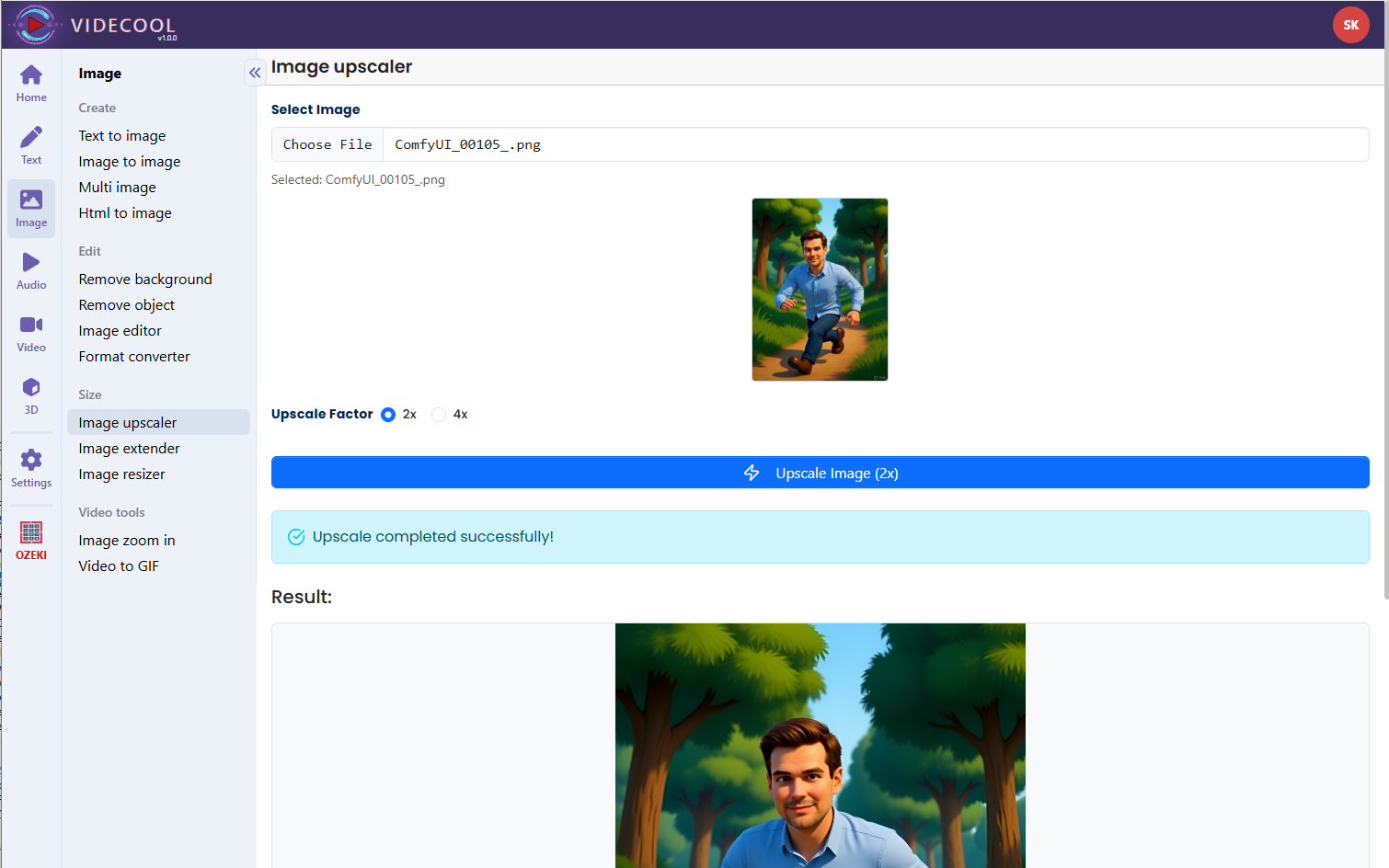
Example usage in Videcool
Download the ComfyUI workflow
Download ComfyUI 2x Upscale workflow file: upscale_workflow_2x_api.json
Download ComfyUI 4x Upscale workflow file: upscale_workflow_4x_api.json
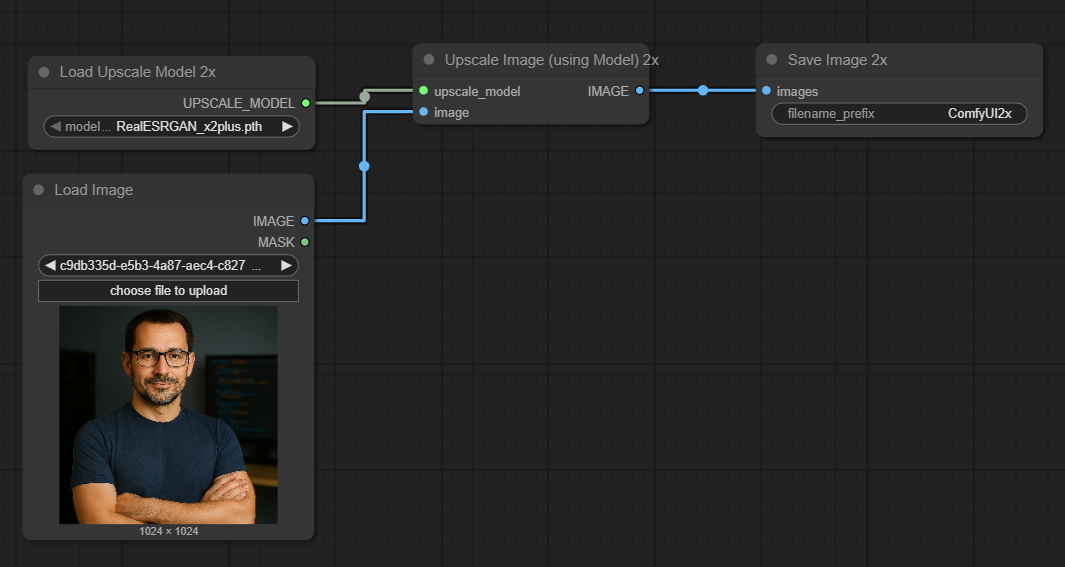
Image of the ComfyUI workflow
This figure provides a visual overview of the upscale workflow layout inside ComfyUI. Each node is placed in logical order to establish a clean and efficient upscaling pipeline, starting from loading the source image, through loading the appropriate Real-ESRGAN model, running the upscaling, and finally saving the higher-resolution output. Users can modify or expand parts of the workflow to chain multiple upscales, add post-processing, or integrate upscaling into broader generation or editing pipelines.
Installation steps
Step 1: Download the RealESRGAN 4x model: runwget https://github.com/xinntao/Real-ESRGAN/releases/download/v0.1.0/RealESRGAN_x4plus.pth
Step 2: Download the RealESRGAN 2x model: run
wget https://github.com/xinntao/Real-ESRGAN/releases/download/v0.2.1/RealESRGAN_x2plus.pth
Step 3: Copy both RealESRGAN_x4plus.pth and RealESRGAN_x2plus.pth into your ComfyUI upscale model folder: ComfyUI/models/upscale_models
Step 4: Download the upscale_workflow_2x_api.json and/or upscale_workflow_4x_api.json workflow files into your home directory.
Step 5: Restart ComfyUI so the new upscale models are recognized.
Step 6: Open the ComfyUI graphical user interface (ComfyUI GUI).
Step 7: Load either the 2x or 4x upscale workflow JSON file in the ComfyUI GUI.
Step 8: In the Load Image node, select the image you want to upscale.
Step 9: Confirm that the Load Upscale Model node points to the correct RealESRGAN_x2plus or RealESRGAN_x4plus model file, then hit run to generate the upscaled image.
Step 10: Open Videcool in your browser and use the AI Image Upscale tool to apply these workflows to images in your projects.
Installation video
The workflow requires only an input image and the selected Real-ESRGAN model (2x or 4x) to begin upscaling. After loading the JSON file, users can choose the source image, run the pipeline, and quickly obtain a higher-resolution version with improved perceived detail. The resulting upscaled images can be saved and reused across Videcool tools, for example as higher-quality assets for scenes, thumbnails, or further AI processing.
Prerequisites
To run the workflow correctly, download the Real-ESRGAN model files and place them into your ComfyUI upscale_models directory. These files contain the learned weights that reconstruct high-resolution detail from lower-resolution inputs. Proper installation into the following location is essential before running the workflow: {your ComfyUI directory}/models/upscale_models.
ComfyUI\models\upscale_models\RealESRGAN_x2plus.pth
https://github.com/xinntao/Real-ESRGAN/releases/download/v0.2.1/RealESRGAN_x2plus.pth
ComfyUI\models\upscale_models\RealESRGAN_x4plus.pth
https://github.com/xinntao/Real-ESRGAN/releases/download/v0.1.0/RealESRGAN_x4plus.pth
How to use this workflow in Videcool
Videcool integrates seamlessly with ComfyUI, allowing users to upscale images directly from within their video or image editing projects. After configuring the 2x or 4x upscale workflows in ComfyUI, Videcool can call these pipelines to upscale assets before they are placed into scenes or exported. This makes upgrading image resolution intuitive and accessible, helping users improve visual quality for final renders without needing to understand the internal ComfyUI node graph.
ComfyUI nodes used
This workflow uses the following nodes. Each node performs a specific role, such as loading the image, loading the chosen upscale model, running the super-resolution process, and finally saving the upscaled result. Together they create a straightforward pipeline that can be easily extended or combined with other workflows.
Image resolution
The AI Image Upscale workflow increases image dimensions by a fixed factor, either 2x or 4x, depending on which Real-ESRGAN model and workflow you choose. For example, a 640×360 image becomes 1280×720 with 2x upscaling, or 2560×1440 with 4x upscaling. To avoid excessive memory usage, start from moderately sized inputs and choose the upscale factor that best matches your target resolution in Videcool projects.
Conclusion
The AI Image Upscale workflow is a robust, efficient, and user-friendly solution for enhancing image resolution in Videcool. With its combination of Real-ESRGAN models, a simple ComfyUI pipeline, and seamless integration into Videcool, it enables beginners and professionals alike to quickly upgrade image quality for videos, slides, and graphics. By understanding the workflow components and installation steps, users can easily incorporate AI-powered super-resolution into their everyday Videcool workflows.