
Qwen Multi Image to Image ComfyUI workflow for Videcool
The Qwen Multi Image to Image workflow in Videcool provides a powerful and flexible way to transform multiple images while maintaining structural coherence and visual quality. Designed for speed, clarity, and creative control, this workflow is served by ComfyUI and uses the Qwen Multi-Image-to-Image AI model developed by Alibaba's Qwen team and repackaged by Comfy-Org.
What can this ComfyUI workflow do?
In short: Multi-image-to-image transformation and editing.
This workflow takes multiple source images and text prompts to transform them into new versions while preserving key visual elements or adapting them according to your instructions. It uses advanced diffusion technology to interpret both the image content and textual guidance across multiple images simultaneously, producing detailed and coherent outputs that maintain consistency across the image set. The base Qwen model is optimized for handling multiple images and maintaining visual harmony and coherence throughout the transformation process.
Example usage in Videcool
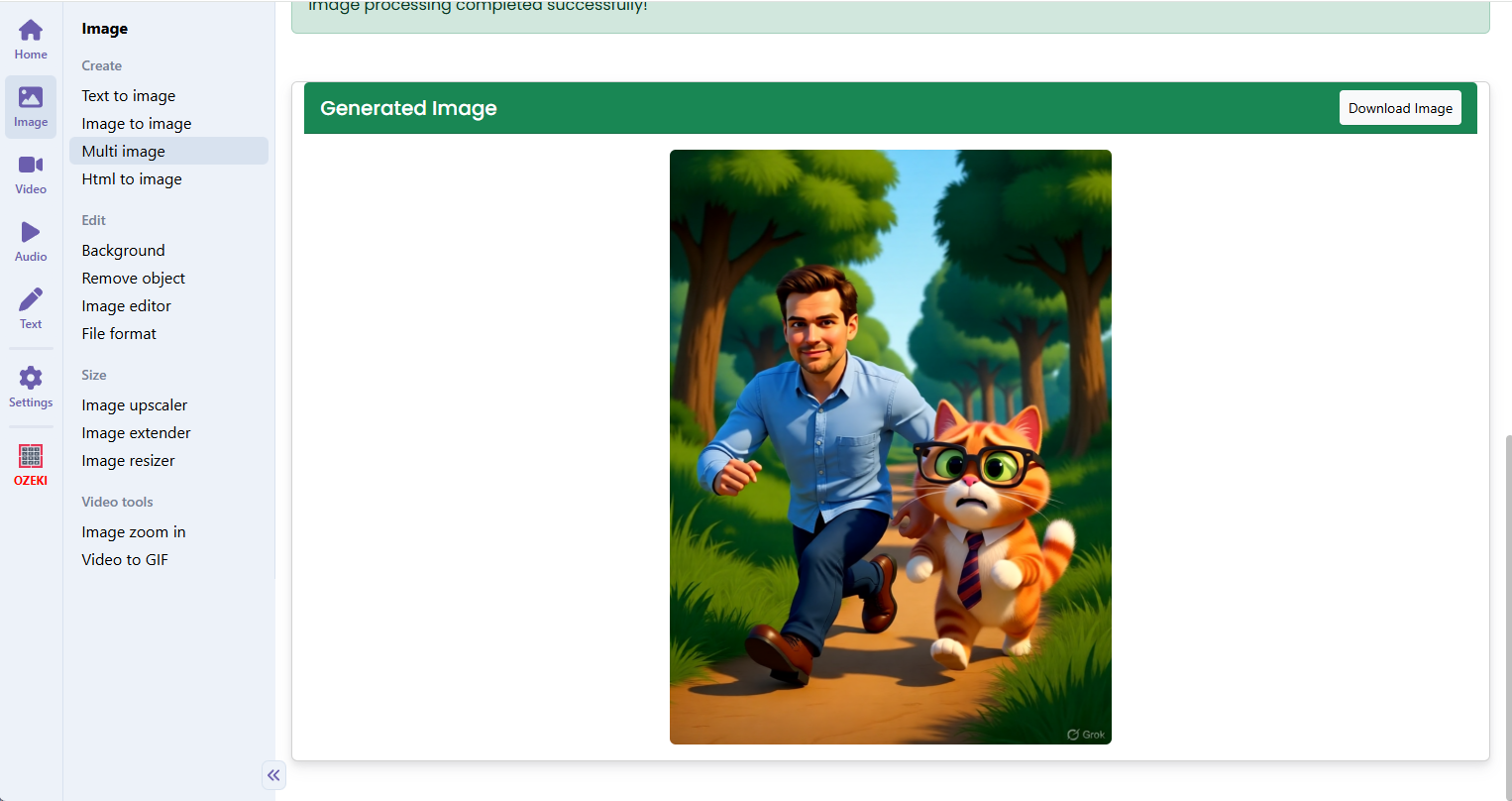
Download the ComfyUI workflow
Download ComfyUI Workflow file: qwen-multi-image-input-api.json
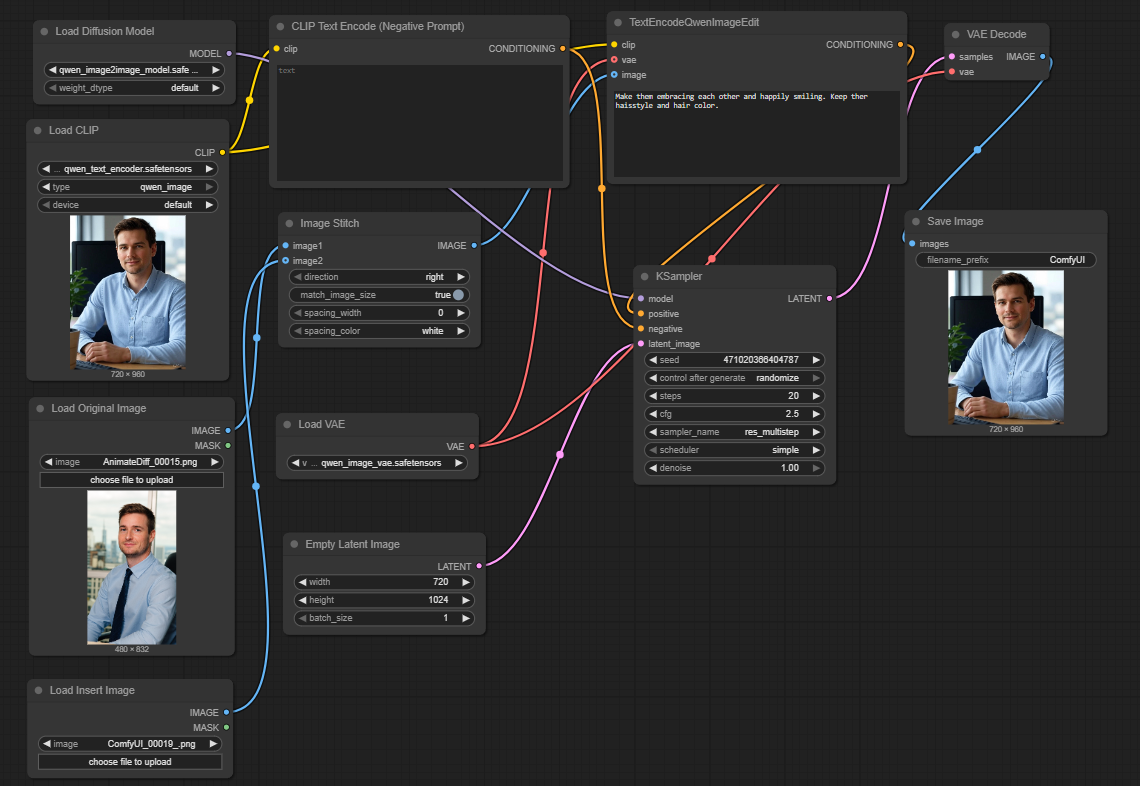
Image of the ComfyUI workflow
This figure provides a visual overview of the Qwen Multi-Image-to-Image workflow layout inside ComfyUI. Each node is placed in logical order to establish a clean and efficient multi-image transformation pipeline, starting from loading multiple source images and the model, through text encoding, conditioning, sampling, and final decoding. The structure makes it easy to understand how the Qwen model handles multiple image inputs, text encoders, VAE, and sampler interact to produce consistent outputs across all images. Users can modify or expand parts of the workflow to create custom variations or integrate multi-image transformation into larger creative pipelines.
Installation steps
Step 1: Download qwen_image_edit_2509_fp8_e4m3fn.safetensors into /ComfyUI/models/diffusion_models/ and rename it to qwen_image_edit_2509_model.safetensors.Step 2: Download qwen_image_vae.safetensors into /ComfyUI/models/vae/qwen_image_vae.safetensors.
Step 3: Download qwen_2.5_vl_7b_fp8_scaled.safetensors into /ComfyUI/models/text_encoders/.
Step 4: Download Qwen-Image-Edit-2509-Lightning-4steps-V1.0-bf16.safetensors into /ComfyUI/models/loras/ and rename it to Qwen-Image-Lightning-4steps-V1.0.safetensors.
Step 5: Download the qwen-multi-image-input-api.json workflow file into your home directory.
Step 6: Restart ComfyUI so the new model and encoder files are recognized.
Step 7: Open the ComfyUI graphical user interface (ComfyUI GUI).
Step 8: Load the qwen-multi-image-input-api.json workflow in the ComfyUI GUI.
Step 9: In the Load Image nodes, select the multiple source images you want to transform.
Step 10: Enter a text prompt describing the desired transformation or editing in the text encoding node, then hit run to generate transformed versions of all images.
Step 11: Open Videcool in your browser, select the Multi-Image to Image Qwen tool, and use the generated outputs for further compositing, video creation, or design work.
Installation video
The workflow requires multiple source images, an optional text prompt, and a few basic parameter adjustments to begin transforming images. After loading the JSON file, users can select the input images, enter edit instructions, adjust sampling quality and steps, and then run the pipeline to obtain transformed versions that maintain consistency across all images. Once executed, the sampler produces new images that maintain key structural elements while applying the requested changes, which can be saved and reused across other Videcool tools.
Prerequisites
To run the workflow correctly, download the Qwen model files and text encoder, then place them into your ComfyUI directory. These files ensure the model can understand input images, interpret text instructions, and produce high-quality transformed outputs that maintain consistency across multiple images. Proper installation into the following locations is essential before running the workflow: {your ComfyUI director}/models/diffusion_models/, {your ComfyUI director}/models/vae/, {your ComfyUI director}/models/text_encoders/, and {your ComfyUI director}/models/loras/.
ComfyUI\models\diffusion_models\qwen_image_edit_2509_model.safetensors
https://huggingface.co/Comfy-Org/Qwen-Image-Edit_ComfyUI/resolve/main/split_files/diffusion_models/qwen_image_edit_2509_fp8_e4m3fn.safetensors
ComfyUI\models\vae\qwen_image_vae.safetensors
https://huggingface.co/Comfy-Org/Qwen-Image_ComfyUI/resolve/main/split_files/vae/qwen_image_vae.safetensors
ComfyUI\models\text_encoders\qwen_2.5_vl_7b_fp8_scaled.safetensors
https://huggingface.co/Comfy-Org/Qwen-Image_ComfyUI/resolve/main/split_files/text_encoders/qwen_2.5_vl_7b_fp8_scaled.safetensors
ComfyUI\models\loras\Qwen-Image-Lightning-4steps-V1.0.safetensors
https://huggingface.co/lightx2v/Qwen-Image-Lightning/resolve/main/Qwen-Image-Edit-2509/Qwen-Image-Edit-2509-Lightning-4steps-V1.0-bf16.safetensors
How to use this workflow in Videcool
Videcool integrates seamlessly with ComfyUI, allowing users to load and run Qwen multi-image transformation workflows directly without managing the underlying node graph. After importing the workflow file into ComfyUI, Videcool can call it to transform multiple images simultaneously based on text prompts and user preferences. This makes multi-image editing and transformation intuitive and accessible, even for users who are not keen on learning how ComfyUI works, while still benefiting from the power of the Qwen Multi-Image-to-Image model.
ComfyUI nodes used
This workflow uses the following nodes. Each node performs a specific role, such as loading multiple source images and model, encoding text instructions, preparing images for processing, sampling across all images simultaneously, and finally decoding and saving the outputs. Together they create a reliable and modular pipeline that can be easily extended or customized for different multi-image transformation tasks.
- Load Image
- Load Diffusion Model
- Load VAE
- VAE Encode
- KSampler
- VAE Decode
- Save Image
- Load CLIP
- ModelSamplingAuraFlow
- CFGNorm
- LoraLoaderModelOnly
- TextEncodeQwenImageEditPlus
Base AI model
This workflow is built on the Qwen Multi-Image-to-Image model (version 2509), a powerful vision model developed by Alibaba's Qwen team and repackaged for ComfyUI by Comfy-Org. The Qwen model excels at understanding both visual and textual inputs across multiple images simultaneously, allowing it to perform flexible image transformations guided by prompts while maintaining visual consistency and coherence. The model provides strong performance across diverse multi-image editing scenarios, including coordinated style changes, consistent content modifications, and context-aware image generation based on source material across all input images.
Hugging Face Qwen Image-to-Image (Edit) repository:https://huggingface.co/Comfy-Org/Qwen-Image-Edit_ComfyUI
Hugging Face Qwen Image ComfyUI repository:https://huggingface.co/Comfy-Org/Qwen-Image_ComfyUI
Qwen Image Lightning LoRA repository:https://huggingface.co/lightx2v/Qwen-Image-Lightning
Image resolution and batch processing
Qwen Multi-Image-to-Image workflows perform well with a wide range of image resolutions and batch sizes. For best results, use input images with dimensions that are multiples of 32 pixels and maintain consistent resolutions across the batch, which keeps the internal latent representation aligned with the model's architecture. Standard resolutions like 512×512, 768×768, or 1024×1024 provide a good balance between detail preservation, processing time, and VRAM usage. The workflow is optimized for processing multiple images simultaneously, but larger batch sizes may require more VRAM, so adjust based on your hardware capabilities.
Conclusion
The Qwen Multi Image to Image ComfyUI workflow is a robust, powerful, and user-friendly solution for performing flexible multi-image transformations in Videcool. With its combination of the advanced Qwen multi-image model, a modular ComfyUI pipeline, and seamless platform integration, it enables beginners and professionals alike to produce creative and consistent image variations across multiple images with ease. By understanding the workflow components, installation steps, and advantages, users can unlock the full potential of AI-assisted multi-image transformation in Videcool, making it possible to maintain visual coherence and style consistency across batches of images for professional video production, design projects, and creative workflows.