
ComfyUI Image Extender workflow for Videcool
The ComfyUI Image Extender workflow in Videcool provides a powerful and flexible way to expand images beyond their original borders while preserving style and content. Designed for speed, clarity, and creative control, this workflow is served by ComfyUI and uses the FLUX.1-Fill-dev AI outpainting model developed by Black Forest Labs.
What can this ComfyUI workflow do?
In short: Image outpainting and extension.
This workflow takes an existing image and extends it horizontally or vertically using diffusion-based outpainting. It interprets the visible content and any optional text prompt, then generates coherent new regions around the original picture. The base AI model it uses is optimized for filling and extending canvases while maintaining composition, lighting, and style.
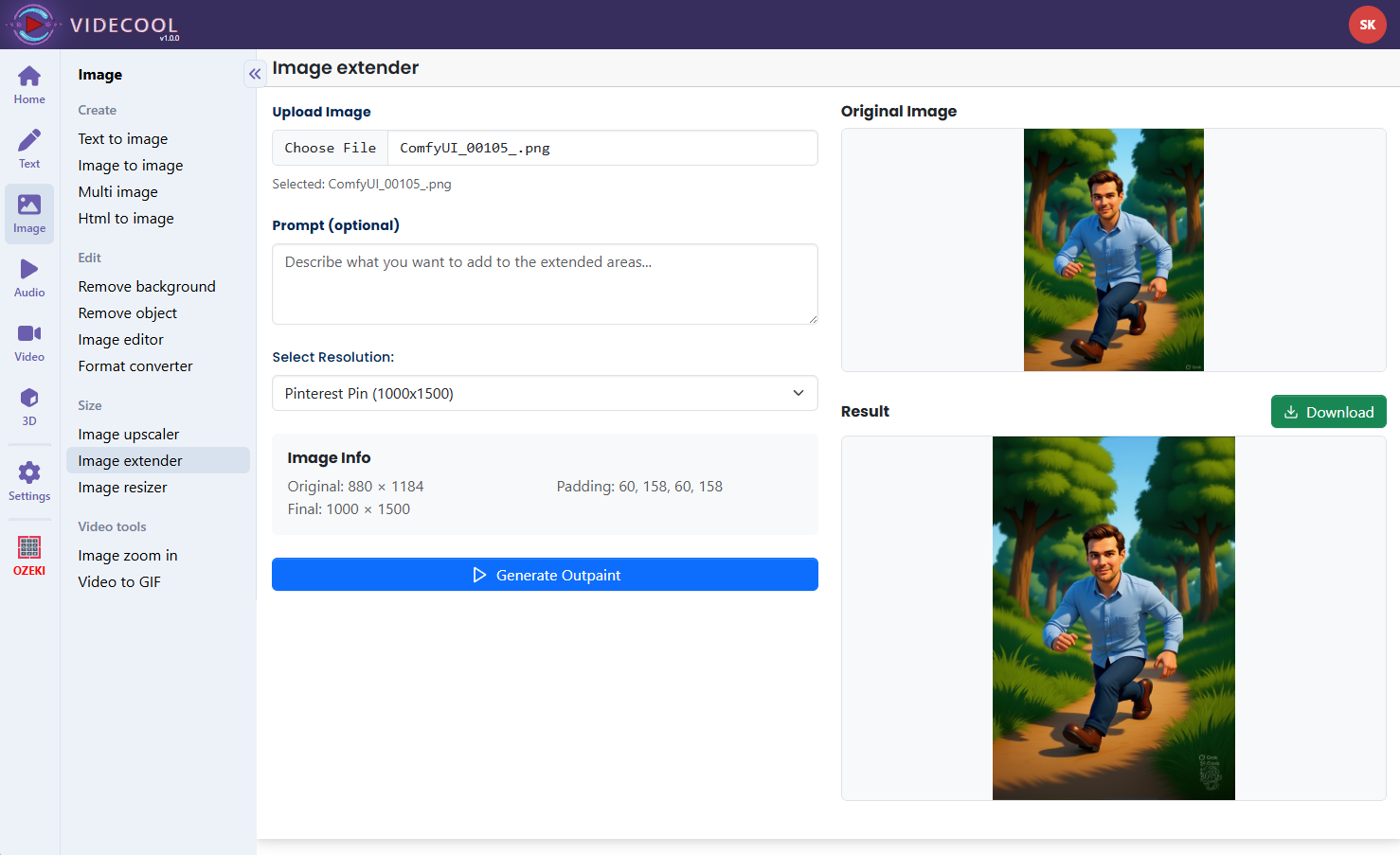
Example usage in Videcool
Download the ComfyUI workflow
Download ComfyUI Workflow file: flux-outpainting-api.json
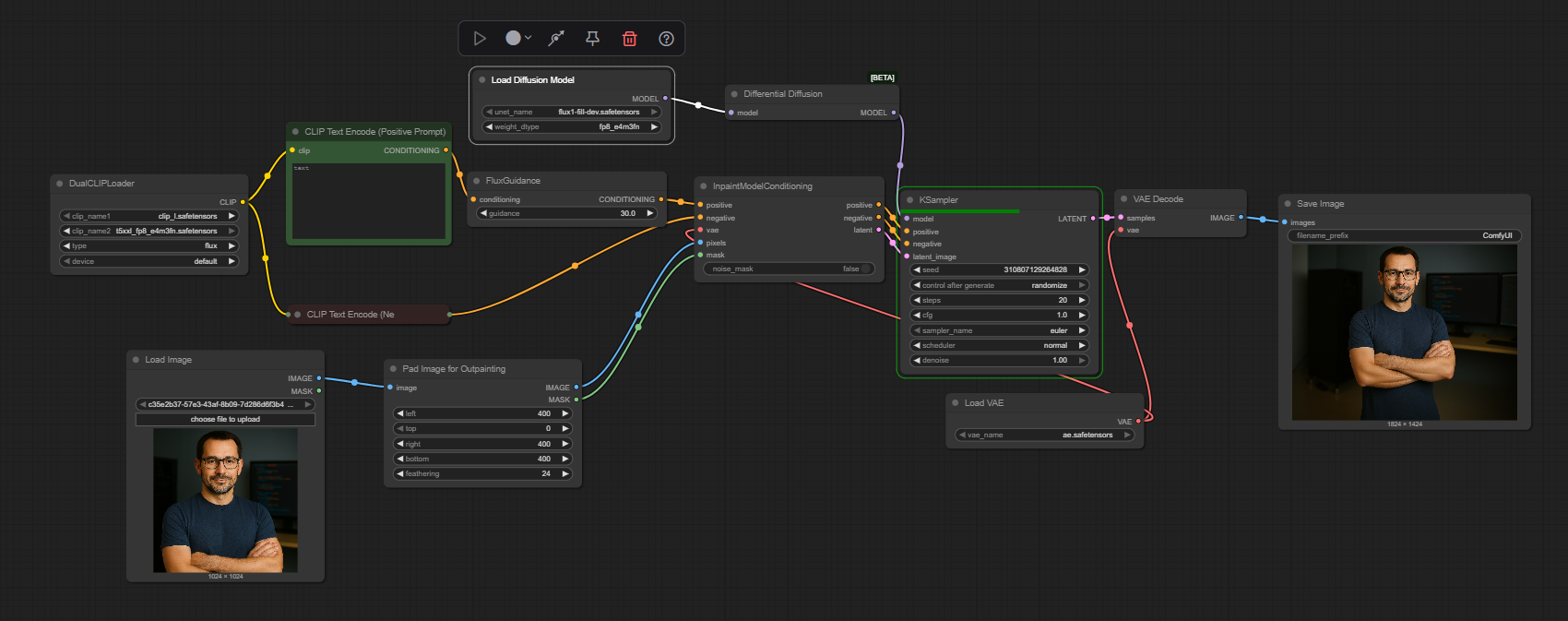
Image of the ComfyUI workflow
This figure provides a visual overview of the workflow layout inside ComfyUI. Each node is placed in logical order to establish a clean and efficient outpainting pipeline. The structure makes it easy to understand how the text encoders, model loader, sampler, VAE, and mask handling interact. Users can modify or expand parts of the workflow to create custom variations, such as changing extension direction or adding extra post-processing.
Installation steps
Step 1: Open a terminal and change into your ComfyUI models directory, for example:cd /home/user/comfy/ComfyUI/models
Step 2: Download the VAE for FLUX.1-Fill-dev into the vae folder:
hf download black-forest-labs/FLUX.1-Fill-dev ae.safetensors --local-dir vae
Step 3: Download the FLUX.1-Fill-dev UNet weights into the unet folder:
hf download black-forest-labs/FLUX.1-Fill-dev flux1-fill-dev.safetensors --local-dir unet
Step 4: Download the text encoder models into the clip folder:
hf download comfyanonymous/flux_text_encoders t5xxl_fp8_e4m3fn.safetensors --local-dir clip
hf download comfyanonymous/flux_text_encoders clip_l.safetensors --local-dir clip
Step 5: Download the flux-outpainting-api.json workflow file into your home directory.
Step 6: Restart ComfyUI so the new VAE, UNet, and text encoder files are detected.
Step 7: Open the ComfyUI graphical user interface (ComfyUI GUI).
Step 8: Load the flux-outpainting-api.json in the ComfyUI GUI.
Step 9: In the Load Image node, choose the source image you wish to extend, and adjust the canvas or mask settings as needed.
Step 10: Enter an optional text prompt describing how the extended regions should look, then hit run to generate the outpainted image.
Step 11: Open Videcool in your browser, select the Image Extender tool, and use the workflow to create wider or taller images for your video or design projects.
Installation video
The workflow requires a source image, the FLUX.1-Fill-dev model files, and a few basic parameter adjustments to begin extending images. After loading the JSON file, users can set canvas size, choose where to add new content, and optionally provide a prompt that guides the outpainting style and details. Once executed, the sampler fills the masked or extended regions and produces a final decoded image that can be saved and reused across other Videcool tools.
Prerequisites
To run the workflow correctly, download the FLUX.1-Fill-dev model files and text encoders and place them into your ComfyUI directory. These files ensure the model can interpret language, understand the existing image content, and decode the final outpainted result. Proper installation into the following location is essential before running the workflow: {your ComfyUI director}/models.
ComfyUI\models\vae\ae.safetensors
From: black-forest-labs/FLUX.1-Fill-dev (downloaded with hf into the vae folder).
ComfyUI\models\unet\flux1-fill-dev.safetensors
From: black-forest-labs/FLUX.1-Fill-dev (downloaded with hf into the unet folder).
ComfyUI\models\clip\t5xxl_fp8_e4m3fn.safetensors and ComfyUI\models\clip\clip_l.safetensors
From: comfyanonymous/flux_text_encoders (downloaded with hf into the clip folder).
How to use this workflow in Videcool
Videcool integrates seamlessly with ComfyUI, allowing users to extend images directly without managing the underlying node graph. After importing and configuring the outpainting workflow in ComfyUI, Videcool can call it to turn standard images into wider scenes, vertical posters, or cinematic crops tailored to project needs. This makes image extension intuitive and accessible, enabling users to create framing-safe versions, social media formats, or background extensions with just a few clicks.
ComfyUI nodes used
This workflow uses the following nodes. Each node performs a specific role, such as loading models, encoding text, preparing the input image and mask, sampling, and finally decoding and saving the output. Together they create a reliable and modular pipeline that can be easily extended or customized.
- Load Diffusion Model
- Load VAE
- DualCLIPLoader
- Load Image
- Clip Text Encode
- FluxGuidance
- KSampler
- VAE Decode
- Save Image
- InpaintModelConditioning
- Differential Diffusion
- Pad Image for Outpainting
Image resolution
AI outpainting models perform best when images are processed near their native working resolution and when canvas dimensions remain multiples of 32 pixels. For FLUX.1-Fill-dev, extending images around resolutions similar to 1024×1024 or related aspect ratios provides a good balance between detail and performance. Larger canvases are also supported, but may require more VRAM and time; adjusting batch size and step counts can help optimize usage on your hardware.
Conclusion
The ComfyUI Image Extender workflow is a robust, powerful, and user-friendly solution for creating extended canvases and outpainted scenes in Videcool. With its combination of FLUX.1-Fill-dev models, a modular ComfyUI pipeline, and seamless platform integration, it enables beginners and professionals alike to produce creative, production-ready image extensions with ease. By understanding the workflow components and advantages, users can unlock the full potential of AI-assisted image outpainting and framing in Videcool.