
AI Background Remove ComfyUI workflow for Videcool
The AI Background Remove workflow in Videcool provides a powerful and flexible way to separate foreground subjects from their backgrounds in images. Designed for speed, accuracy, and clean cutouts, this workflow is served by ComfyUI and uses the ComfyUI-RMBG background removal model as a custom node.
What can this ComfyUI workflow do?
In short: Automatic image background removal.
This workflow processes an input image and generates a new version with the background removed or replaced by a solid color or transparency. It uses a dedicated background removal model that detects the main subject, creates a high-quality alpha matte, and outputs a clean cutout suitable for compositing, thumbnails, or design work. The model is optimized for common photographic content such as people, products, and objects, and can be integrated into larger image or video pipelines in Videcool.
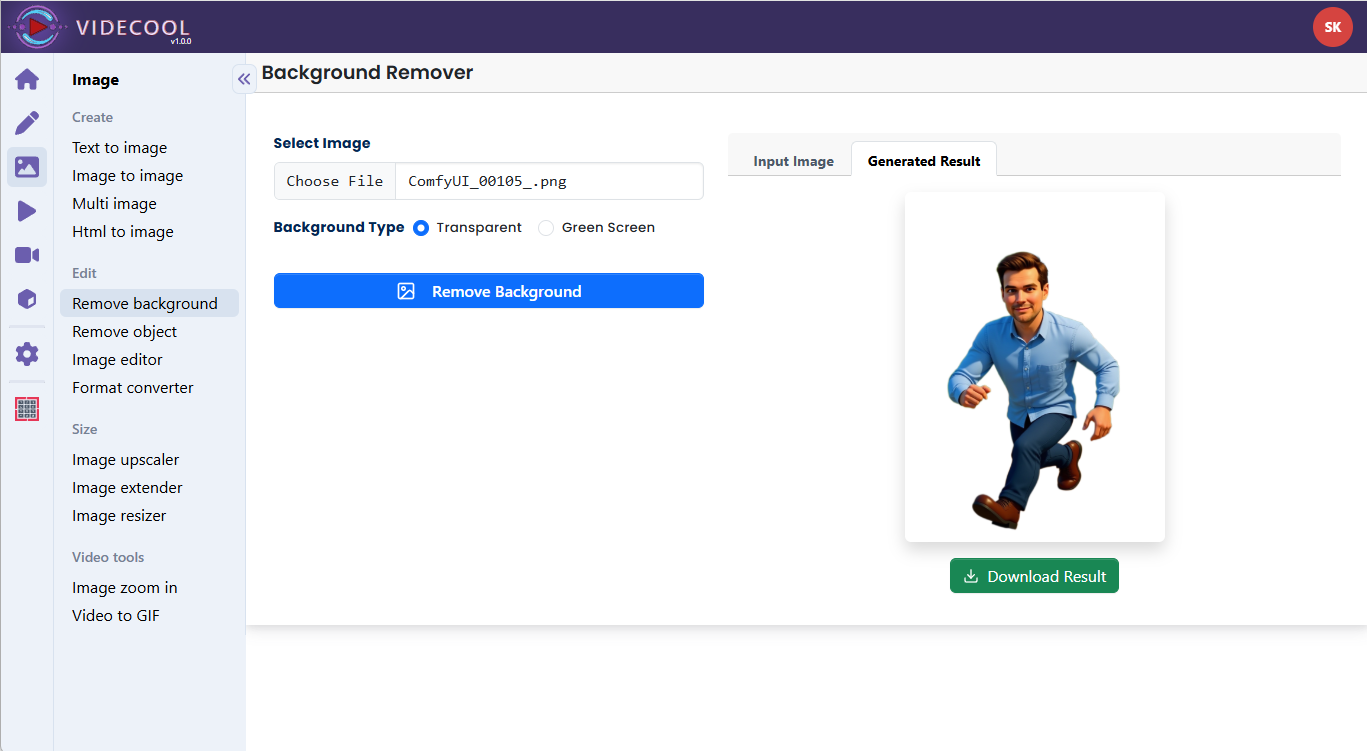
Example usage in Videcool
Download the ComfyUI workflow
Download ComfyUI Workflow file: rmbg_api.json
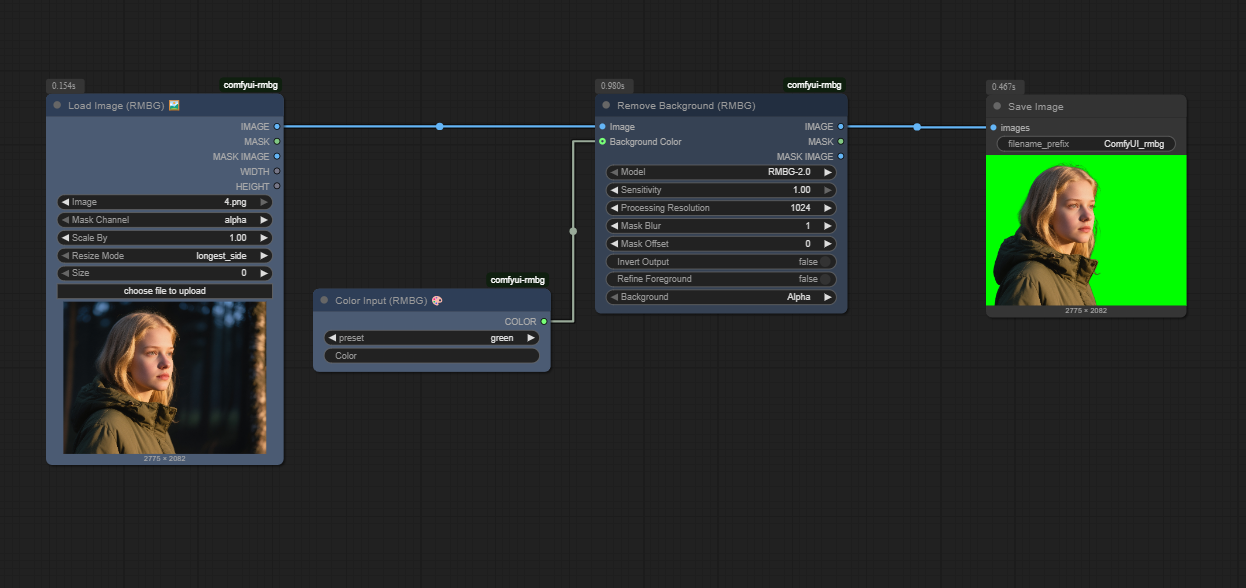
Image of the ComfyUI workflow
This figure provides a visual overview of the workflow layout inside ComfyUI. Each node is placed in logical order to establish a clean and efficient background removal pipeline, starting from image loading and background removal nodes through to color options and saving. The structure makes it easy to understand how the RMBG-specific nodes and Save Image node interact, and users can extend the pipeline with additional post-processing or compositing steps.
Installation steps
Step 1: Open ComfyUI Manager and go to “Manage custom nodes”.Step 2: Search for ComfyUI-RMBG in the custom node list.
Step 3: Click Install to add the ComfyUI-RMBG custom node to your setup.
Step 4: After installation, restart ComfyUI so the new nodes become available.
Step 5: On first startup after installation, the RMBG node will automatically download the required background removal model files.
Step 6: Download the rmbg_api.json workflow file into your home directory.
Step 7: Open the ComfyUI graphical user interface (ComfyUI GUI).
Step 8: Load the rmbg_api.json workflow in the ComfyUI GUI.
Step 9: In the Load Image (RMBG) node, select the image whose background you want to remove and optionally adjust the Color Input (RMBG) node.
Step 10: Hit run to generate a version of the image with background removed or replaced, which is then saved by the Save Image node.
Step 11: Open Videcool in your browser and use the “AI Background remove” tool to apply this workflow to your assets in projects.
Installation video
The workflow requires only an input image and a few basic parameter choices to begin removing backgrounds. After loading the JSON file, users can select the source image, adjust background color or transparency settings, and then run the pipeline to obtain a ready-to-use cutout. Once executed, the RMBG model produces a foreground mask and composite that can be saved and reused across other Videcool tools, such as compositing, video scenes, or thumbnails.
Prerequisites
To run the workflow correctly, the ComfyUI-RMBG custom node must be installed in your ComfyUI environment. This node handles loading the RMBG model, generating the foreground mask, and composing the output image. The model files are downloaded automatically the first time the node is executed, so a working internet connection is required at least once during setup.
Required custom node:
ComfyUI-RMBG (installed via ComfyUI Manager → Manage custom nodes → Search “ComfyUI-RMBG” → Install).
How to use this workflow in Videcool
Videcool integrates seamlessly with ComfyUI, allowing users to remove backgrounds from images without directly managing the underlying node graph. Once the rmbg_api.json workflow is configured in ComfyUI, Videcool can call it to process images and return foreground-only outputs. This makes background removal intuitive and accessible for users who simply want clean cutouts for videos, slides, or composite designs, while still leveraging the power of the dedicated RMBG model.
ComfyUI nodes used
This workflow uses the following nodes. Each node performs a specific role, such as selecting a background color, loading the input image, running the background removal model, and finally saving the processed result. Together they create a simple yet effective pipeline that can be easily extended or customized.
Output resolution
The background removal workflow typically preserves the original resolution of the input image, producing cutouts at the same size unless additional resize nodes are added. For best results, use reasonably high-resolution images so edges remain crisp after masking, and consider keeping dimensions within your GPU memory limits when batching many images.
Conclusion
The AI Background Remove workflow is a robust, efficient, and user-friendly solution for creating foreground cutouts in Videcool. With its dedicated RMBG model, streamlined ComfyUI pipeline, and seamless platform integration, it enables beginners and professionals alike to prepare clean, background-free images for a wide range of creative projects. By understanding the workflow components and installation steps, users can quickly incorporate AI-powered background removal into their everyday Videcool workflows.