
VibeVoice Voice Clone ComfyUI workflow for Videcool
The VibeVoice Voice Clone workflow in Videcool provides a powerful and flexible way to clone voices and generate speech from text prompts. Designed for speed, clarity, and creative control, this workflow is served by ComfyUI and uses the VibeVoice AI voice cloning model developed by Microsoft.
What can this ComfyUI workflow do?
In short: Voice cloning and text-to-speech synthesis.
This workflow takes a reference audio sample and uses it to clone a voice, then synthesizes new speech in that cloned voice based on text input. It interprets your text prompt and voice reference, and outputs natural-sounding, high-fidelity audio that preserves the speaker's characteristics, tone, and accent. The base AI model it is optimized for multi-speaker voice cloning and can produce audio in multiple languages and speaking styles.
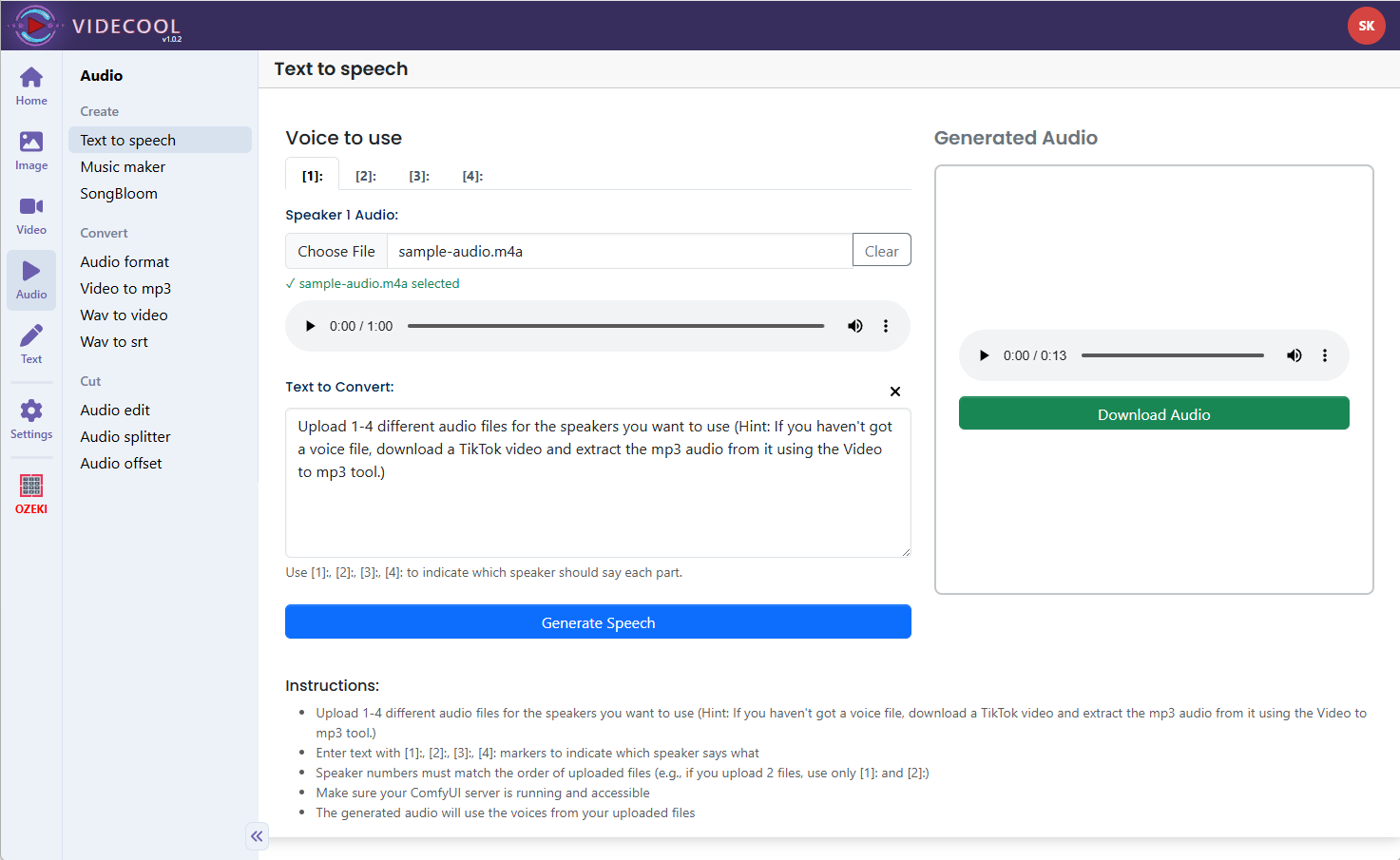
Example usage in Videcool
Download the ComfyUI workflow
Download ComfyUI Workflow file: vibevoice-voice-clone.json
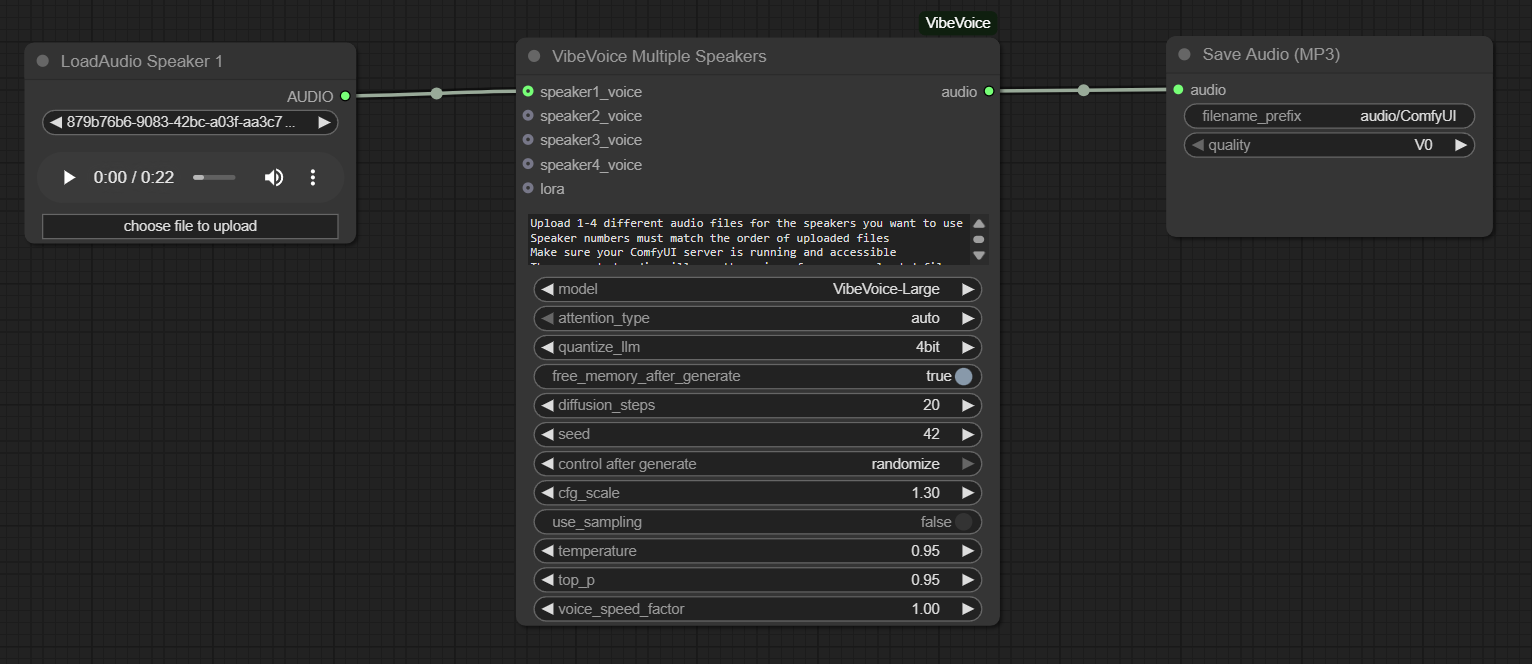
Image of the ComfyUI workflow
This figure provides a visual overview of the workflow layout inside ComfyUI. Each node is placed in logical order to establish a clean and efficient voice cloning and synthesis pipeline. The structure makes it easy to understand how the audio loader, voice cloning model, speaker encoding, and audio output nodes interact. Users can modify or expand parts of the workflow to create custom variations or integrate voice cloning into larger audio or video production pipelines.
Installation steps
Step 1: Install the VibeVoice-ComfyUI custom node using ComfyUI Manager: Manage custom nodes → Search "VibeVoice-ComfyUI" → Install.Step 2: Download the VibeVoice-1.5B model (~5.4GB) into /ComfyUI/models/vibevoice/VibeVoice-1.5B/.
Step 3: Download the tokenizer files from Qwen/Qwen2.5-1.5B (tokenizer_config.json, vocab.json, merges.txt, tokenizer.json) into /ComfyUI/models/vibevoice/tokenizer/.
Step 4: Download the vibevoice-voice-clone.json workflow file into your home directory.
Step 5: Restart ComfyUI so the custom node and model files are recognized.
Step 6: Open the ComfyUI graphical user interface (ComfyUI GUI).
Step 7: Load the vibevoice-voice-clone.json workflow in the ComfyUI GUI.
Step 8: In the LoadAudio node, select a reference audio file containing the voice you want to clone.
Step 9: Enter the text you want the cloned voice to speak in the text input field, then hit run to generate the synthesized speech.
Step 10: Open Videcool in your browser, select the Voice Clone tool, and use the generated voice audio in your video projects.
Installation video
The workflow requires only a reference audio sample and text input, plus a few basic parameter adjustments to begin cloning voices. After loading the JSON file, users can select the reference audio, enter the text to be spoken, and adjust voice characteristics such as speaking rate, pitch, and emotion if desired. Once executed, the voice cloning model encodes the reference voice and synthesizes new speech, which is then saved as an audio file that can be used across other Videcool tools.
Prerequisites
To run the workflow correctly, download the VibeVoice model files, tokenizer files, and install the VibeVoice-ComfyUI custom node. These files ensure the model can understand voice characteristics, process text, and synthesize natural-sounding speech with the cloned voice. Proper installation into the following locations is essential before running the workflow: {your ComfyUI director}/models/vibevoice/ and {your ComfyUI director}/custom_nodes/.
ComfyUI\models\vibevoice\VibeVoice-1.5B\
https://huggingface.co/microsoft/VibeVoice-1.5B
ComfyUI\models\vibevoice\tokenizer\
https://huggingface.co/Qwen/Qwen2.5-1.5B
Custom Node: VibeVoice-ComfyUI
Installed via ComfyUI Manager: Manage custom nodes → Search "VibeVoice-ComfyUI" → Install
How to use this workflow in Videcool
Videcool integrates seamlessly with ComfyUI, allowing users to clone voices and generate speech directly without managing the underlying node graph. After importing the workflow file, simply select a reference audio file, enter your text, and click generate. The system handles all backend interactions with ComfyUI. This makes voice cloning intuitive and accessible, even for users who are not keen on learning how ComfyUI works. The following video shows how this model can be used in Videcool:
ComfyUI nodes used
This workflow uses the following nodes. Each node performs a specific role, such as loading reference audio, encoding voice characteristics, processing text input, synthesizing new speech, and finally saving the output. Together they create a reliable and modular pipeline that can be easily extended or customized.
Base AI model
This workflow is built on Microsoft's VibeVoice model, a modern and highly capable voice cloning and text-to-speech generator. VibeVoice provides clarity, natural prosody, and voice fidelity, making it suitable for both entertainment and professional use cases. The model benefits from advanced training on diverse voice data and offers consistent results across multiple speakers and languages. More details, model weights, and documentation can be found on the following links:
Hugging Face repository:https://huggingface.co/microsoft/VibeVoice-1.5B
Tokenizer repository:https://huggingface.co/Qwen/Qwen2.5-1.5B
Developer MicrosoftVoice cloning quality and parameters
Voice cloning quality depends on the reference audio sample. For best results, use reference audio that is clear, well-recorded, and at least 5-30 seconds long with minimal background noise. The more distinctive and clear the reference voice, the better the cloned voice will be. The model supports multiple speakers simultaneously and can maintain speaker characteristics across longer speech passages. Users can adjust parameters such as speaking rate, pitch, and emotional tone to fine-tune the output.
Conclusion
The VibeVoice Voice Clone ComfyUI workflow is a robust, powerful, and user-friendly solution for cloning voices and generating speech in Videcool. With its combination of high-quality models, a modular ComfyUI pipeline, and seamless platform integration, it enables beginners and professionals alike to produce creative and professional-grade voice content with ease. By understanding the workflow components and advantages, users can unlock the full potential of AI-assisted voice cloning in Videcool.