
OmniVoice Voice Clone ComfyUI workflow for Videcool
The OmniVoice Voice Clone workflow in Videcool provides a powerful and flexible way to clone voices and generate speech from text prompts. Designed for speed, clarity, and creative control, this workflow is served by ComfyUI and uses the OmniVoice long-form TTS pipeline together with a Whisper model component and a reference audio input to synthesize speech that follows the characteristics of a sample voice.
What can this ComfyUI workflow do?
In short: Voice cloning and long-form text-to-speech synthesis.
This workflow takes a reference audio sample and uses it to guide the generated voice, then synthesizes new speech from text input. It uses the OmniVoice long-form TTS node with a connected reference audio input, Whisper model dependency, and a broad set of generation controls including steps, guidance scale, temporal shift, speed, duration, chunk sizing, temperature values, denoising, and prompt preprocessing or postprocessing. The result is saved as an MP3 file, making the workflow suitable for cloned narration, spoken scripts, and other voice-conditioned audio generation tasks in Videcool.
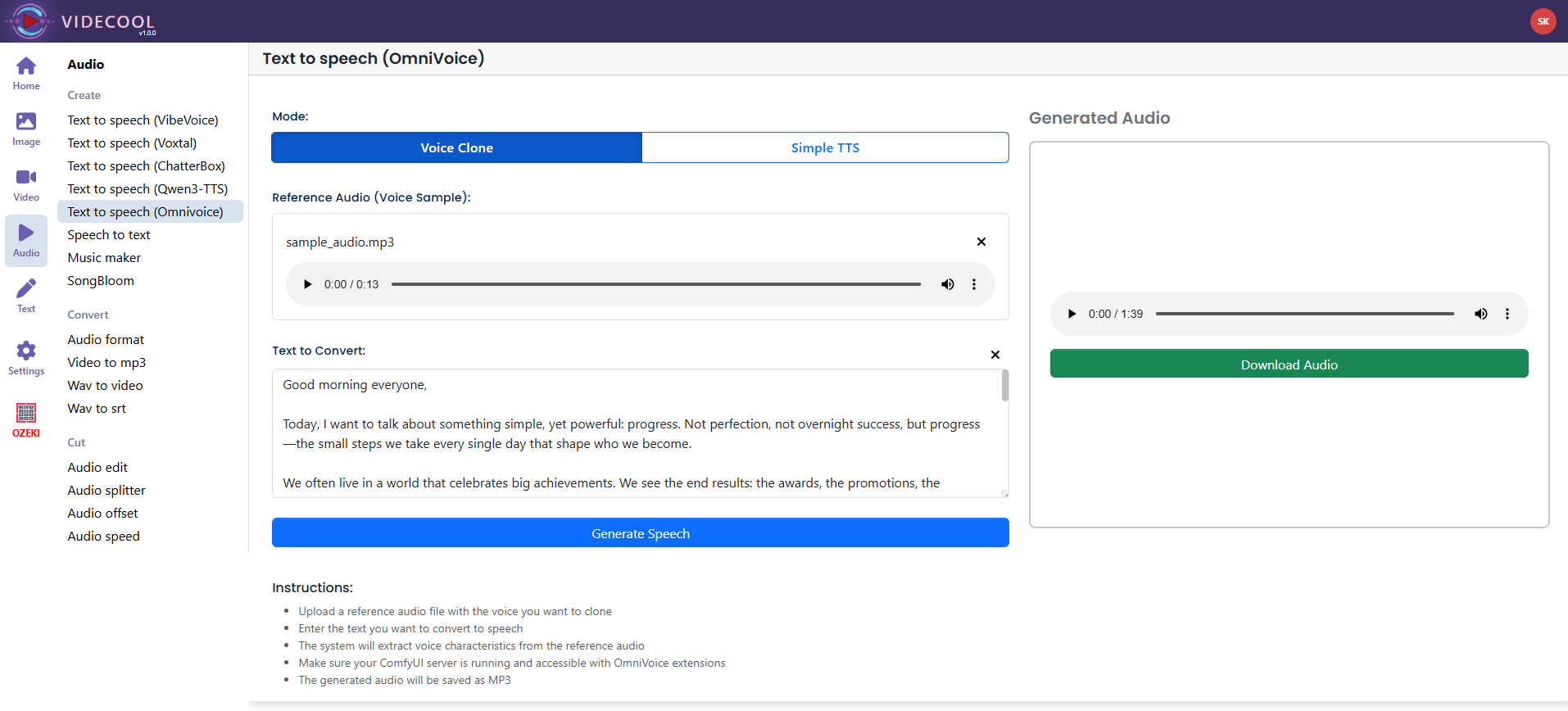
Example usage in Videcool
Download the ComfyUI workflow
Download ComfyUI Workflow file: ominvoice-voice-clone-api.json
Image of the ComfyUI workflow
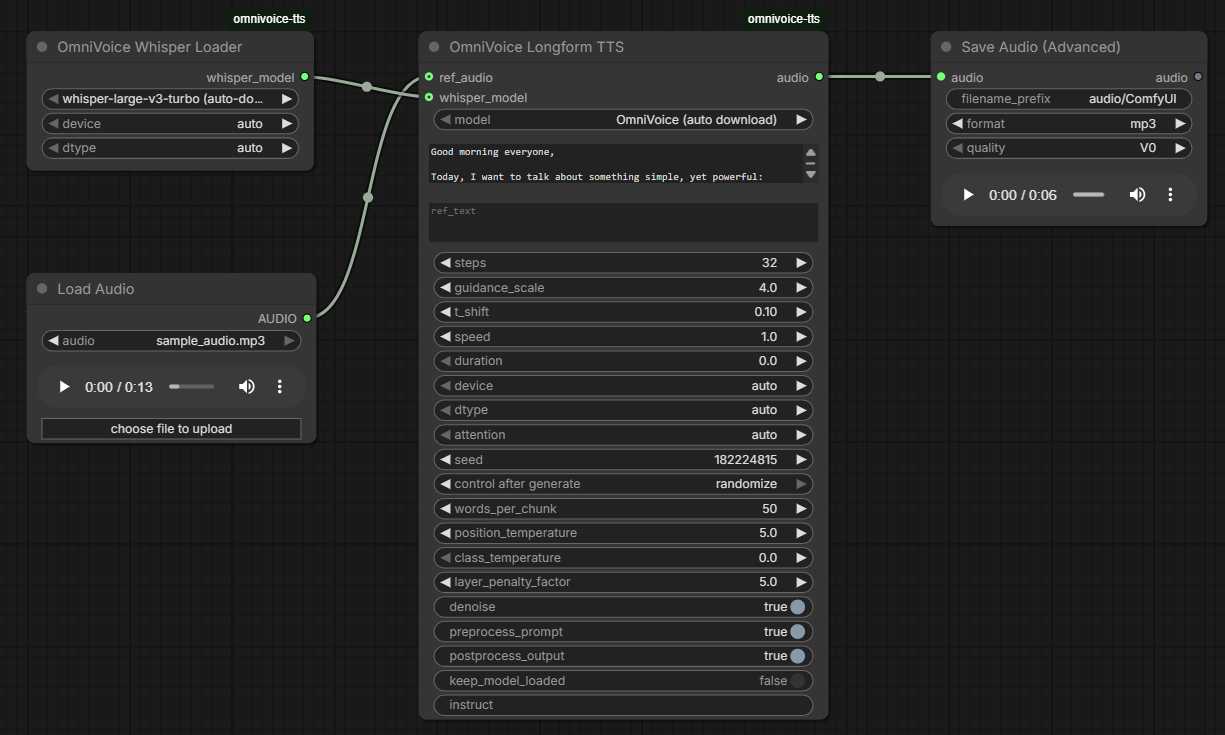
This figure provides a visual overview of the workflow layout inside ComfyUI. Each node is placed in logical order to establish a clean and efficient voice cloning and synthesis pipeline. The structure makes it easy to understand how the audio loader, OmniVoice Whisper loader, OmniVoice long-form generation node, and advanced audio output node interact. Users can modify the text prompt, reference audio, and generation settings to create custom cloned narration styles or integrate voice cloning into larger audio or video production pipelines.
Installation steps
Step 1: Install the ComfyUI custom nodes or extension package that provides theOmniVoiceWhisperLoader, OmniVoiceLongformTTS, LoadAudio, and
SaveAudioAdvanced nodes required by this workflow. Step 2: Ensure ComfyUI can access the Whisper model dependency specified in the workflow as
whisper-large-v3-turbo (auto-download), because the loader node is configured to
download or initialize that model automatically with device="auto" and
dtype="auto". Step 3: Ensure ComfyUI can access the OmniVoice model specified in the workflow as
OmniVoice (auto download), because the long-form TTS node is configured to load it
automatically with device="auto", dtype="auto", and
attention="auto". Step 4: Download the ominvoice-voice-clone-api.json workflow file into your home directory.
Step 5: Restart ComfyUI so the custom node and model files are recognized.
Step 6: Open the ComfyUI graphical user interface (ComfyUI GUI).
Step 7: Load the
ominvoice-voice-clone-api.json workflow in the ComfyUI GUI. Step 8: In the
Load Audio node, select a reference audio file containing the
voice you want to clone. The attached workflow uses sample_audio.mp3 as the example
reference input. Step 9: Enter the text you want the cloned voice to speak in the
OmniVoice Longform TTS node. The attached workflow includes example text beginning
with Good morning everyone, Today, I want to talk about something simple, yet powerful: progress. Step 10: Optionally adjust the synthesis settings such as
steps,
guidance_scale, t_shift, speed, duration,
seed, words_per_chunk, position_temperature,
class_temperature, layer_penalty_factor, denoise,
preprocess_prompt, postprocess_output, and
keep_model_loaded. The attached workflow uses steps 32, guidance scale 4,
t_shift 0.1, speed 1, seed 42, words_per_chunk 50, position temperature 5, class temperature 0,
layer penalty factor 5, denoise enabled, prompt preprocessing enabled, output postprocessing enabled,
and keep_model_loaded disabled. Step 11: Run the workflow to synthesize cloned speech and save the output through the
Save Audio (Advanced) node. The attached workflow saves audio as MP3 using the
filename prefix audio/ComfyUI and quality setting V0. Step 12: Open Videcool in your browser, select the Voice Clone tool, and use the generated audio in your video projects.
Installation video
The workflow requires a reference audio sample, text input, and a set of generation parameters to begin cloning voices. After loading the JSON file, users can select the reference audio, enter the text to be spoken, tune the long-form synthesis settings, and run the workflow to generate voice-conditioned speech. Once executed, the OmniVoice node produces speech output that follows the reference voice characteristics and saves the result as an MP3 file for reuse across other Videcool tools.
Prerequisites
To run the workflow correctly, install the ComfyUI custom nodes that provide the OmniVoice Whisper loader, OmniVoice long-form TTS, audio loading, and advanced audio save nodes, then make sure the required model dependencies can be downloaded or accessed by ComfyUI. These components ensure the workflow can load the reference voice sample, initialize the Whisper and OmniVoice dependencies, synthesize voice-conditioned speech, and save the result as an MP3 file. Proper installation into your ComfyUI custom node and model environment is essential before running the workflow.
Model dependencies used by the workflow
whisper-large-v3-turbo (auto-download)
OmniVoice (auto download)
Custom node classes required by the workflow
OmniVoiceWhisperLoader
OmniVoiceLongformTTS
LoadAudio
SaveAudioAdvanced
How to use this workflow in Videcool
Videcool integrates seamlessly with ComfyUI, allowing users to clone voices and generate speech directly without managing the underlying node graph. After importing the workflow file, simply select a reference audio file, enter your text, adjust the desired generation settings, and click generate. The system handles the backend interaction with ComfyUI, making voice-conditioned long-form text-to-speech intuitive and accessible even for users who do not want to work directly with ComfyUI nodes.
ComfyUI nodes used
This workflow uses the following nodes. Each node performs a specific role, such as loading the reference audio, loading the Whisper dependency, running long-form voice-conditioned TTS generation, and saving the final output audio. Together they create a reliable and modular pipeline that can be easily extended or customized.
- Load Audio
- OmniVoice Whisper Loader
- OmniVoice Longform TTS
- Save Audio (Advanced)
Base AI model
This workflow is built around the OmniVoice long-form TTS system together with a Whisper model
dependency configured as whisper-large-v3-turbo (auto-download). The attached workflow
uses the OmniVoiceLongformTTS node with a connected ref_audio input, which
allows the generated speech to follow the characteristics of a supplied reference recording while
still exposing rich controls for chunking, guidance, temporal behavior, and output cleanup.
Voice cloning quality and parameters
Voice cloning quality in this workflow depends on the clarity of the reference audio and the generation parameters. The attached workflow uses 32 steps, guidance scale 4, temporal shift 0.1, speed 1, seed 42, 50 words per chunk, position temperature 5, class temperature 0, layer penalty factor 5, denoising enabled, prompt preprocessing enabled, and output postprocessing enabled. For best results, use a clean reference recording with minimal background noise and enough speech to provide a stable vocal style for the generated output.
Conclusion
The OmniVoice Voice Clone ComfyUI workflow is a robust, practical, and user-friendly solution for cloning voices and generating speech in Videcool. With its combination of reference-audio-guided long-form synthesis, a modular ComfyUI pipeline, and seamless platform integration, it enables beginners and professionals alike to produce useful cloned speech audio for narration, dubbing, and creative voice workflows.