
Flux 2 Dev Multi Image to Image ComfyUI workflow for Videcool
The Flux 2 Dev Multi Image to Image workflow in Videcool provides a powerful and flexible way to transform multiple images while maintaining structural coherence and visual quality. Designed for speed, clarity, and creative control, this workflow is served by ComfyUI and uses the Flux 2 Dev model together with a Mistral-based text encoder to drive multi-image image-to-image editing. [file:3]
What can this ComfyUI workflow do?
In short: Multi-image-to-image transformation and editing with Flux 2 Dev. [file:3]
This workflow takes multiple source images and a text prompt to transform them into new versions
while preserving key visual elements or adapting them according to your instructions. It uses
Flux 2 Dev as the diffusion backbone, the Flux2 VAE, and a Mistral 3 Small Flux2 text encoder to
interpret both image content and textual guidance across multiple images simultaneously, producing
detailed and coherent outputs that maintain consistency across the image set. The graph chains
ReferenceLatent nodes so that conditioning built from the prompt and the first image
can be propagated into the second image’s latent, allowing Flux 2 Dev to compose elements between
images according to the prompt. [file:3]
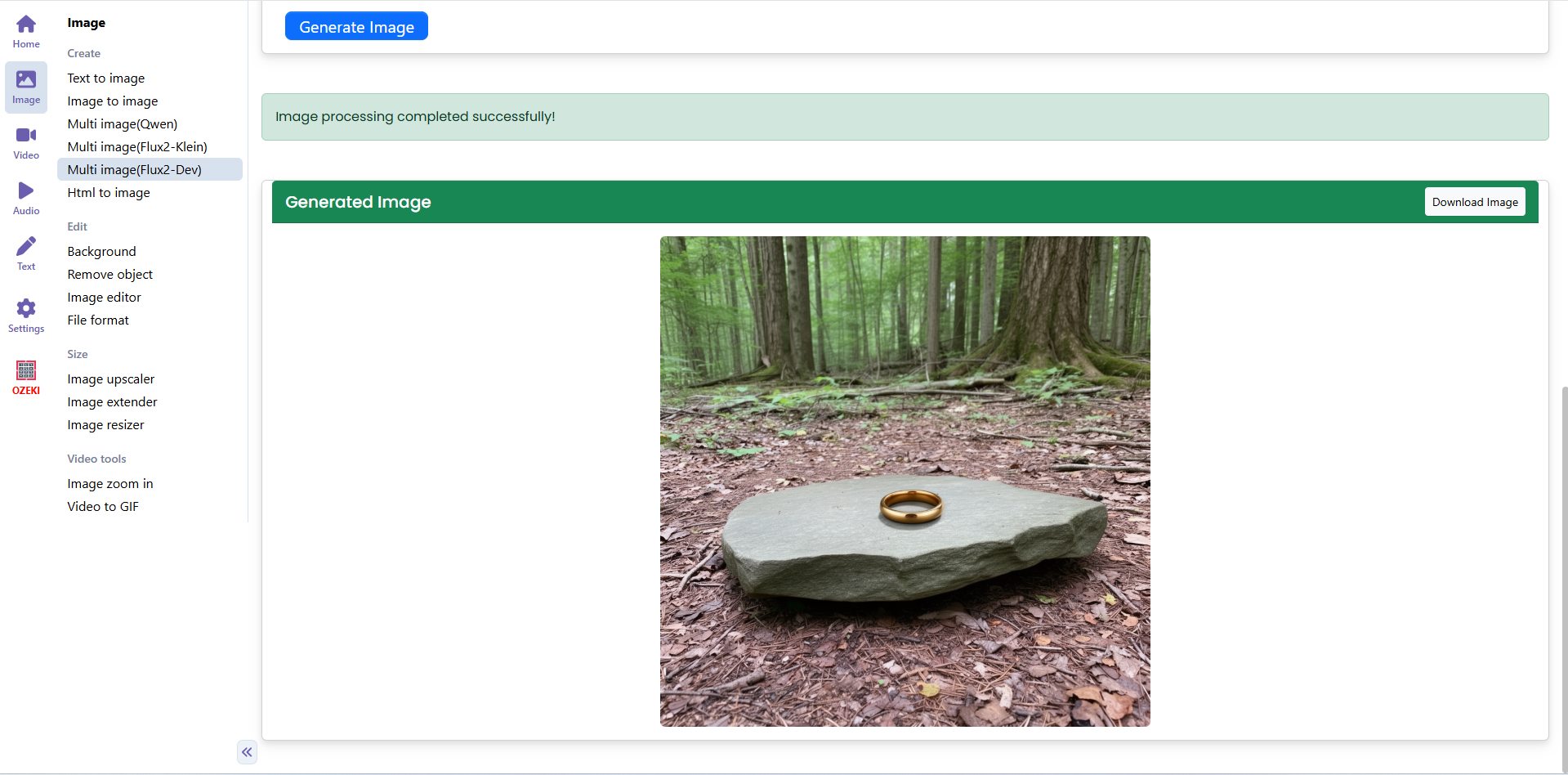
Example usage in Videcool
Download the ComfyUI workflow
Download ComfyUI Workflow file: flux_2_dev_multi-image_to_image-api.json
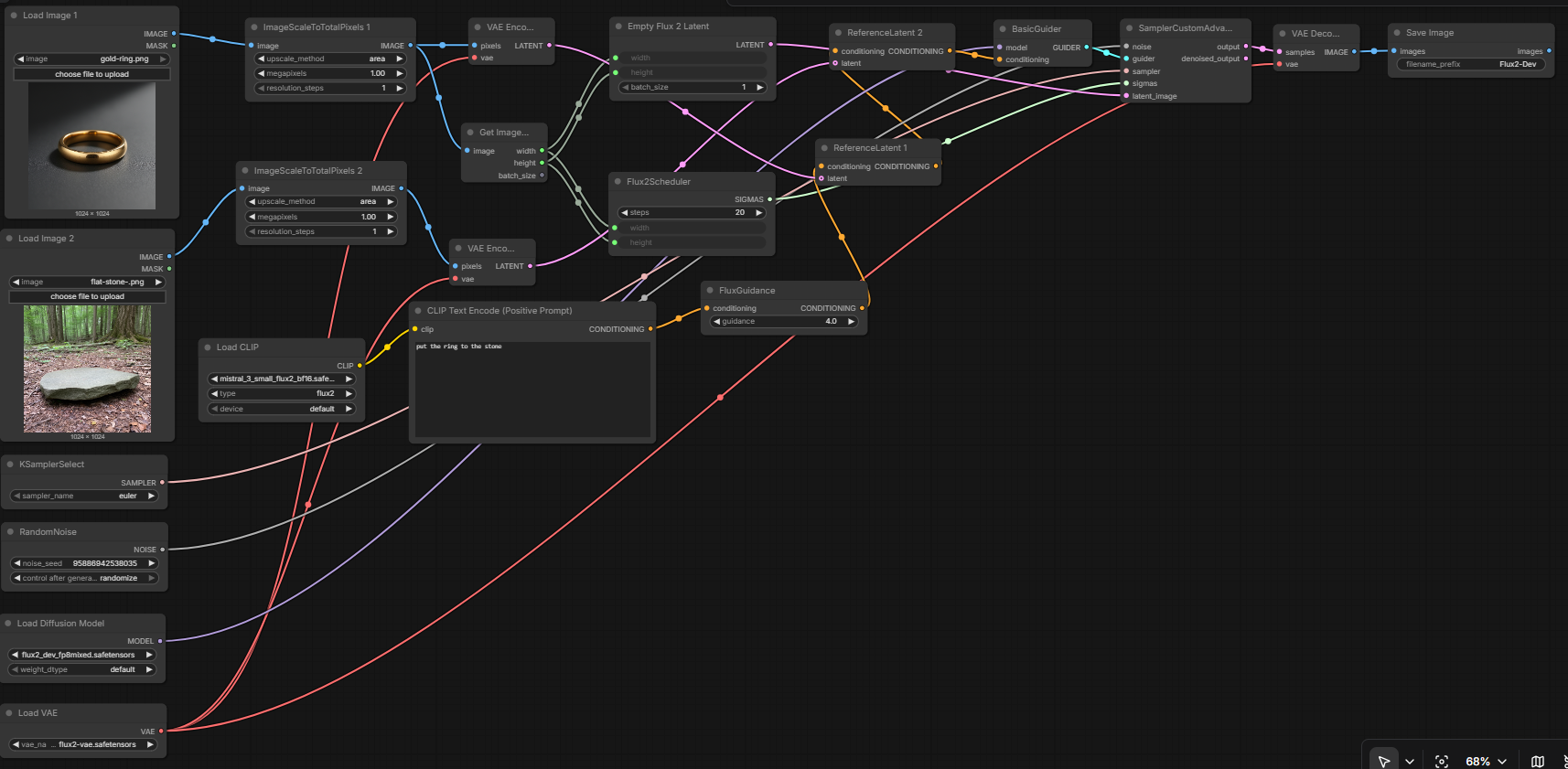
Image of the ComfyUI workflow
This figure provides a visual overview of the Flux 2 Dev Multi Image to Image workflow layout inside ComfyUI. The nodes are arranged to establish a clean multi-image transformation pipeline: loading two source images, scaling them to a target resolution, encoding each through the Flux2 VAE, building chained reference latents from the first and second images, configuring the Flux 2 scheduler and sampler, and finally decoding and saving the outputs. The structure makes it easy to see how the Flux 2 Dev diffusion model, Mistral text encoder, VAE, and sampler interact to produce consistent outputs across all images. Users can modify or expand parts of the workflow to create custom variations or integrate multi-image transformation into larger creative pipelines. [file:3]
Installation steps
Step 1: Download flux2_dev_fp8mixed.safetensors into /ComfyUI/models/diffusion_models/flux2_dev_fp8mixed.safetensors. This file is used by theUNETLoader node as flux2_dev_fp8mixed.safetensors. [file:3]Step 2: Download flux2-vae.safetensors into /ComfyUI/models/vae/flux2-vae.safetensors. This file is used by the
VAELoader node. [file:3]Step 3: Download mistral_3_small_flux2_bf16.safetensors into /ComfyUI/models/text_encoders/mistral_3_small_flux2_bf16.safetensors. This file is used by the
CLIPLoader node for positive prompt encoding. [file:3]Step 4: Download the flux_2_dev_multi-image_to_image-api.json workflow file into your home directory.
Step 5: Restart ComfyUI so the new model and encoder files are recognized. [file:3]
Step 6: Open the ComfyUI graphical user interface (ComfyUI GUI).
Step 7: Load the
flux_2_dev_multi-image_to_image-api.json
workflow in the ComfyUI GUI. [file:3]Step 8: In the
LoadImage nodes labeled “Load Image 1” and “Load Image 2”,
select the two source images you want to transform (for example, a person image and an object image). [file:3]Step 9: Edit the positive prompt in the “CLIP Text Encode (Positive Prompt)” node (the example prompt is
put the bird to the girl hand). [file:3]Step 10: Run the workflow to generate transformed versions of the images, where Flux 2 Dev composes elements from one image into the other guided by your prompt. [file:3]
Step 11: Open Videcool in your browser, select the Flux 2 Dev Multi Image to Image tool, and use the generated outputs for further compositing, video creation, or design work.
Installation video
The workflow requires two source images, a text prompt, and a few basic parameter adjustments to begin transforming images. After loading the JSON file, users can select the input images, enter edit instructions, adjust the guidance value and steps, and then run the pipeline to obtain transformed outputs that maintain consistency between images. Once executed, the sampler produces new images that preserve key structural elements while applying the requested changes, which can be saved and reused across other Videcool tools. [file:3]
Prerequisites
To run the workflow correctly, download the Flux 2 Dev diffusion model file, the Flux2 VAE, and the Mistral 3 Small Flux2 text encoder, then place them into your ComfyUI directory. These files ensure the model can understand input images, interpret text instructions, and produce high-quality transformed outputs that maintain consistency across multiple images. Proper installation into the following locations is essential before running the workflow: {your ComfyUI directory}/models/diffusion_models/, {your ComfyUI directory}/models/vae/, and {your ComfyUI directory}/models/text_encoders/. [file:3]
ComfyUI\models\diffusion_models\flux2_dev_fp8mixed.safetensors
https://huggingface.co/Comfy-Org/flux2-dev/resolve/main/split_files/diffusion_models/flux2_dev_fp8mixed.safetensors
ComfyUI\models\vae\flux2-vae.safetensors
https://huggingface.co/Comfy-Org/flux2-dev/resolve/main/split_files/vae/flux2-vae.safetensors
ComfyUI\models\text_encoders\mistral_3_small_flux2_bf16.safetensors
https://huggingface.co/Comfy-Org/flux2-dev/resolve/main/split_files/text_encoders/mistral_3_small_flux2_bf16.safetensors
How to use this workflow in Videcool
Videcool integrates seamlessly with ComfyUI, allowing users to load and run the Flux 2 Dev multi-image workflow without manually wiring the underlying node graph. After importing the workflow file into ComfyUI, Videcool can call it to transform two images simultaneously based on the prompt and user preferences. This makes multi-image editing intuitive and accessible, even for users who are not keen on learning ComfyUI internals, while still benefiting from the power of Flux 2 Dev’s guided composition and the Mistral-based text encoder. [file:3]
ComfyUI nodes used
This workflow uses the following nodes. Each node performs a specific role, such as loading source images, scaling them, encoding them into latent space, building chained reference latents from the first and second images, configuring the Flux 2 scheduler, sampling, decoding, and saving the outputs. Together they create a reliable pipeline that can be extended or customized for different multi-image transformation tasks. [file:3]
- LoadImage (Load Image 1)
- LoadImage (Load Image 2)
- ImageScaleToTotalPixels 1
- ImageScaleToTotalPixels 2
- GetImageSize
- Load Diffusion Model (UNETLoader: flux2_dev_fp8mixed.safetensors)
- Load VAE (VAELoader: flux2-vae.safetensors)
- VAE Encode 1
- VAE Encode 2
- Load CLIP (mistral_3_small_flux2_bf16.safetensors)
- CLIP Text Encode (Positive Prompt)
- FluxGuidance
- ReferenceLatent 1
- ReferenceLatent 2
- Empty Flux 2 Latent (EmptyFlux2LatentImage)
- Flux2Scheduler
- RandomNoise
- KSamplerSelect
- BasicGuider
- SamplerCustomAdvanced
- VAE Decode
- Save Image
Base AI model
This workflow is built on Flux 2 Dev, a modern image generation and editing model designed
for fast, guided image transformation. In this multi-image configuration, Flux 2 Dev works
together with the Flux2 VAE and the Mistral 3 Small Flux2 text encoder to understand visual
and textual inputs, then compose elements from one image into another according to the prompt
while maintaining coherence. The FluxGuidance node combines the prompt embedding
with guidance strength, and chained ReferenceLatent nodes let the conditioning
built from the first image and prompt extend to the second image’s latent representation. [file:3]
Image resolution and multi-image behavior
The workflow uses ImageScaleToTotalPixels to scale both input images to a consistent
target megapixel value (1 MP by default), then derives the working width and height from one of the
scaled images with GetImageSize. This ensures the latent representation and Flux2
scheduler are aligned to the same resolution. The multi-image behavior is driven by how the VAE
encodings of each image are passed through ReferenceLatent stages: first conditioning
is attached to the latent of the first image, then extended to the second image, so Flux 2 Dev can
insert elements from one image into the other while following the text prompt. [file:3]
Conclusion
The Flux 2 Dev Multi Image to Image ComfyUI workflow is a robust, powerful, and user-friendly solution for performing flexible two-image transformations in Videcool. With its combination of the Flux 2 Dev diffusion model, a Mistral-based text encoder, reference latent conditioning, and a modular ComfyUI pipeline, it enables beginners and professionals alike to produce creative and consistent compositions across multiple images with ease. By understanding the workflow components, installation steps, and advantages, users can unlock the full potential of Flux 2 Dev in multi-image transformation scenarios for video production, design projects, and creative workflows. [file:3]