
AI text to image Krea 2 Turbo ComfyUI workflow for Videcool
The Krea 2 Turbo text-to-image workflow in Videcool offers a simple and fast way to generate images from text prompts by using a compact ComfyUI pipeline built around the Krea 2 Turbo model family. It loads the Krea 2 Turbo diffusion model, the matching Qwen image VAE, and a Krea 2 compatible CLIP text encoder, then turns a single prompt into a finished image through latent sampling and VAE decoding.
What can this ComfyUI workflow do?
In short: Text-to-image generation with Krea 2 Turbo.
This workflow takes a text prompt, encodes it with the Krea 2 text encoder, creates an empty latent image at the selected resolution,
samples it with a lightweight KSampler configuration, decodes the result with the VAE, and saves the final generated image with the prefix
Krea2_turbo.
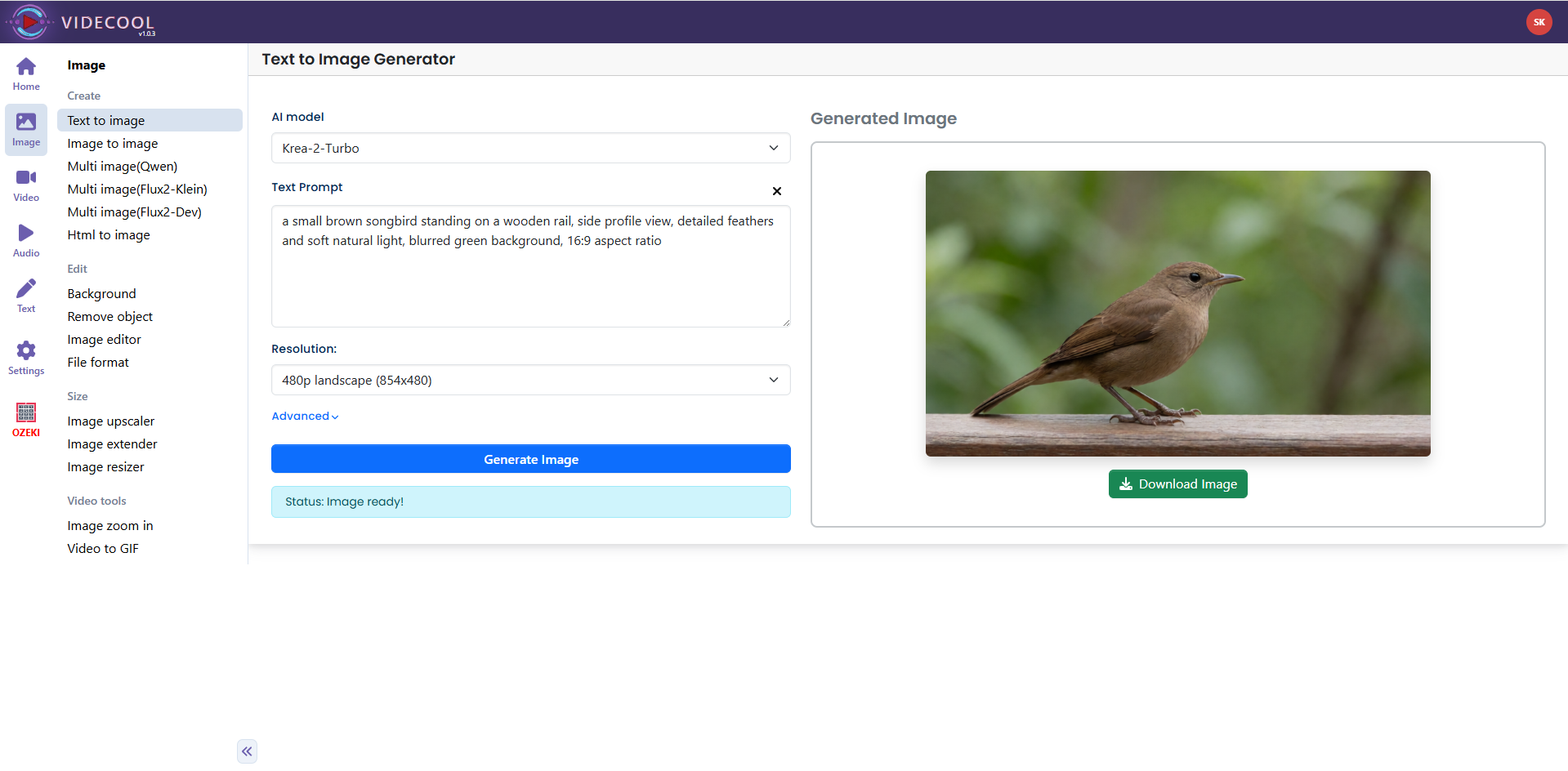
Example usage in Videcool
Download the ComfyUI workflow
Download ComfyUI Workflow file: krea_2_turbo_text_to_image-api.json
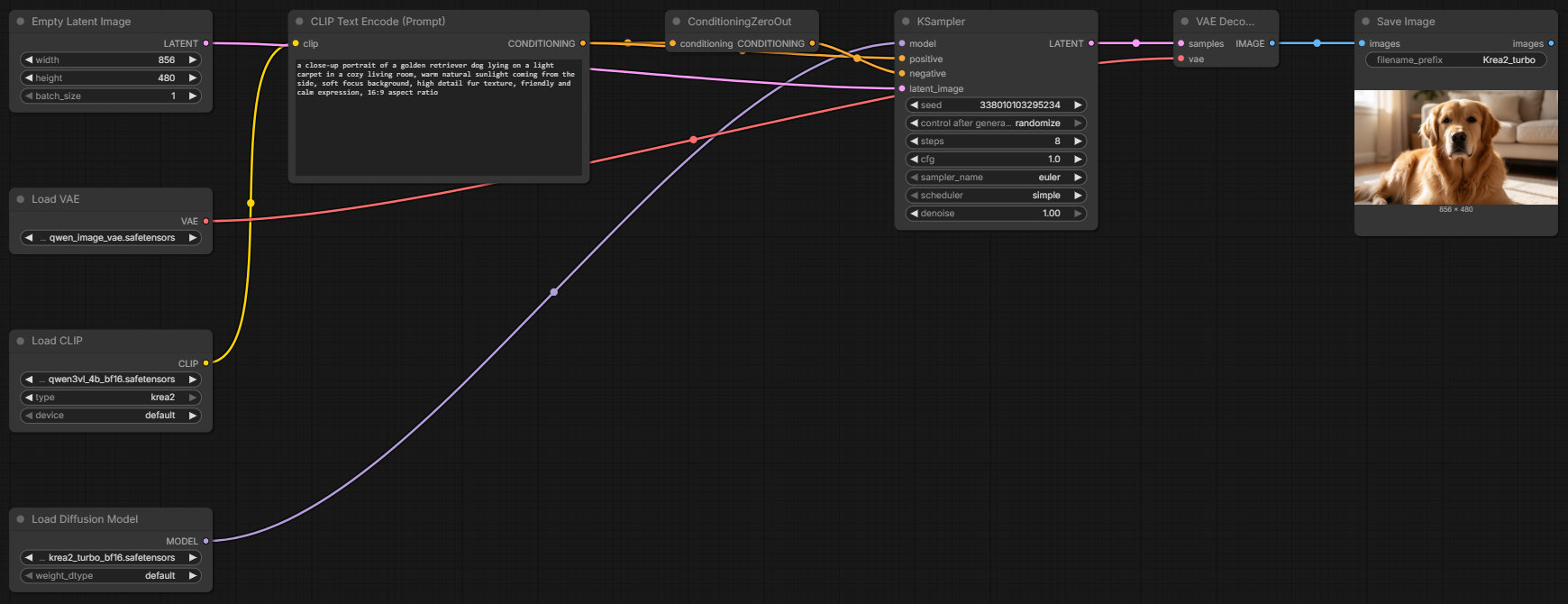
Image of the ComfyUI workflow
This workflow is intentionally compact and easy to follow. The model loading nodes prepare the UNet, CLIP, and VAE, the prompt encoding node produces the positive conditioning, the zeroed conditioning node provides the negative branch, the KSampler generates the latent result, and the VAE decode plus save nodes produce the final output image.
Installation steps
Step 1: Download krea2_turbo_bf16.safetensors into /ComfyUI/models/diffusion_models/krea2_turbo_bf16.safetensors.Step 2: Download qwen3vl_4b_bf16.safetensors into /ComfyUI/models/text_encoders/qwen3vl_4b_bf16.safetensors.
Step 3: Download qwen_image_vae.safetensors into /ComfyUI/models/vae/qwen_image_vae.safetensors.
Step 4: Download the krea_2_turbo_text_to_image-api.json workflow file into your home directory.
Step 5: Restart ComfyUI so the new model files are detected and loaded.
Step 6: Open the ComfyUI graphical user interface.
Step 7: Load the krea_2_turbo_text_to_image-api.json workflow file in the ComfyUI GUI.
Step 8: Enter your prompt into the CLIP Text Encode (Prompt) node.
Step 9: Optionally adjust the width, height, seed, steps, CFG, or sampler settings.
Step 10: Run the workflow to generate and save the image.
Prerequisites
To run the workflow correctly, place the following files into your ComfyUI model directories before loading the workflow:
/ComfyUI/models/diffusion_models/krea2_turbo_bf16.safetensors
https://huggingface.co/Comfy-Org/Krea-2/resolve/main/diffusion_models/krea2_turbo_bf16.safetensors
/ComfyUI/models/text_encoders/qwen3vl_4b_bf16.safetensors
https://huggingface.co/Comfy-Org/Krea-2/resolve/main/text_encoders/qwen3vl_4b_bf16.safetensors
/ComfyUI/models/vae/qwen_image_vae.safetensors
https://huggingface.co/Comfy-Org/Krea-2/resolve/main/vae/qwen_image_vae.safetensors
How to use this workflow in Videcool
Videcool can use this workflow to generate images directly from descriptive text without requiring manual pipeline construction. After importing the workflow, enter your prompt, keep or change the default 854x480 resolution, and execute the graph to create a final image from the sampled latent output.
ComfyUI nodes used
- Save Image
- Empty Latent Image
- Load VAE
- Load CLIP
- Load Diffusion Model
- CLIP Text Encode (Prompt)
- ConditioningZeroOut
- KSampler
- VAE Decode
Base AI model
This workflow is built on Krea 2 Turbo, a modern and efficient diffusion-based text-to-image generator optimized for fast image creation. The model is designed for short sampling runs and responsive iteration, making it useful for quick concept generation, visual experimentation, and prompt refinement inside Videcool.
The workflow uses the krea2_turbo_bf16.safetensors diffusion model together with the qwen3vl_4b_bf16.safetensors text encoder in krea2 mode and the qwen_image_vae.safetensors decoder VAE. These components handle prompt encoding, latent denoising, and image reconstruction in a compact pipeline suitable for practical local generation workflows.
More details, model weights, and documentation can be found on the relevant model distribution and documentation pages for the Krea 2 Turbo, Qwen text encoder, and Qwen image VAE components.
Image resolution
The default resolution in this workflow is 854x480 pixels with batch size set to 1. These settings are defined directly in the EmptyLatentImage node, so they can be changed easily when you want to generate images at a different size.
Conclusion
In summary, the Krea 2 Turbo text-to-image ComfyUI workflow gives Videcool users a fast, compact, and reliable way to turn written prompts into ready-to-use images with minimal setup. By combining the Krea 2 Turbo diffusion model, Qwen-based text encoder, and Qwen image VAE in a single, easy-to-understand graph, it provides a solid starting point for both straightforward prompt-based generation and more advanced workflow customization. Once the required model files are installed and the workflow JSON is loaded, you can experiment freely with different prompts, resolutions, and sampling parameters to quickly explore creative ideas and integrate high-quality images into your local AI video production pipeline.