
Higgs Audio v3 Voice Clone ComfyUI workflow for Videcool
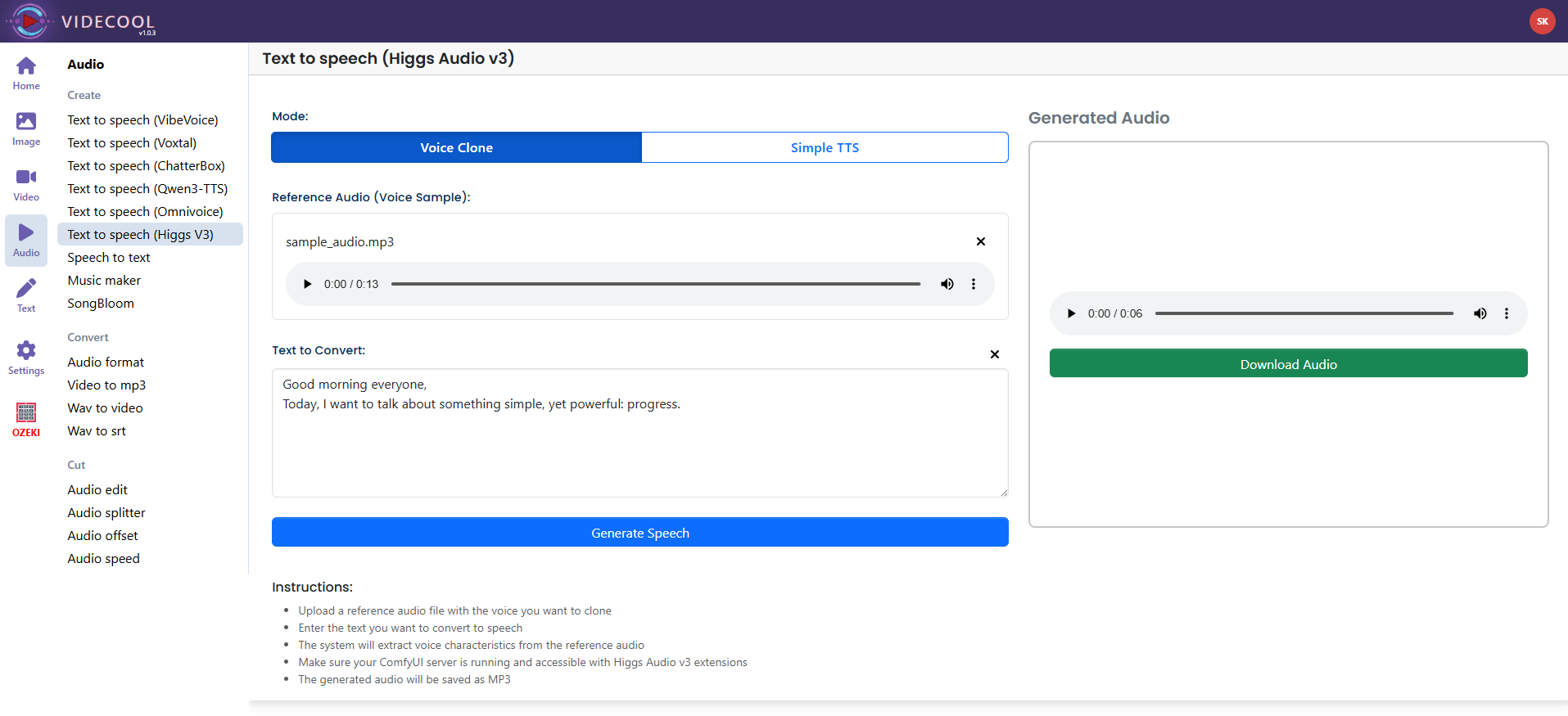
The Higgs Audio v3 Voice Clone workflow in Videcool provides a powerful and flexible way to generate speech from text with an optional reference audio sample. Designed for speed, clarity, and creative control, this workflow is served by ComfyUI and uses the Higgs Audio v3 TTS engine for natural-sounding voice generation.
What can this ComfyUI workflow do?
In short: Text-to-speech synthesis with optional voice guidance from reference audio.
This workflow takes a text prompt and can use a reference audio sample to guide the voice output, then synthesizes new speech in a consistent and natural style. It interprets your text input together with the audio reference and outputs high-fidelity speech that is suitable for narration, demos, and creative audio production. The base model is optimized for fluent speech generation and supports chunked processing for longer passages.
Example usage in Videcool
Download the ComfyUI workflow
Download ComfyUI Workflow file: higgs-audio-v3-voice-clone.json
Image of the ComfyUI workflow
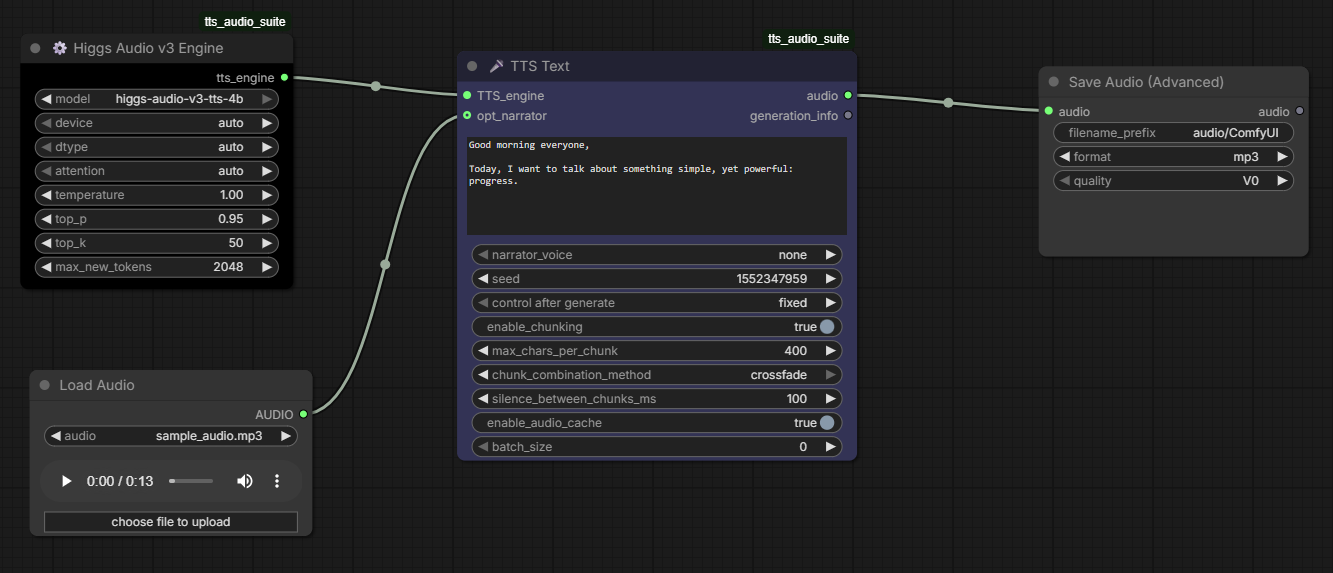
This figure provides a visual overview of the workflow layout inside ComfyUI. The node graph is kept compact and efficient: a text node feeds the Higgs Audio v3 engine, optional narrator/reference audio can be loaded, and the resulting speech is saved as an MP3. The structure makes it easy to understand how the text, model engine, and audio output nodes interact, and it can be extended for more advanced audio production pipelines.
Installation steps
Step 1: Install the Higgs Audio v3 ComfyUI custom node using ComfyUI Manager: Manage custom nodes → search for the Higgs Audio v3 package → install.Step 2: Download the Higgs Audio v3 TTS model files into /ComfyUI/models/ or the model folder required by your custom node setup.
Step 3: Download the workflow file higgs-audio-v3-voice-clone.json into your home directory.
Step 4: Restart ComfyUI so the custom node and model files are recognized.
Step 5: Open the ComfyUI graphical user interface (ComfyUI GUI).
Step 6: Load the higgs-audio-v3-voice-clone.json workflow in the ComfyUI GUI.
Step 7: In the Load Audio node, select a reference audio file if you want to guide the generated voice.
Step 8: Enter the text you want the model to speak in the text input field, then run the workflow to generate speech.
Step 9: Open Videcool in your browser, select the Voice Clone tool, and use the generated audio in your video projects.
Installation video
The workflow requires a text prompt and can optionally use a reference audio sample plus a few basic parameter adjustments to begin generating speech. After loading the JSON file, users can enter the text to be spoken and adjust settings such as temperature, top-p, top-k, chunk size, and silence between chunks if desired. Once executed, the Higgs Audio v3 engine synthesizes speech and saves it as an audio file that can be used across other Videcool tools.
Prerequisites
To run the workflow correctly, install the Higgs Audio v3 custom node and download the required model files. These files ensure the engine can process text efficiently and synthesize natural-sounding speech with optional reference-audio guidance. Proper installation into the following locations is essential before running the workflow: {your ComfyUI directory}/models/ and {your ComfyUI directory}/custom_nodes/.
ComfyUI model folder: Higgs Audio v3 model files
Custom Node: Higgs Audio v3 custom node installed via ComfyUI Manager
How to use this workflow in Videcool
Videcool integrates seamlessly with ComfyUI, allowing users to generate speech directly without managing the underlying node graph. After importing the workflow file, simply enter your text, optionally select a reference audio file, and click generate. The system handles all backend interactions with ComfyUI. This makes voice generation intuitive and accessible, even for users who do not want to learn the ComfyUI internals. The following video shows how this model can be used in Videcool:
ComfyUI nodes used
This workflow uses the following nodes. Each node performs a specific role, such as loading text input, running the Higgs Audio v3 engine, optionally loading reference audio, and saving the output. Together they create a reliable and modular pipeline that can be easily extended or customized.
Base AI model
This workflow is built on Higgs Audio v3, a modern text-to-speech engine designed for natural speech generation and flexible voice control. Higgs Audio v3 provides clear pronunciation, natural prosody, and configurable synthesis behavior, making it suitable for both entertainment and professional use cases. More details, model weights, and documentation can be found in the Higgs Audio v3 project resources.
DeveloperHiggs Audio v3 project authors and maintainers
Voice quality and parameters
Voice quality depends on the input text and, when used, the quality of the reference audio sample. For best results, use clean text and clear reference audio with minimal background noise. The workflow supports chunking for longer passages and lets users adjust parameters such as temperature, top-p, top-k, chunk size, silence between chunks, and audio caching to fine-tune the output.
Conclusion
The Higgs Audio v3 Voice Clone ComfyUI workflow is a robust, powerful, and user-friendly solution for generating speech in Videcool. With its combination of a modern TTS engine, a modular ComfyUI pipeline, and seamless platform integration, it enables beginners and professionals alike to produce creative and professional-grade voice content with ease.