
AI Text to Image Generation using Flux 2 Dev ComfyUI workflow for Videcool
The Flux 2 Dev Text-to-Image workflow in Videcool provides a powerful and flexible way to generate high-quality images directly from text prompts. Designed for speed, clarity, and creative control, this workflow is served by ComfyUI and uses the Flux 2 Dev AI text-to-image model, the latest generation of Black Forest Labs' diffusion technology.
What can this ComfyUI workflow do?
In short: Advanced text-to-image generation with improved quality.
This workflow converts written text prompts into fully generated images using next-generation diffusion technology. It interprets your prompt with enhanced understanding, and outputs detailed, coherent visuals with exceptional fidelity and artistic control. The base AI model it uses is optimized for 1024×1024 native resolution and supports flexible aspect ratios while delivering superior image quality compared to earlier generations.
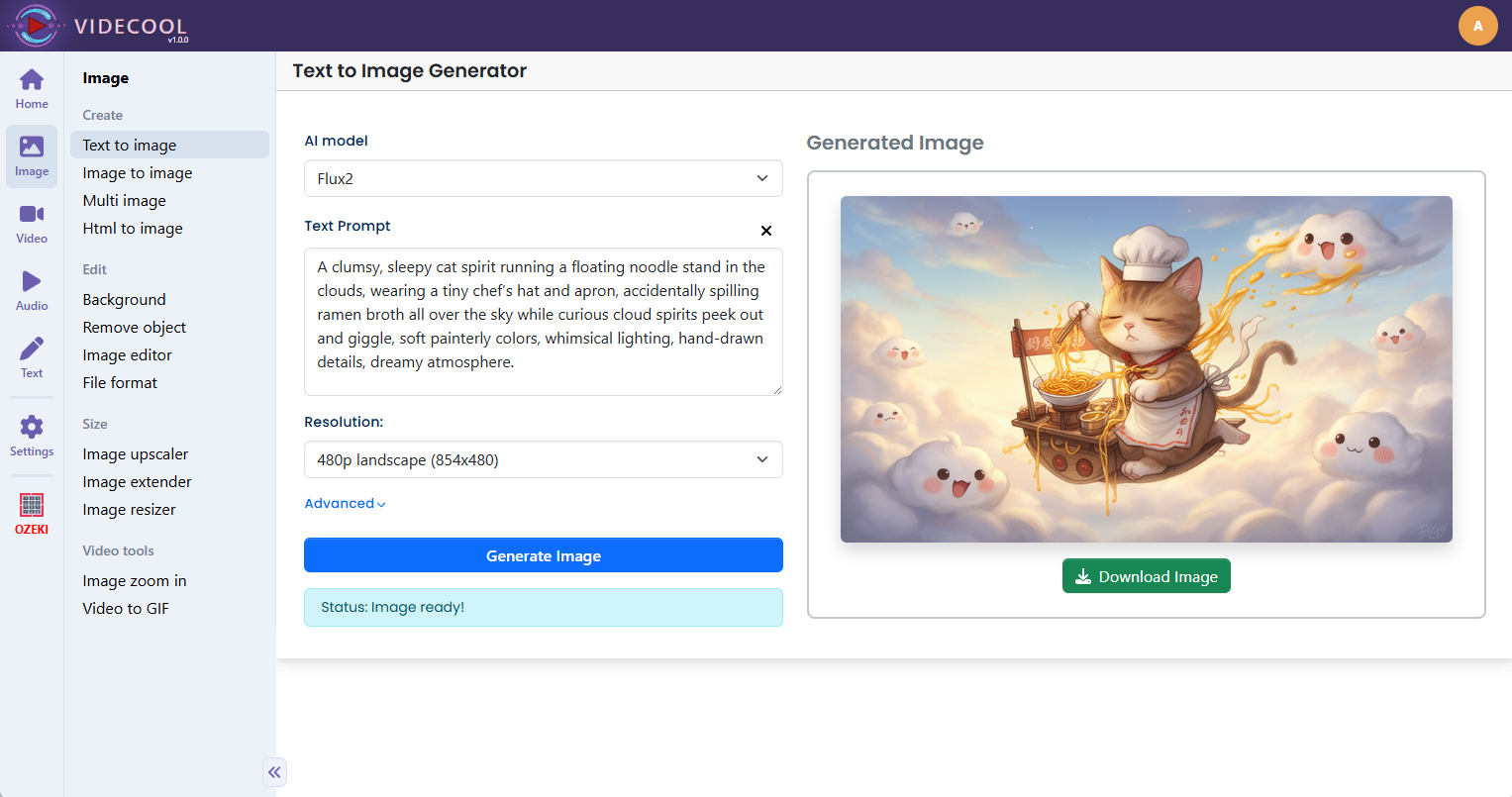
Example usage in Videcool
Download the ComfyUI workflow
Download ComfyUI Workflow file: text-to-image_flux2-dev.json
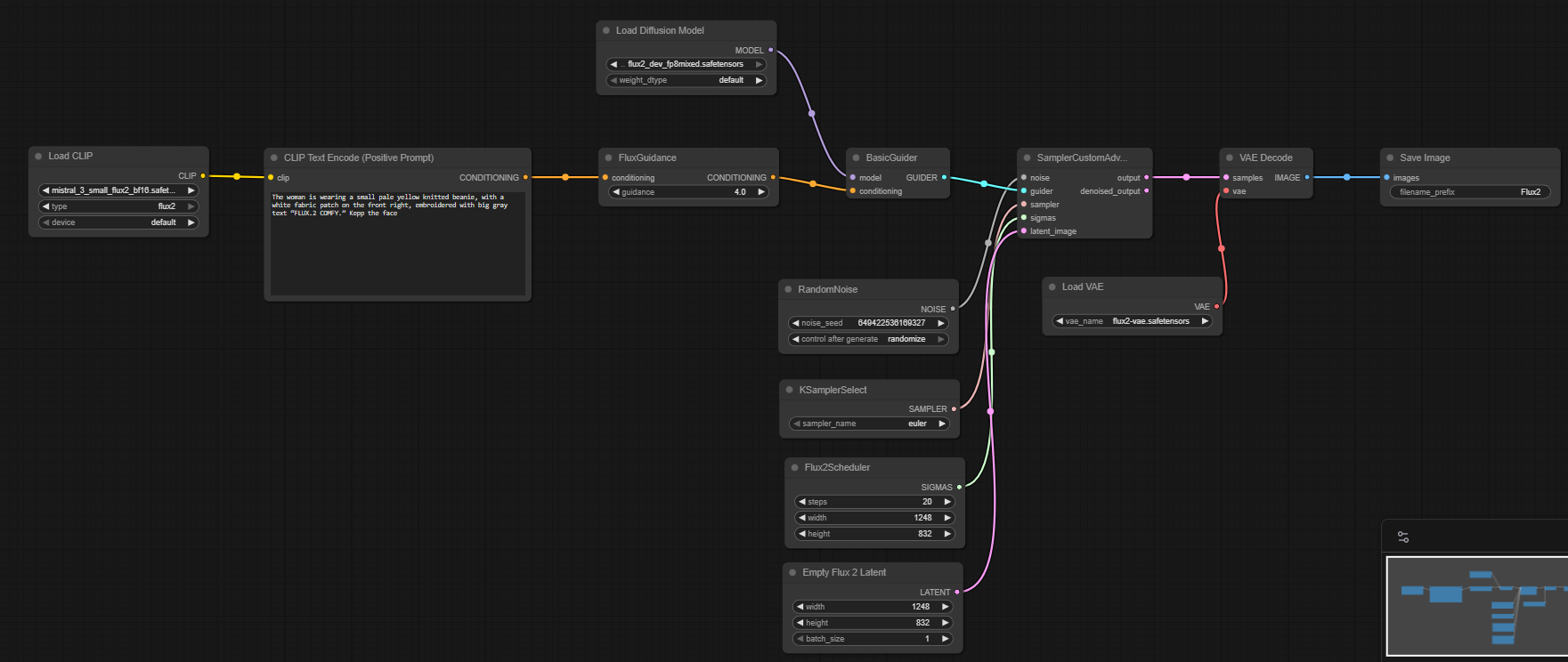
Image of the ComfyUI workflow
This figure provides a visual overview of the workflow layout inside ComfyUI. Each node is placed in logical order to establish a clean and efficient generation pipeline. The structure makes it easy to understand how the text encoders, model loader, sampler, and VAE interact with Flux 2 Dev's enhanced architecture. Users can modify or expand parts of the workflow to create custom variations or integrate Flux 2 Dev into larger creative pipelines.
Installation steps
Step 1: Download flux2-dev.safetensors into /ComfyUI/models/diffusion_models/flux2-dev.safetensors.Step 2: Download clip_l.safetensors into /ComfyUI/models/text_encoders/clip_l.safetensors.
Step 3: Download t5xxl_fp8_e4m3fn.safetensors into /ComfyUI/models/text_encoders/t5xxl_fp8_e4m3fn.safetensors.
Step 4: Download ae.safetensors into /ComfyUI/models/vae/ae.safetensors.
Step 5: Download the text-to-image_flux2-dev.json workflow file into your home directory.
Step 6: Restart ComfyUI so the new model files are detected and loaded.
Step 7: Open the ComfyUI graphical user interface (ComfyUI GUI).
Step 8: Load the text-to-image_flux2-dev.json in the ComfyUI GUI.
Step 9: Enter a text prompt into the "Clip Text Encode (Positive Prompt)" node and hit run to generate an image.
Step 10: Open Videcool in your browser, select text-to-image generation, and choose Flux 2 Dev to generate an image.
Installation video
The workflow requires only a text prompt and a few basic parameter adjustments to begin generating images. After loading the JSON file, users can select guidance scale, sampling steps, resolution, and prompt text. Once executed, the sampler processes the latent representation using Flux 2 Dev's improved architecture and produces a final decoded image. The result can be saved and reused across other Videcool tools.
Prerequisites
To run the workflow correctly, download the following model files and place them into your ComfyUI directory. These files ensure the model can interpret language, convert prompts into latent embeddings, and decode the final images. Proper installation into the following location is essential before running the workflow: {your ComfyUI directory}/models.
ComfyUI\models\diffusion_models\flux2-dev.safetensors
https://huggingface.co/black-forest-labs/FLUX.1-dev/resolve/main/flux1-dev.safetensors
ComfyUI\models\text_encoders\clip_l.safetensors
https://huggingface.co/comfyanonymous/flux_text_encoders/resolve/main/clip_l.safetensors
ComfyUI\models\text_encoders\t5xxl_fp8_e4m3fn.safetensors
https://huggingface.co/comfyanonymous/flux_text_encoders/resolve/main/t5xxl_fp8_e4m3fn.safetensors
ComfyUI\models\vae\ae.safetensors
https://huggingface.co/black-forest-labs/FLUX.1-schnell/resolve/main/ae.safetensors
How to use this workflow in Videcool
Videcool integrates seamlessly with ComfyUI, allowing users to load workflows directly and generate images without external complexity. After importing the workflow file, simply enter your prompt and click generate. The system handles all backend interactions with ComfyUI while leveraging Flux 2 Dev's advanced capabilities. This makes image creation intuitive and accessible, even for users who are not keen on learning how ComfyUI works. The following video shows how this model can be used in Videcool.
ComfyUI nodes used
This workflow uses the following nodes. Each node performs a specific role, such as loading models, encoding text, sampling, and finally decoding the output. Together they create a reliable and modular pipeline that can be easily extended or customized for advanced use cases.
- CLIP Text Encode
- VAE Decode
- Save Image
- Load VAE
- Load Diffusion Model
- SamplerCustomAdvanced
- KSamplerSelect
- BasicGuider
- RandomNoise
- FluxGuidance
- Load CLIP
- Empty Flux 2 Latent
- Flux2Scheduler
Base AI model
This workflow is built on Black Forest Labs' Flux 2 Dev model, the latest and most advanced iteration of their diffusion-based text-to-image generator. Flux 2 Dev provides exceptional clarity, coherence, and creative flexibility, making it ideal for both artistic and commercial use cases. The model benefits from enhanced training data and improved architecture, offering superior results across a wide variety of styles and prompts. More details, model weights, and documentation can be found on the following links:
Hugging Face repository:https://huggingface.co/black-forest-labs/FLUX.1-dev
Official GitHub repository:https://github.com/black-forest-labs/flux
Developer:
Black Forest Labs
https://bfl.ai
https://docs.bfl.ai/quick_start/introduction
Image resolution
AI text-to-image models perform best when they generate images in their native resolution, which was used during training. For the Flux 2 Dev model, information about optimal resolution can be found below:
Native image size: 1024x1024pxThe model supports other resolutions. Best resolutions are multiples of 32px.
Flux 2 Dev also supports extended aspect ratios with improved coherence across wider or taller formats.
Conclusion
The Flux 2 Dev Text-to-Image workflow is a robust, powerful, and user-friendly solution for generating AI-driven visuals in Videcool. With its combination of next-generation models, a modular ComfyUI pipeline, and seamless platform integration, it enables beginners and professionals alike to produce creative and commercial-grade images with superior quality and artistic control. By understanding the workflow components and advantages, users can unlock the full potential of advanced AI-assisted image generation with Flux 2 Dev in Videcool.