
AI Image to image Flux 2 Klein ComfyUI workflow for Videcool
The Flux 2 Klein image edit workflow in Videcool offers a fast and practical way to modify an existing image with prompt-guided editing by using a ComfyUI pipeline built for image-to-image generation. It loads the Flux 2 Klein model and the required supporting components, then transforms an input image into a newly edited version through reference latent preparation, prompt conditioning, advanced sampling, and image decoding.
What can this ComfyUI workflow do?
In short: prompt-based image editing with Flux 2 Klein.
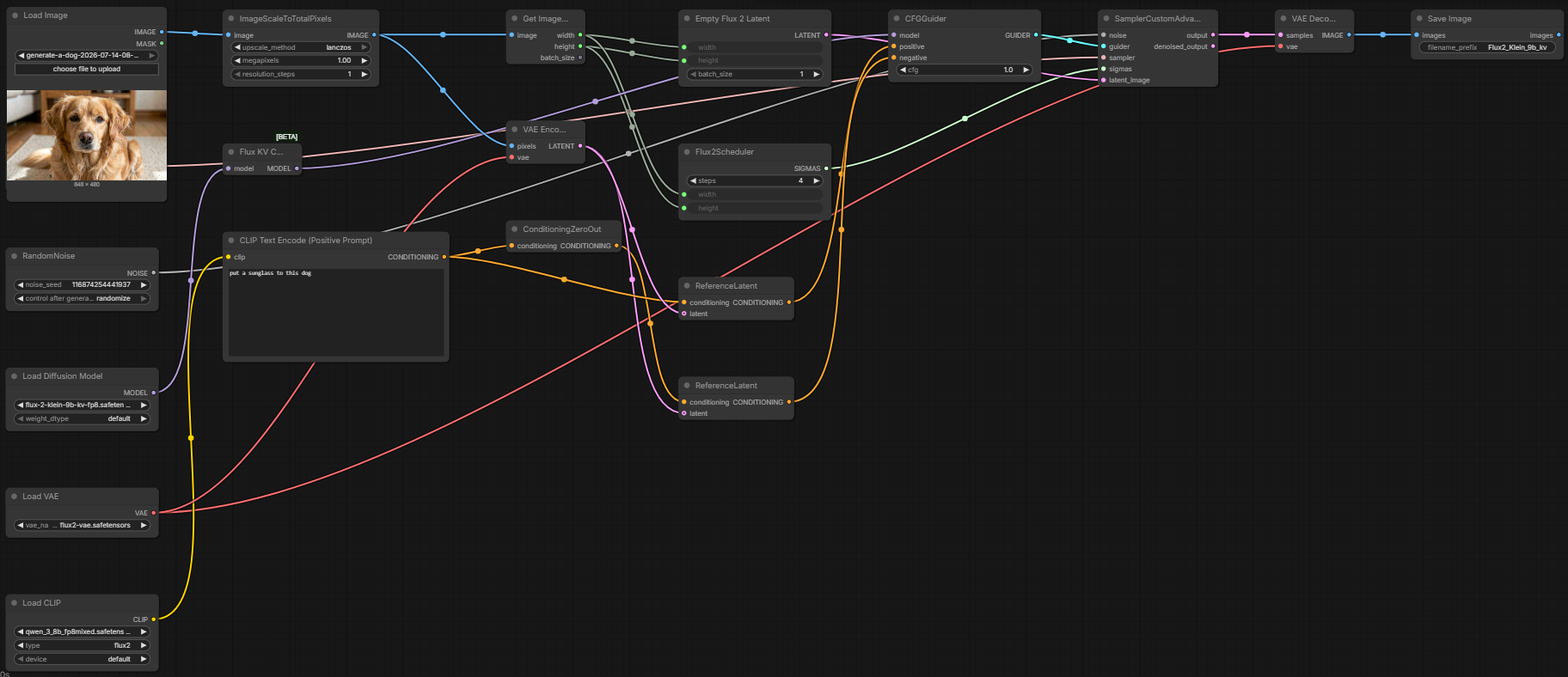
This workflow accepts an existing input image, scales it to the target working resolution, extracts its size, prepares a matching latent space, applies text guidance that describes the intended modification, uses reference latent conditioning to preserve the input image structure, performs the edit through advanced sampling, decodes the result back into image space, and saves the final generated output for use in Videcool.
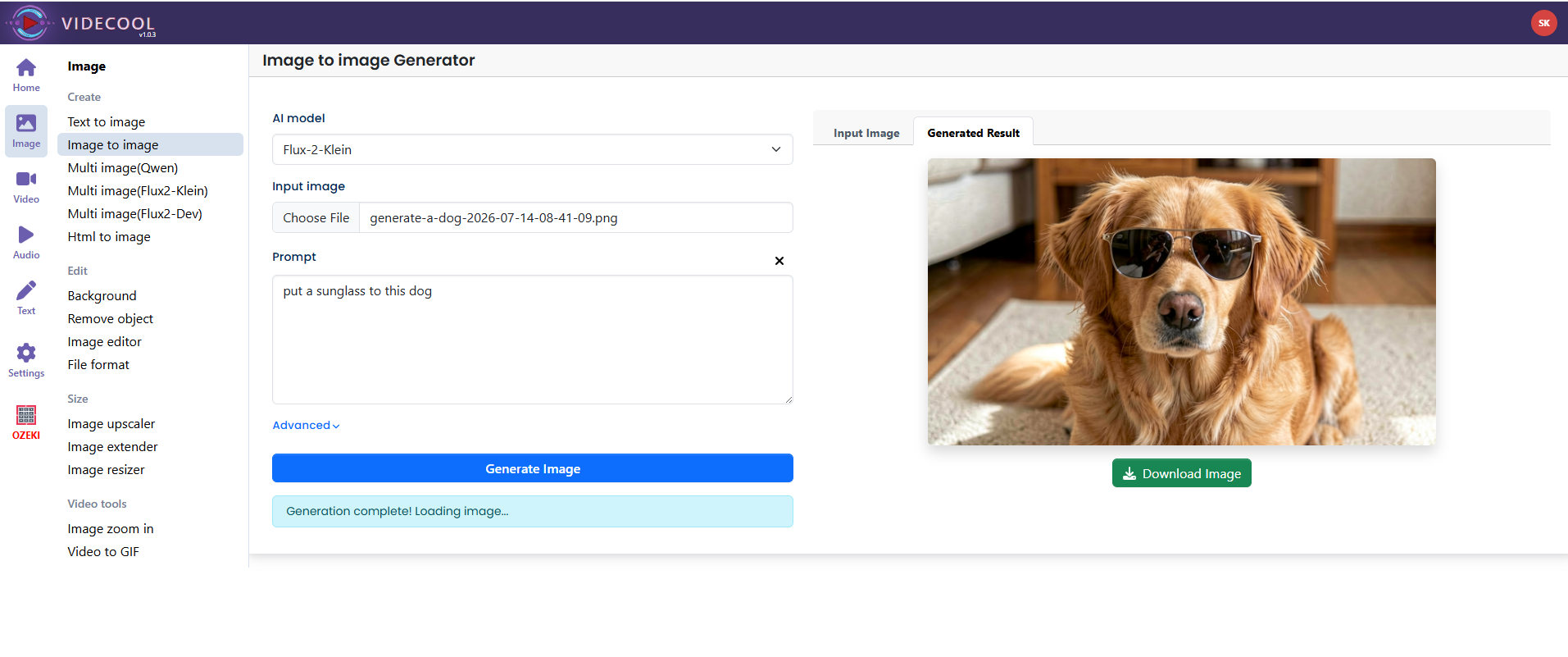
Example usage in Videcool
Download the ComfyUI workflow
Download ComfyUI Workflow file: flux_2_klein_image_to_image-api.json
Image of the ComfyUI workflow
Installation steps
Step 1: Download flux-2-klein-9b-kv-fp8.safetensors into /ComfyUI/models/diffusion_models/flux-2-klein-9b-kv-fp8.safetensors Step 2: Download flux2-vae.safetensors into /ComfyUI/models/vae/flux2-vae.safetensors Step 3: Download qwen_3_8b_fp8mixed.safetensors into /ComfyUI/models/text_encoders/qwen_3_8b_fp8mixed.safetensors Step 4: Download the flux_2_klein_image_to_image-api.json workflow file into your home directory. Step 5: Restart ComfyUI so the newly added model files are detected. Step 6: Open the ComfyUI graphical user interface. Step 7: Load the flux_2_klein_image_to_image-api.json workflow file in the ComfyUI GUI. Step 8: Load the source image you want to edit into the image input node. Step 9: Enter a prompt that clearly describes the modification you want to make. Step 10: Optionally adjust seed, steps, working megapixels, sampler, or CFG settings depending on the quality and speed you need. Step 11: Run the workflow to generate and save the edited image.Prerequisites
To run the workflow correctly, place the required Flux 2 Klein model file, text encoder file, and VAE file into the proper ComfyUI model directories before loading the workflow. The exact filenames and folders should match the references used by the workflow JSON.
How to use this workflow in Videcool
Videcool can use this workflow to edit an existing image directly from a text instruction without requiring manual graph construction in ComfyUI. After importing the workflow, choose the source image, describe the intended modification, and execute the graph to produce a final edited image that follows both the prompt and the visual structure of the original image.
ComfyUI nodes used
- Load Image
- ImageScaleToTotalPixels
- Get Image Size
- Empty Flux 2 Latent
- Load Diffusion Model
- Flux KV Cache
- Load VAE
- Load CLIP
- CLIP Text Encode (Positive Prompt)
- ConditioningZeroOut
- VAE Encode
- ReferenceLatent (negative)
- ReferenceLatent (positive)
- Flux2Scheduler
- RandomNoise
- KSamplerSelect
- CFGGuider
- SamplerCustomAdvanced
- VAE Decode
- Save Image
Base AI model
This workflow is built on Flux 2 Klein, a modern image generation and editing model designed for fast, guided image transformation. It is suitable for targeted edits, style changes, visual refinement, and general creative iteration inside Videcool.
The workflow combines the Flux 2 Klein model with the required prompt encoder, VAE, reference latent conditioning, and advanced sampler components so that text instructions, source image structure, and final image reconstruction all work together in one practical local workflow. This makes it a useful starting point for creators who want controlled image edits as part of a local AI-assisted video production pipeline.
Image resolution
The workflow automatically scales the source image with the ImageScaleToTotalPixels node and then derives the working width and height from the prepared image. This makes it easy to keep the workflow aligned with the input image while still controlling the effective working resolution through the megapixel setting.
Conclusion
The Flux 2 Klein image edit ComfyUI workflow gives Videcool users a simple and effective way to modify images with natural language instructions. By combining source image input, prompt conditioning, reference latent guidance, advanced sampling, and final decoding in one clear graph, it provides a solid workflow for both quick edits and more advanced experimentation in local AI image production.